Development / ROBLOX
Roblox ProximityPrompt: a practice station for E, gamepad and touch
Build a separate anchored lamp with an Attachment and ProximityPrompt. Clear labels, visibility rules, explicit server checks and an unfilled device test plan.
 Open full-size image ↗
One station and one understandable action #
Imagine a separate prototype: a player approaches a small lamp and switches its light. Instead of searching for an invisible button, they see the object, action and an appropriate input hint. We use a standard ProximityPrompt and an ordinary server Script. No reward, currency or purchase is involved.
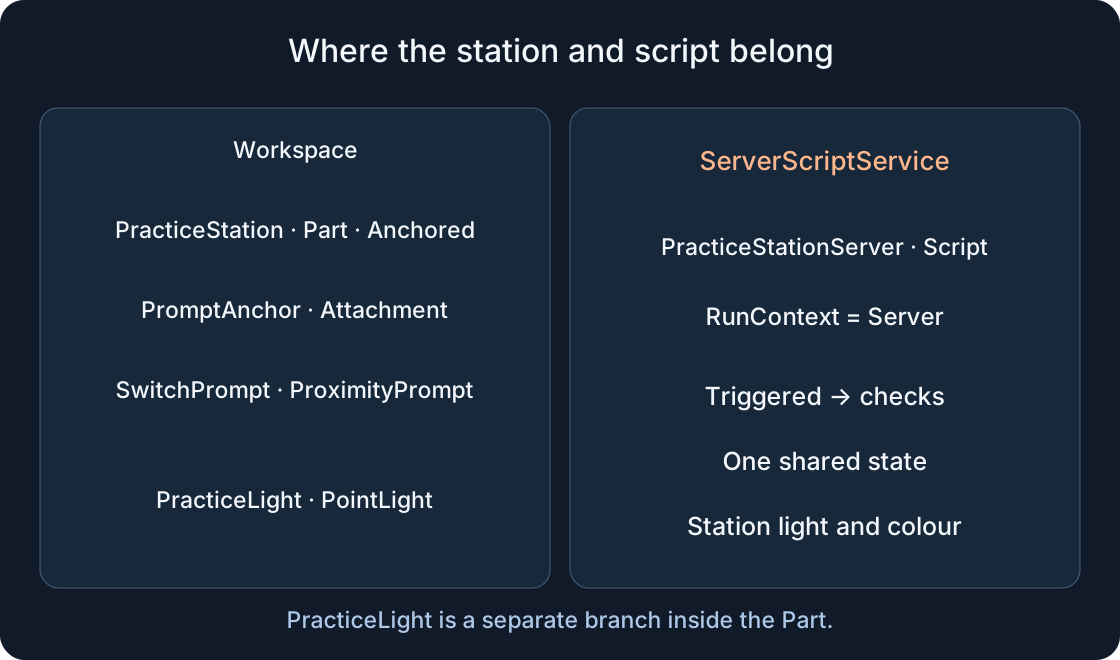
This is an independent exercise, not a change to Paws and Finds, Cloud Nests or the author’s other games. The original code below targets the specified hierarchy. Static checking does not mean it ran in Studio’s engine. Save a separate practice project, match the names in the diagram and define the expected result first: shared station light and colour change, not a personal inventory.
1. Build the exact Explorer hierarchy #
In Workspace, create a Part named PracticeStation. Inside it, add an Attachment named PromptAnchor and a PointLight named PracticeLight. Inside PromptAnchor, add a ProximityPrompt named SwitchPrompt. These are two branches: light under the part, prompt under the nested attachment. Do not place the prompt beside the attachment by habit.
Create an ordinary Script named PracticeStationServer in ServerScriptService, enable it and set RunContext to Server. A LocalScript is not a substitute. Code names must match exactly. WaitForChild waits for that name; it does not create missing objects. When execution waits, compare Explorer with the diagram before changing distance logic. A SwitchPrompt in a different branch is a hierarchy problem, not a range problem.
2. Anchor the lamp and position its prompt #
For this exercise set PracticeStation to Anchored=true, Size=(4,2,4) and Position=(0,3,0). These are our teaching values, not engine requirements. Put a SpawnLocation nearby, outside the part, so the character can approach. Set PromptAnchor.Position=(0,2,0), a local offset relative to the station rather than an independent world coordinate.
For PracticeLight, Brightness=2 and Range=12 are reasonable starting values for this exercise. The script starts with the light disabled. Do not add a complex model, moving joints or an existing reward system for this check. The anchored part gives a stable landmark; the server measures to anchor.WorldPosition. Moving the attachment changes the interaction point, so repeat the boundary check after repositioning it.
3. Label the object and action in your language #
ObjectText answers “what is this?”, and ActionText answers “what will I do?”. For the English scene we chose “Practice lamp” and “Switch light”. The code contains pairs for ru/en/de/es/zh/ar. Choose this practice scene’s language in UI_LANGUAGE, for example "en". Explorer names such as PracticeStation and SwitchPrompt stay unchanged.
This configures one language for the whole test server, not each player’s language automatically. AutoLocalize=false leaves the selected strings without automatic replacement. A production multilingual experience needs a separate localisation design and long-string checks. Preserve the action’s meaning rather than writing E into ActionText: the standard prompt provides the input hint according to the current control method. The dictionary is an exercise configuration, not a finished localisation system.
4. Separate keyboard, gamepad and screen input #
The example uses KeyboardKeyCode=E, GamepadKeyCode=ButtonX and ClickablePrompt=true. Do not promise every player an E label: the active input type affects the standard presentation. A phone or tablet can interact through the screen; even ClickablePrompt=false does not prohibit mobile tapping. That setting is not an off switch for touch access.
HoldDuration=0.3 requests holding in the ordinary interface; 0 would trigger immediately. We selected 0.3 for the exercise, not as a measured optimum. Try a short hold and a complete hold, then release. Do not treat the beginning of a hold as permission to produce the result. The completed interaction event used by our server example is Triggered, not a hold-began event.
5. Prompt visibility and action permission are different #
MaxActivationDistance=10 controls the prompt’s appearance range. RequiresLineOfSight=true considers a clear path from the camera to the object. That is not the same measurement as HumanoidRootPart to Attachment. A wall or camera position can hide the interface even beside the station. Test one cause at a time: distance, then view.
A hidden prompt does not replace a server access rule. Interface properties can be changed on the client. This example explicitly checks a living character, distance and the intended station but does not implement a server prohibition on interacting through a wall. If an obstacle matters to your mechanic, design a separate obstacle check under its rules. Do not present RequiresLineOfSight as finished protection for a door or purchase.
| Setting | Example value | What to check |
|---|---|---|
| ActionText / ObjectText | Switch light / Practice lamp | Named action and object; UI_LANGUAGE="en" |
| KeyboardKeyCode / GamepadKeyCode | E / ButtonX | Hint matches current input |
| ClickablePrompt | true | Click and touch; false does not prohibit mobile tapping |
| HoldDuration | 0.3 seconds | Short/full hold and cancellation |
| MaxActivationDistance | 10 | Appearance boundary and separate server distance |
| RequiresLineOfSight | true | Camera view, not server permission |
| COOLDOWN | 0.5 seconds, shared | Too-fast retry does not toggle the lamp |
6. Connect one server handler #
Place the original example below in PracticeStationServer. Its opening finds four objects, checks their classes, selects labels and sets prompt properties. It then initialises the light to off. Do not run a second copy alongside it: two handlers can toggle twice and make the action appear ineffective.
Triggered supplies the player who completed the interaction. The server finds their character and checks conditions before changing the lamp. There is no wait between the interval check and the state change. We add no RemoteEvent, price request or persistence; the action is just a shared practice lamp toggle. If object class and execution location are still confusing, read our Script, LocalScript and ModuleScript location guide before expanding this example.
local Players = game:GetService("Players")
local station = workspace:WaitForChild("PracticeStation")
assert(station:IsA("BasePart") and station.Anchored, "Anchor PracticeStation")
local anchor = station:WaitForChild("PromptAnchor")
assert(anchor:IsA("Attachment"), "PromptAnchor must be an Attachment")
local prompt = anchor:WaitForChild("SwitchPrompt")
assert(prompt:IsA("ProximityPrompt"), "SwitchPrompt must be a ProximityPrompt")
local light = station:WaitForChild("PracticeLight")
assert(light:IsA("PointLight"), "PracticeLight must be a PointLight")

local UI_LANGUAGE = "en" -- Choose one language for this whole test server.
local labels = {
    ru = {action = "Переключить свет", object = "Учебная лампа"},
    en = {action = "Switch light", object = "Practice lamp"},
    de = {action = "Licht umschalten", object = "Übungslampe"},
    es = {action = "Cambiar la luz", object = "Lámpara de práctica"},
    zh = {action = "切换灯光", object = "练习灯"},
    ar = {action = "تبديل الضوء", object = "مصباح التدريب"},
}
local words = assert(labels[UI_LANGUAGE], "Unknown UI_LANGUAGE")
local MAX_DISTANCE = 10
local COOLDOWN = 0.5
prompt.Style = Enum.ProximityPromptStyle.Default
prompt.AutoLocalize = false
prompt.ActionText = words.action
prompt.ObjectText = words.object
prompt.KeyboardKeyCode = Enum.KeyCode.E
prompt.GamepadKeyCode = Enum.KeyCode.ButtonX
prompt.ClickablePrompt = true
prompt.HoldDuration = 0.3
prompt.MaxActivationDistance = MAX_DISTANCE
prompt.RequiresLineOfSight = true
prompt.Enabled = true

local isOn = false
local lastToggle = -COOLDOWN
light.Enabled = false
station.Color = Color3.fromRGB(70, 80, 95)
station:SetAttribute("PracticeLightOn", false)

prompt.Triggered:Connect(function(player)
    if player.Parent ~= Players or not prompt.Enabled then return end
    if not station:IsDescendantOf(workspace) or not station.Anchored then return end
    local character = player.Character
    if not character or not character:IsDescendantOf(workspace) then return end
    local humanoid = character:FindFirstChildOfClass("Humanoid")
    local root = character:FindFirstChild("HumanoidRootPart")
    if not humanoid or humanoid.Health <= 0 then return end
    if not root or not root:IsA("BasePart") then return end
    local distance = (root.Position - anchor.WorldPosition).Magnitude
    if distance ~= distance or distance > MAX_DISTANCE then return end
    local now = os.clock()
    if now - lastToggle < COOLDOWN then return end
    lastToggle = now
    isOn = not isOn
    light.Enabled = isOn
    station.Color = isOn and Color3.fromRGB(255, 190, 80) or Color3.fromRGB(70, 80, 95)
    station:SetAttribute("PracticeLightOn", isOn)
end)
7. Read the checks before the toggle #
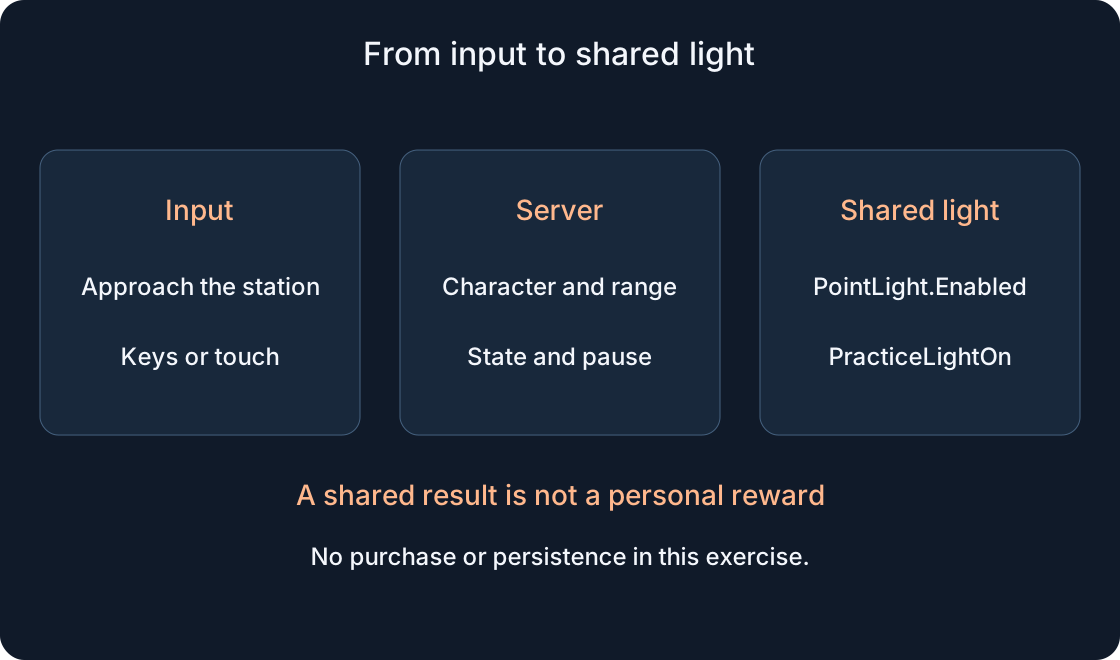
The handler requires a player in Players, an enabled prompt and an anchored station in Workspace. It then requires a character in the world, a Humanoid with Health>0 and a BasePart HumanoidRootPart. The server computes distance to PromptAnchor.WorldPosition and compares it with the same ten-unit teaching limit. Unknown or unsuitable states leave the light unchanged.
The documentation specifically notes that Triggered has its own server distance check, while other prompt events do not. Our explicit check still expresses the prototype’s intended rule. HoldDuration does not prove honest client holding. This is not complete protection for every gameplay system: extra permissions, obstacles and resources depend on the action, which has none of those reward requirements here.
 Open full-size image ↗
8. Understand shared state and the short pause #
isOn is one station state on this server. An accepted action updates PointLight.Enabled, the Part colour and the PracticeLightOn attribute. Another client with this station available should observe the same shared state. This is not a separate light setting for each player. A different server or new run begins with the light off because the example does not persist it.
COOLDOWN=0.5 is a shared station pause selected for demonstration. A next request arriving too quickly does not toggle it. This differs from hold duration and is not a universal load-limiting promise. In a two-client check, leave the pause between actions: A turns it on, B observes, B switches it, A observes. B’s accepted action is not evidence that A’s state broke.
9. When ProximityPromptService is useful #
For one station, prompt.Triggered is sufficient. ProximityPromptService can observe different prompts centrally; PromptTriggered receives the prompt first and then the player. When expanding, decide which stations are allowed instead of performing one operation for every prompt found in the world.
Do not attach instance and global handlers to the same lamp without a reason: one action may be handled twice. Shown and hidden events are relevant to client presentation, especially a custom UI. Style=Default already supplies the standard interface in this lesson, so a separate drawing LocalScript is unnecessary. Study custom styling after a working hierarchy and understandable server operation. Central organisation is useful, but it does not remove each action’s validation needs.
10. Identify one cause when nothing appears #
When the prompt is missing, check the hierarchy, Enabled, range, Style and camera position. In a crowded scene, prompts can compete under Exclusivity rules; our first check deliberately uses a single station. Do not change every property at once. Approach with a clear view, change one setting and record what happens.
If the prompt appears but the light does not change, check server Output, Script class and RunContext, exact names and the accepted pause. If colour changes without visible illumination, inspect PointLight, Range, Brightness and the scene separately. Rejected branches return silently without printing a reason; compare character and station conditions with the code. The server attribute helps distinguish logic state from an impression of brightness. The scenario table leaves result cells empty until you perform a real check.
| Scenario | Expected in this example | Device / version / result |
|---|---|---|
| Living nearby character and complete input | Light, colour and attribute change once | — |
| Short hold then release | No completed action expected in normal UI | — |
| Distant/dead character or disabled prompt | Handler leaves the state unchanged | — |
| Retry before the pause expires | No second toggle | — |
| Two clients, actions after pause | Both observe the shared station | — |
| Phone/gamepad and selected language | Correct input hint and readable labels | — |
11. Separate a checked article from an engine test #
We checked the article structure and API usage against official references. The example passed the Luau compiler and 13 isolated handler checks using mock objects. The code has not run in Roblox Studio or on a real phone or gamepad. In a separate practice project, first run with a player, then test distance, interrupted holding, disabling the prompt and fast repeats.
Use Test/F5 with a character; Run/F8 without a character does not replace this interaction test. For two clients choose Server & Clients and finish with End Session. Next check required devices, retaining the project version and observations. Emulation helps inspect layout but does not replace real input and performance tests. Adapting the idea to a pet grant or purchase would mean a different system with permissions, consistent granting and separate tests. First obtain an understandable result from one simple practice lamp. That small, specific example is easier to explain and hand to another developer.
Original sources
Roblox Creator Hub — Proximity promptsProximityPrompt
ProximityPromptService
Securing the client-server boundary
Studio testing modes