Development / ROBLOX
Your first Luau script: understand, run and check the result
Create a Script, distinguish numbers from strings, try three exercises and diagnose Output messages. Includes code, diagrams and expected results.
What you will achieve #
We will create a practice script that reports a route name and a planned checkpoint count. It does not place checkpoints or save a player’s progress. The variable is a small example for learning how to store a value and check its output. Connecting one line of code to an observable result is the aim.
By the end, you should find the script in Explorer, explain every line, change a number and verify the result. Use Studio and a separate practice project. Save before experimenting. A large existing game can produce unrelated messages that make a beginner’s first checks confusing.
1. Create a Script in ServerScriptService #
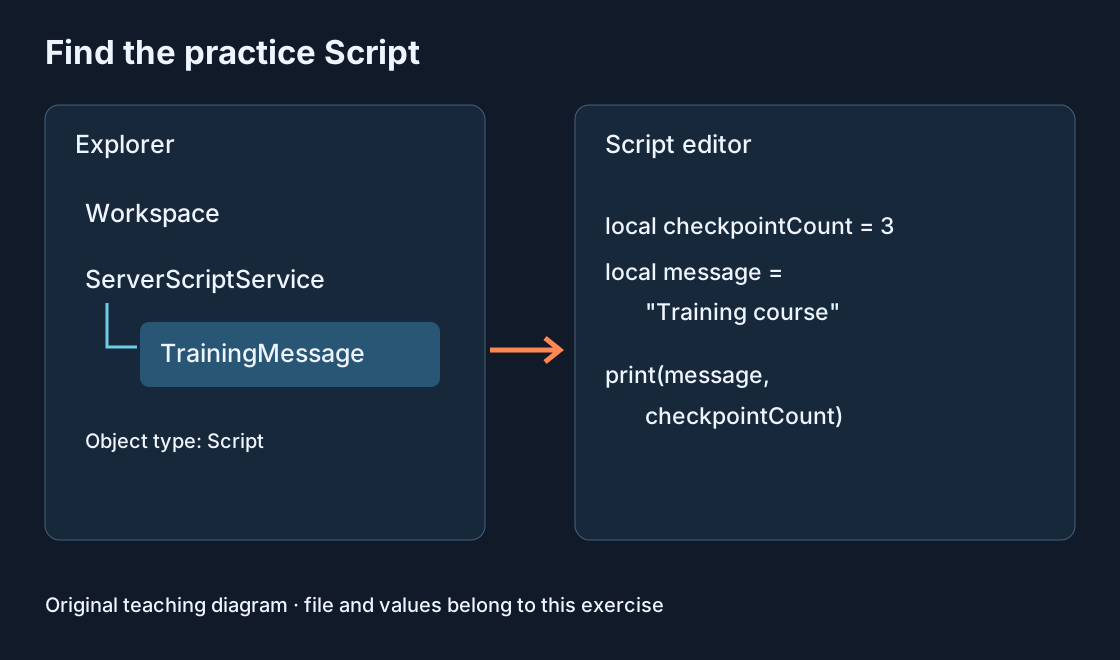
Open Explorer, locate ServerScriptService and use its add-object control to create a regular Script. Rename it TrainingMessage. This is our exercise name, chosen to explain its purpose. Confirm that you created Script rather than LocalScript or ModuleScript.
Open it and replace the starter contents of this practice file with the example below. Do not remove unfamiliar scripts from an existing game. If Explorer or the editor is hidden, reopen the relevant panel first. The diagram shows where the exercise file belongs.
2. Enter the code and read each line #
The first line declares the local variable checkpointCount with the number 3. The second declares message with the string Training course. The third passes both values to print. Numbers appear without quotation marks; text appears inside them. The comma separates the arguments.
Copy all three lines, including brackets and quotes. Variable spelling must match when declaring and using it: checkpointCount and checkpointcount differ. The number is a practice value. It does not automatically add three platforms or activate real checkpoints in the scene.
local checkpointCount = 3
local message = "Training course"
print(message, checkpointCount)
3. Start a test and find the message #
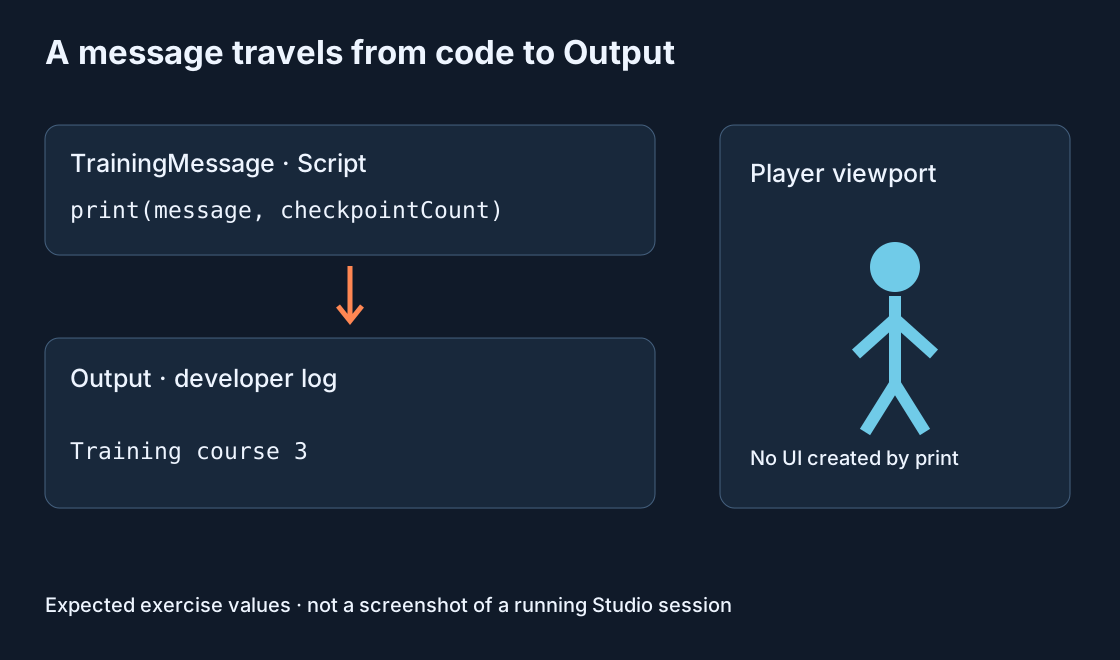
Open Output from Window or the corresponding Studio tool. Start a playtest and find Training course together with 3. Timestamps, source information and context labels may appear alongside the message. Compare the values rather than expecting every display detail to match.
print writes to the developer log. It does not create text above a platform or on the player’s screen. The diagram below follows the message from code to Output. Stop the test after checking, so your next edit is made in the original practice script.
4. Change one value #
Replace 3 with 5. Before starting again, predict the result: the name should stay the same and the number should become 5. Run the test and compare the message with your prediction. This turns running code into a deliberate check.
If you still see 3, confirm that you edited TrainingMessage, stopped the earlier test and are reading a new message. Old log entries can remain visible. Creating another identical script to repair the first can produce duplicate output and make the problem harder to understand.
5. Add a small calculation #
Stop the test and replace the file contents with the second example. Three checkpoints are planned and one is complete, so two remain. Subtraction uses numeric values; print reports Remaining and 2. The values are entered manually and do not yet respond to the character.
Change completedCheckpoints to 2, predict 1 and verify it. Try 3 and expect 0. Entering 4 produces −1. This shows why valid syntax alone does not enforce sensible game rules: a real progression system would need to handle invalid state.
local plannedCheckpoints = 3
local completedCheckpoints = 1
local remainingCheckpoints = plannedCheckpoints - completedCheckpoints
print("Remaining", remainingCheckpoints)
6. Make one controlled error #
In a separate saved practice copy, temporarily remove the closing quote from Training course in the first example. Try running it and read the error. Restore the quote and check that the correct message returns. Since you changed one character, you know where to investigate first.
Keep this experiment in the practice project. The exact error wording can vary with the editor and location of the mistake. Find the named file and relevant code, compare with the working version and restore the full line. Changing several unrelated places at once makes diagnosis less useful.
7. When Output appears empty #
Check these items in order: a test is running; a regular Script is in ServerScriptService; it is enabled; no error prevents execution; Output filters allow the message. Check the context filter for this server exercise too. A text search in the log can hide a correctly printed message.
If messages repeat, inspect their source. You may have two copies of TrainingMessage or entries from several runs. Locate the copies in Explorer before deleting anything. When asking for help, keep the exact error text and identify the script that produced it.
8. Check your understanding without copying #
Make a new version with courseName holding your practice route’s name and stageCount holding 4. Print both values together. Use the new variables consistently. Then change only the name and verify that the number stays the same.
Explain which value is text, which is numeric and which line writes the message. If this is difficult, return to the first example and change one value at a time. Understanding three lines is more useful than pasting a large system whose behaviour you cannot yet check.
Where to go next #
Save a working version with a recognisable name. A useful next exercise is a condition that warns when completed checkpoints exceed the planned total. Real checkpoint behaviour later requires objects, events and player-specific state. This lesson’s variable is not a finished progression system.
Keep using Output after small changes. Predict the result, run the code, compare the values and investigate one cause of any difference. That habit remains useful as your mechanics become more complex.
Original sources
Roblox Creator HubRoblox Creator Hub: Output