For players / ROBLOX
Roblox error 279 or 277: troubleshoot joining and disconnections
Check service status, compare games and networks, test the client and prepare a useful support report on PC or mobile.
 Open full-size image ↗
Record the exact message #
The 279/ID 17 message describes a failed join; 277 describes a lost connection and reconnect request. The number points to a support guide, not a single proven cause. It cannot identify a broken PC or router by itself.
Our workflow collects observations. Record the full message, experience, device and time, including whether the problem occurred before joining or during play. Avoid changing several settings before comparing results.
1. Check current Roblox status #
Open status.roblox.com and read the current components, incidents and timestamps. A green screenshot from yesterday does not describe today. Compare the incident time with your failure.
If a relevant incident is active, note it and return after the status changes. You do not need to reinstall every device at once. No published incident is a reason to continue checking, not proof of a specific local fault.
2. Compare two experiences #
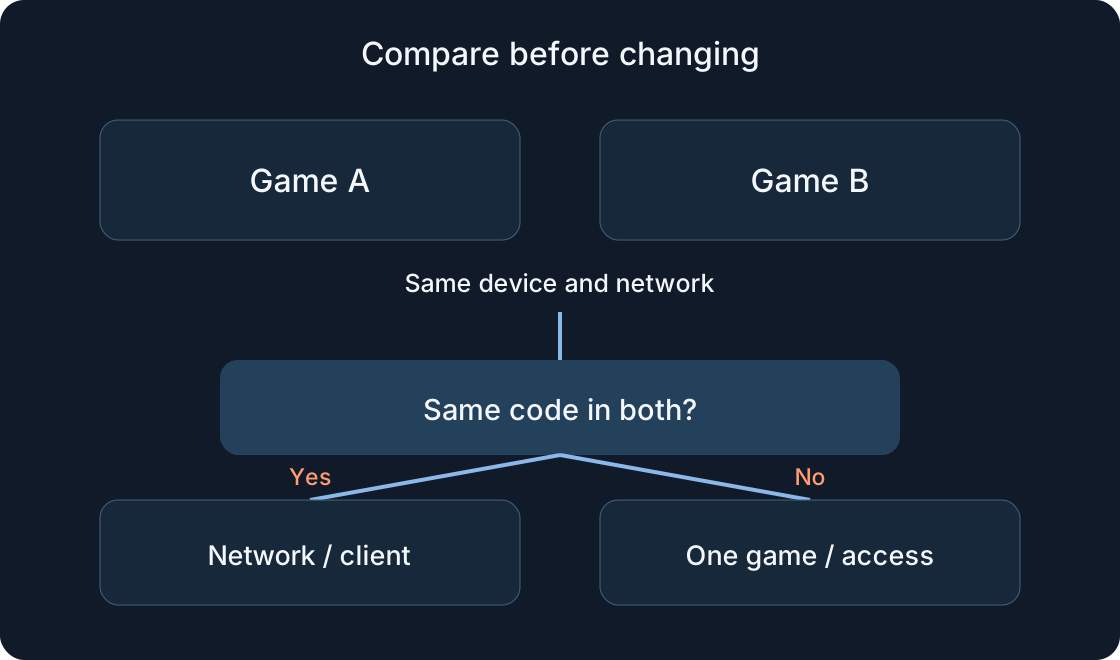
Close the failed launch and retry once. Then try a different experience you can access, using the same device and network. Record whether the same code appears.
A successful second experience narrows attention to the first game, its server or access conditions, without proving the cause. Failures across several experiences justify continuing with the client and network. This comparison does not guarantee any game’s availability.
3. Distinguish connection from low frame rate #
Record what you actually see: an error dialog, endless loading, an app closing or uneven movement in an open world. These are different symptoms. “Lag” is not a precise description of a failed connection.
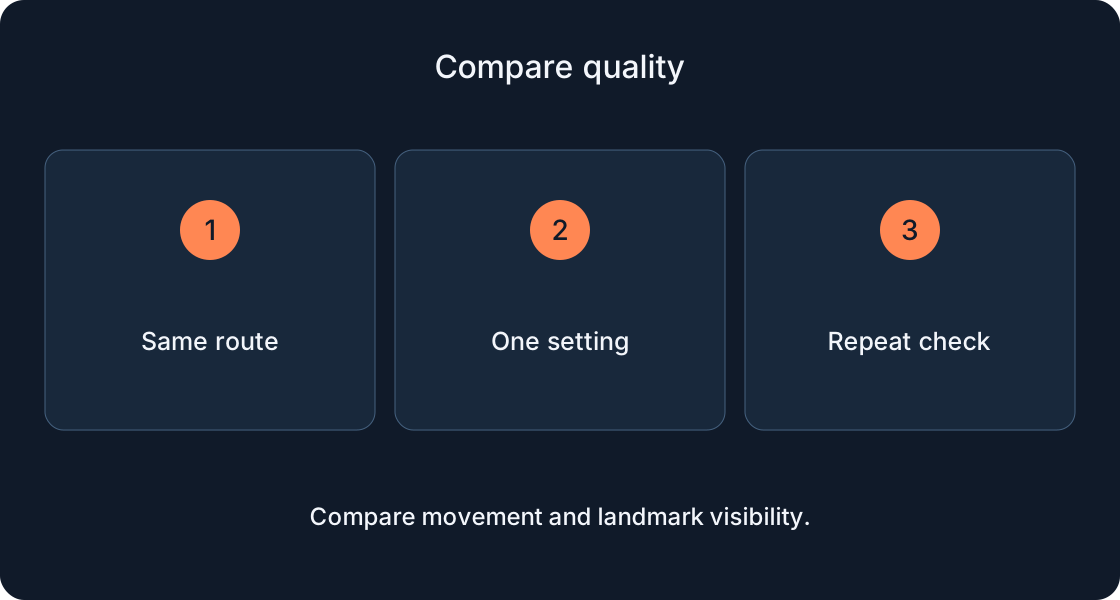
Example: a failed join with 279 is a join attempt. Uneven motion without disconnecting is a separate graphics check. If a freeze precedes 277, record both events. Our graphics guide helps assess smoothness, not every network failure.
4. Compare permitted networks #
Roblox suggests trying another internet connection. Keep the device and experience unchanged and use a network you are allowed to access. Consider your mobile data plan before testing.
Success elsewhere suggests examining the original connection but does not identify defective equipment. Ask an administrator about Roblox access on a managed network; do not bypass someone else’s restrictions. Keep the results of both attempts.
5. Check the desktop client #
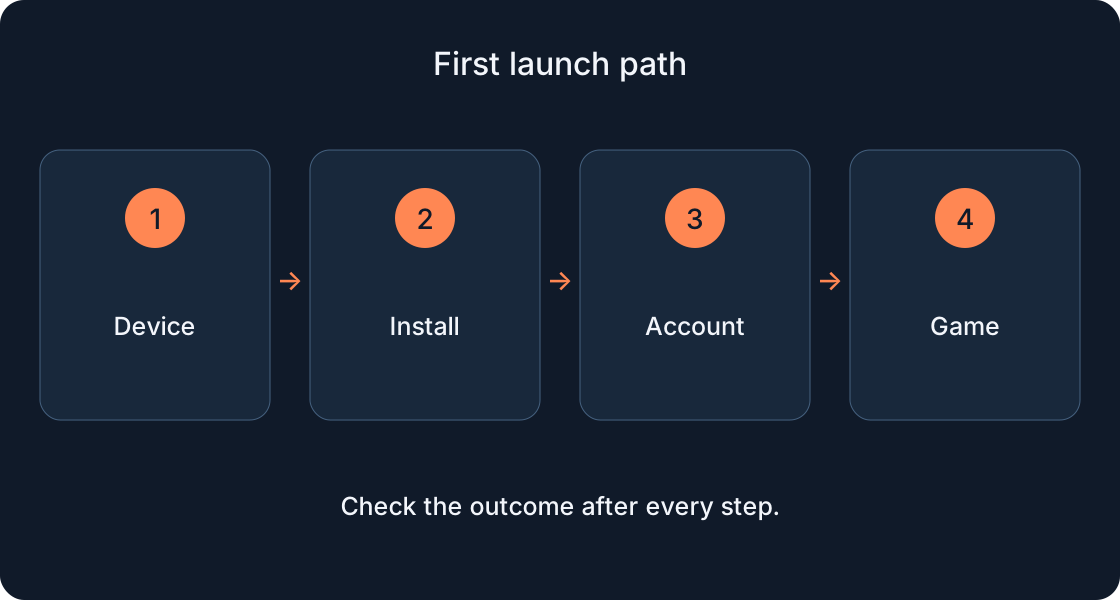
Close Roblox and launch again. Use the official installed client. If the browser Play button does not hand over to the app, compare the steps with our installation guide.
Support describes reinstalling for persistent issues. Use the official source and instructions for your system, after checking that you can sign back in. Review network protection using Roblox guidance or an administrator. Disabling protection entirely is not part of this workflow.
6. Check a phone #
Close and reopen the app, then restart the device if needed. Check the official store for updates and check automatic date and time. Retry the same join attempt.
Do not combine a network change, restart and reinstall in one test. After each step record success, the same code or the exact new symptom. Check account access before reinstalling. Follow instructions for your own Android or iPhone version.
 Open full-size image ↗
7. Keep a short test log #
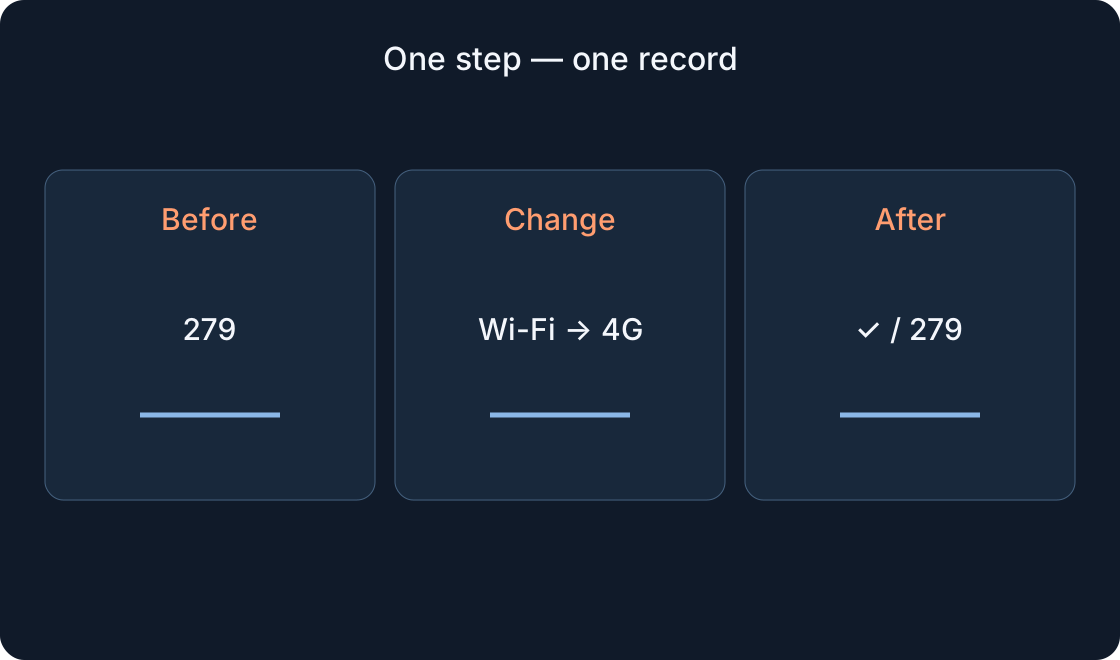
Use time → device → experience → network → one change → result. Keep experience names consistent. Exclude passwords, PINs and sign-in codes. The log prevents repeating changes that already failed.
Illustrative example: “18:10, phone, game A, Wi‑Fi, unchanged, 279”; “18:14, same phone and game, other permitted network, joined”. This is a teaching example, not our test result. It is evidence to investigate, not a proven diagnosis.
8. Ask for appropriate help #
Give official support your username, exact message, device model, OS version and reproduction steps. The official channel is in Sources. Add the game and network comparison only if you actually performed it.
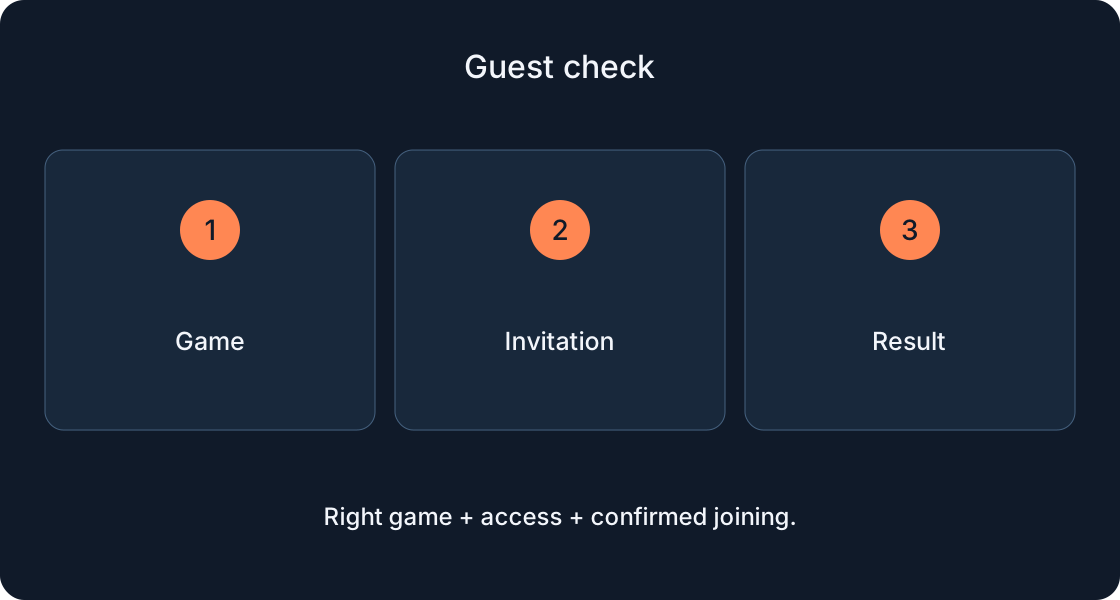
For a problem limited to one experience, describe it through the creator’s available official feedback channel. Separate observations from guesses. After a successful check, repeat the original scenario; one launch does not prove that an intermittent issue is permanently fixed.
Original sources
Roblox SupportRoblox Support — error 277
Roblox — current service status
Roblox Support — connection problems
Roblox Support — official contact