For players / ROBLOX
Who sees your online status and current Roblox game
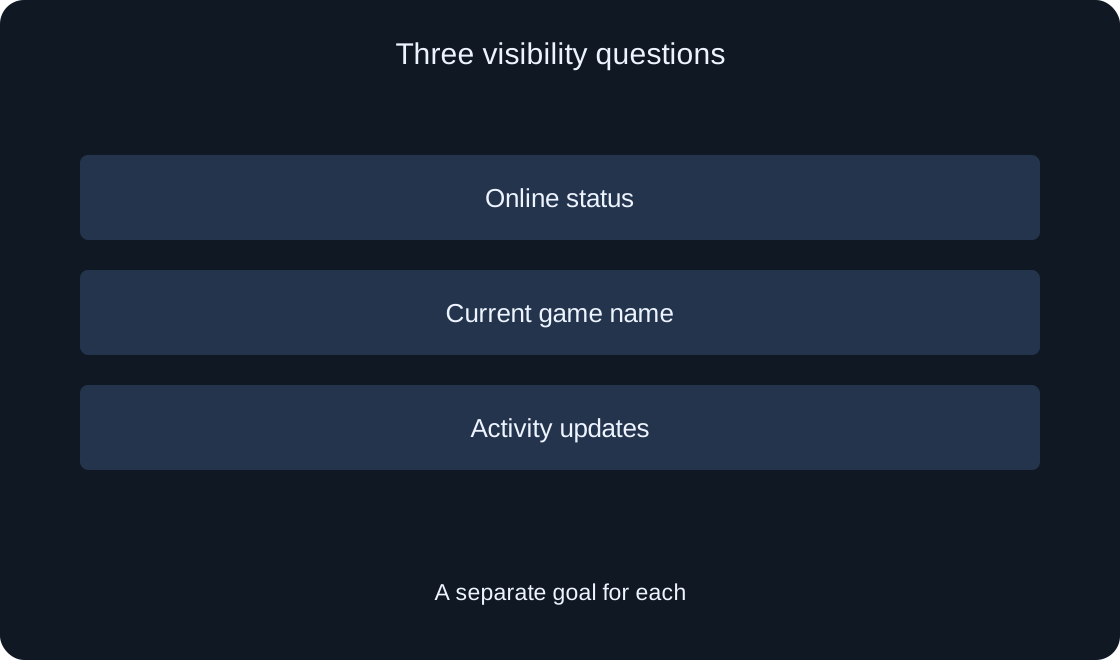
Online status, the name of your current game and activity updates are separate questions. Review the available choices and choose an understandable audience for each before expecting a particular result.
State your objective first #
Imagine a player who wants to play a familiar game alone today. This is an invented example, not an observation of your account. The task might be to limit the audience of online status, hide the current game from a particular audience, or change activity updates. The word invisible does not explain which result is wanted.
Write your intention without making technical promises: choose who sees status on your profile, for example. Do not begin by removing friends, blocking people or deleting an account. First examine the preferences relevant to the task. Changing visibility and changing a relationship with another user are different actions.
Open the relevant preferences #
Official help gives the route Settings → Privacy & content restrictions → Visibility & private servers → Visibility. On desktop, settings open through the gear icon; for mobile, the help page gives More followed by Settings. Section names may appear in your interface language.
Compare the purpose of the options you see with that route. We have not opened your account or changed its preferences. If labels or page contents differ, consult the current help linked at the end first. Do not choose an unrelated option just because its label mentions a server.
Inspect the actual available choices #
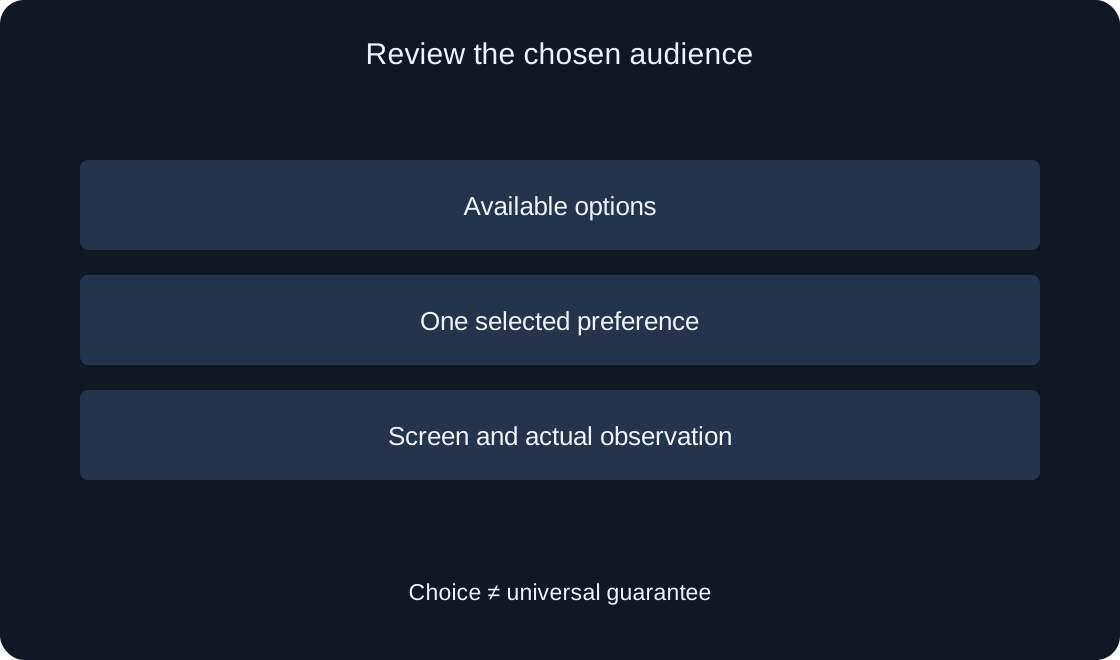
Available audiences depend on account age and region, and restricting some choices can affect related preferences. Your own screen therefore matters more than someone else's screenshot. Do not assume that any particular category exists before seeing it in your preferences.
Make a small record of your desired outcome, current selection and available alternatives. Comparing choices is useful for the exercise without asserting that every option is available to everyone. If an intended choice is missing, leave that question open and consult official information. Do not change a birthday or create workaround accounts to obtain a switch.
Set Online Status separately #
Online Status selects the audience of your online state. According to the help page, people outside that audience see you as offline on your profile or their Friends list. This is a specific behavior; do not expand it into a promise of complete invisibility everywhere in Roblox.
Imagine your record stating that a particular available level was selected for status. That is a preference, not proof that nobody can see your character anywhere. Do not use it as a guarantee of absence from a shared game scene. For each expectation, identify the relevant screen: profile, Friends list or the game itself.
Review Show current experience #
The official page separately describes Show current experience: its choice concerns who sees the game you are playing and who can join. People outside the selected audience do not see the current game. Consider this preference separately from the text of your online status.
Do not turn an audience selection into a promise of access to any server. Distinguish current-game visibility from successfully joining a particular session in your notes. If the goal is playing together, read the related guide on friends and joining. That is another step, not fully covered by one visibility preference.
Inspect sharing activity updates #
Share activity updates controls whether friends receive updates about recent in-experience activity. The help page identifies this separately. Changing current visibility and changing delivery of those updates should not be treated as the same action without examining the particular preferences.
Add another row to your personal plan: which updates you want to share with friends. Do not infer that choice solely from what appears on your profile now. If the problem is device alert sounds, consider notification delivery and quiet hours; it is not solely a question of your activity's audience.
 Open full-size image ↗
Change one preference at a time #
Record your original choice privately, then change only the preference matching your objective. Examine the related options available afterward. This order helps explain the result, particularly when one choice restricts others. It does not require identical settings for every reader.
Do not cycle through several levels searching for a universally correct choice. Your decision depends on whom you want to show information to. Do not automatically choose the widest audience because an article discusses playing with friends. A solo session today and your usual shared play can involve different intentions.
Verify observable results #
A useful check records the chosen option, screen and actual observation. Do not confuse your own interface state with another person's view. We have not signed into someone else's account or confirmed the display for a particular friend. Without that observation, the result for that audience remains unconfirmed.
Do not ask strangers to inspect you or share account access with them. If discussing the result with someone you already know, specify the screen and expectation without passwords or codes. One missing label does not prove deleted history, changed friendships or termination of all other sessions.
If a friend cannot see your game #
Return to two separate questions: can they see online status, and can they see the current game's name? Compare each with your selected audience rather than immediately assuming a Roblox fault. A support question stating the expected name on a particular screen is more useful than a general claim of not being visible.
If the name is visible but joining fails, record a different result. Do not change all visibility preferences hoping to fix every connection issue. Consult guides about joining and specific errors. This article explains audience selection; it does not guarantee connection to any game.
| Question | Separate |
|---|---|
| Is online status visible? | Status and its audience |
| Is the game name visible? | Current game and its audience |
| Can someone join? | Visibility versus successful joining |
| Are activity updates shared? | Separate activity preference |
Save a short plan for later #
Keep three rows: online-status audience, current-game audience and activity-update choice. Add the date of your check and only actual observations. This record helps you return to your previous intention when you want to play together again or reconsider who sees your information.
When contacting official support, describe the desired outcome and available options. Remove personal messages and unnecessary details from screenshots. Do not assert that preferences were violated without a specific observation. Interfaces and rules can change; the current official link remains the starting point for checking.
 Open full-size image ↗
| Field | Record |
|---|---|
| Goal | Who should see information |
| Choice | Actually available option |
| Screen | Profile, friends or game |
| Result | Only observed behavior |