For players / ROBLOX
How to add a friend in Roblox and join their game
Find the correct account, send and accept a request, check an available Join action and investigate missing access without bypassing privacy.
 Open full-size image ↗
Three checks before you meet in a game #
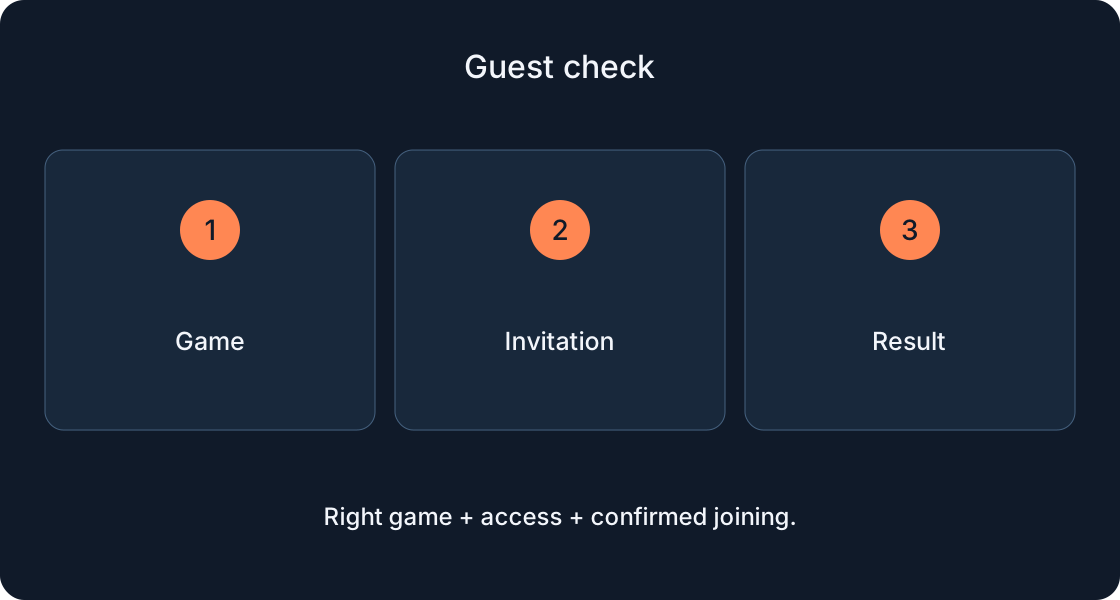
Playing together begins with three separate checks: finding the right person, having the request accepted, and being allowed into the chosen game. Completing the first does not complete the others. Suppose you agree to meet at a starting platform: seeing the same game title does not establish that you reached the same session. This guide provides an original checking order and diagrams, not account screenshots or results from our own playtest.
Older material may say Connections. In April 2026 Roblox announced the return to Friends; current Support also uses Friends and Add Friend. Trusted Friends is a separate status, not a required step of an ordinary request. Follow your application's current labels rather than looking for an invented Add Connection button.
1. Get the username, not only the display name #
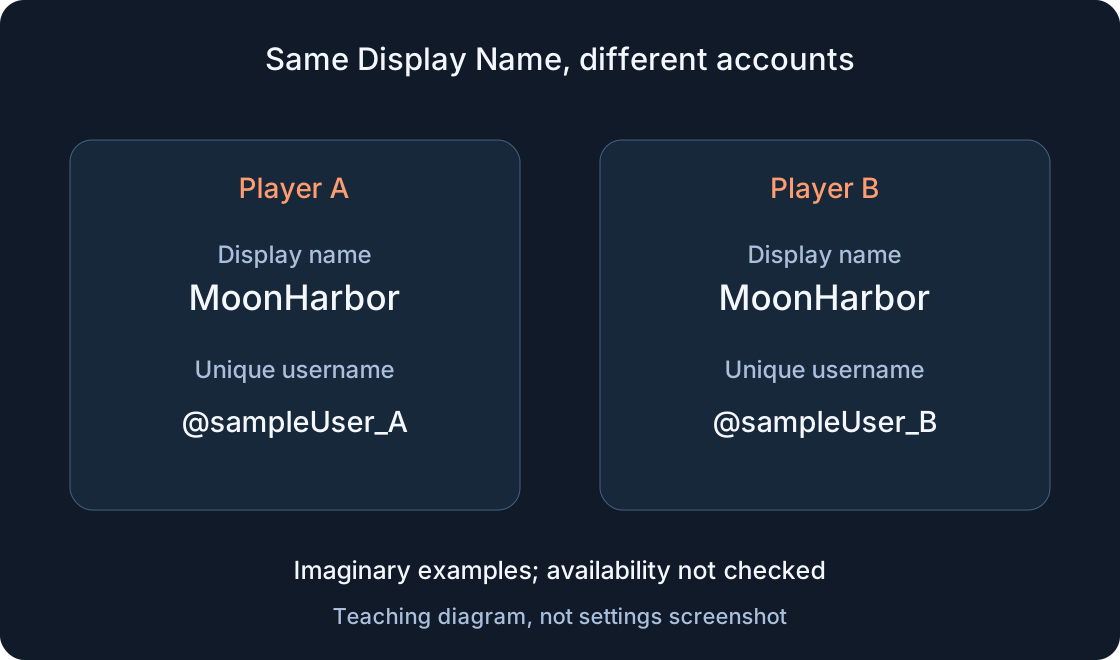
Ask your acquaintance for their exact username or public profile link. Several people can use the same Display Name, and an avatar's appearance does not establish identity. In this fictional example, two profiles show MoonHarbor above different usernames, @sampleUser_A and @sampleUser_B. Send the request to the account your acquaintance confirmed. These sample names have not been checked for availability.
Compare the whole spelling before sending: numbers, underscores and similar-looking letters. If search shows several possibilities, open the profile and check its username. Adding every result is not a useful way to guess. If the person renamed their account, confirm their current link. The related name guide explains the two fields; here your task is choosing a recipient, rather than changing your own name.
2. Send the request on the website #
Search Roblox for the username, choose People, open the intended profile and use Add Friend. This is the documented route, not a promise that every control occupies the same place in every version. Check that you are signed into your own account: a shared computer can otherwise send the request from someone else. After one action, inspect its state rather than clicking repeatedly.
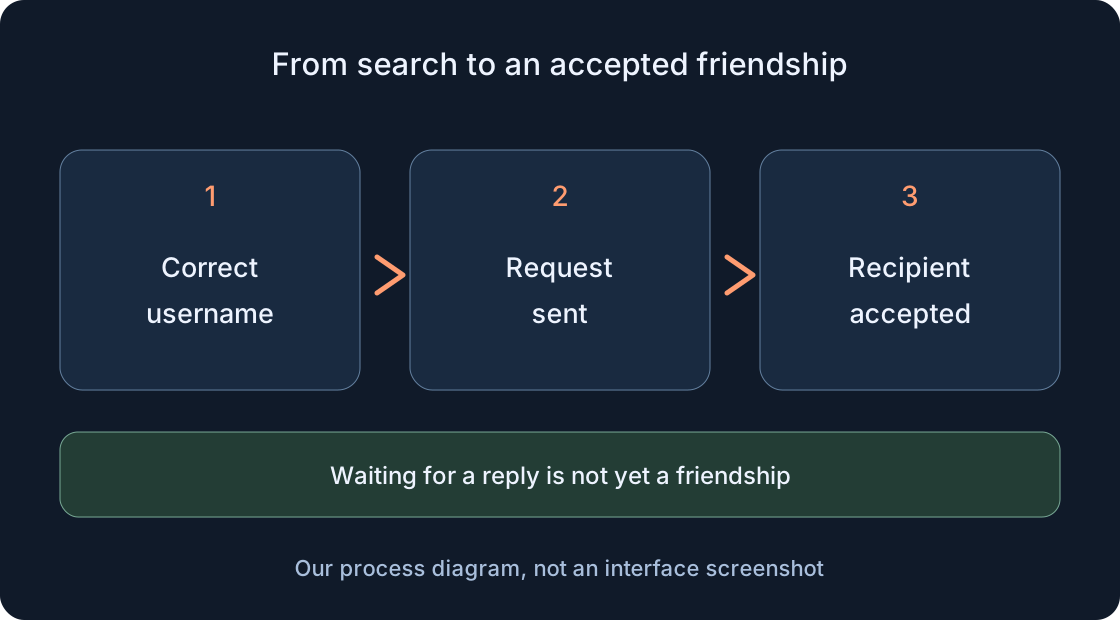
A request is an offer; the recipient still needs to agree. If Add Friend is absent, first check whether the person is already in your list. A missing action does not by itself establish that you were blocked; other account conditions may matter. Keep the public address of the selected profile in a private note so you can return without repeating the search. None of this needs your acquaintance's password.
3. Use the phone route #
For phones, Support describes More → Friends → the search icon: enter the username and use the add action beside the correct result. Compare the result with the confirmed profile before acting. If your screen differs, consult the current mobile instructions in the sources; do not treat a tablet route or an old video as mandatory on a phone.
An already sent request may show Pending or a loading indicator. That is not the recipient's acceptance. Repeated taps do not resolve the waiting stage. A useful note is “profile confirmed, request sent, reply pending”. It distinguishes the action from its outcome. When switching devices, recheck your account and the profile address. Moving to a computer does not make an existing pending request a new friendship step.
4. Accept the request after checking the sender #
On the website, open requests through Add Friends. On a phone use More → Friends → Requests, then Accept or Decline for the intended request. Before accepting, compare the sender's username with the one you agreed on. A similar Display Name is not a substitute; take care not to accept a neighbouring unexpected request.
The recipient can decline or leave a request unanswered. That is not a technical failure which must be fixed. If you know each other, arrange once to check incoming requests, then wait for the decision. If the request cannot be found, compare both profiles and the sending state. Do not publish another person's requests or friend list as evidence. Describe the completed step and what is visible in your own account.
5. Confirm that the friendship exists #
After acceptance open Friends and find the confirmed username. Open their profile from that list, so your later Join check concerns the same person. An acceptance notification is helpful, but the practical result is the intended account in the list. Following, a pending request and an accepted friendship should not be combined into one recorded state.
If sending fails, review official limits: friend or request counts, eligibility of both accounts and regional rules. Support currently states up to 1,000 friends, without promising delivery of every request. Australia has separate age conditions for receiving requests. Do not extend those conditions to every country or try another account to bypass them. An unknown cause should remain recorded as unknown rather than becoming a claim about the other person's intentions.
6. Open the profile and an available Join action #
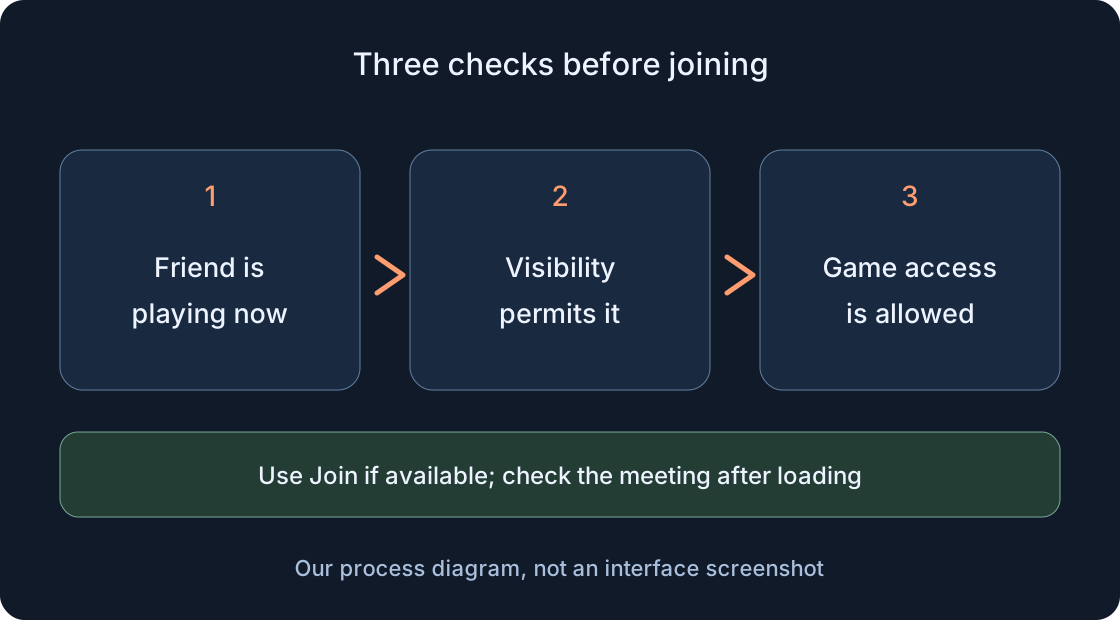
Find your friend by username or open their profile. Join Experience is available when they are currently playing and permit joining; you also need access to the game. If available, select it and wait for Roblox to launch. Opening the game page on its own does not establish that you reached your friend.
After loading, compare the game name and agreed meeting place. If the game provides a participant list, check the intended username there; otherwise use a landmark you both understand. Matching avatars do not prove a meeting. You can arrange to walk to a starting sign without sharing personal details. The following table shows what each stage confirms. It does not guarantee a joint arrival under every server configuration.
 Open full-size image ↗
| Check | Evidence needed | What it does not promise |
|---|---|---|
| Recipient | Confirmed username/profile | Request already accepted |
| Request | Sent, then accepted by recipient | Access to every session |
| Friendship | Intended account in Friends | All chat features |
| Joining | Available Join and permitted game | Private-server entitlement |
| Meeting | Same session and agreed landmark | Success under all future conditions |
7. Check visibility when Join is missing #
An absent Join action does not identify the cause. Your friend may not be playing now, or may not show their current game to your audience. Online Status and the availability of a current session are distinct settings. Even an online indicator does not establish a game you can enter. First confirm whether the planned attempt is still underway.
The account owner can check Settings → Privacy & content restrictions → Visibility & private servers → Visibility → Show current experience. Available options depend on age and region. Inspect your own permitted settings; do not change another person's account. Meeting one person does not require making everything public. If a parent manages the setting, the decision belongs to them. A third-party promise to join anyone cannot substitute for missing permission.
8. Separate ordinary friends, Trusted status and age access #
An accepted friendship does not automatically enable every communication feature. Trusted Friends has separate conditions: users under 13 need parental approval for each trusted friend, and some regions require approval for older groups too. This is a Trusted rule, not a universal ban on ordinary friendship before 13. This guide is not a route for expanding chat permissions.
Current age-check documentation ties game and feature access to age group, settings and region; chat access requires an age check. “I added the friend but still cannot chat or open the game” therefore does not necessarily mean the request failed. Read the official explanation for the unavailable feature. When Roblox requires a parent's action or an age check, use its official process. Someone else's birthday or bypassing parental control is not a troubleshooting step.
9. Distinguish private access, a full session and an unavailable game #
Friendship alone does not guarantee a private-server invitation. The owner must allow the relevant access; an ordinary game address cannot replace that decision. Check whether you discussed a public game or a specific private server. The related private-server guide covers its full route; here you only need to identify the invitation type and permission.
If Roblox reports a full session, record that message and try later or agree on another permitted session. Do not infer fullness only from a missing Join button. If the game itself is unavailable, open its public page and read the message: game access and server access can differ. With error 524, begin with permissions and availability; it does not prove the friend removed you. We do not promise that both players will automatically move to the same free server.
10. Work from the observed problem to the next check #
Identify the stopped stage first: search, sending, acceptance, Join availability or game loading. One precise symptom is more useful than “my friend does not work”. Use the table to choose a next check, changing one condition at a time. If your friend has already left, accepting a request again cannot create a new session.
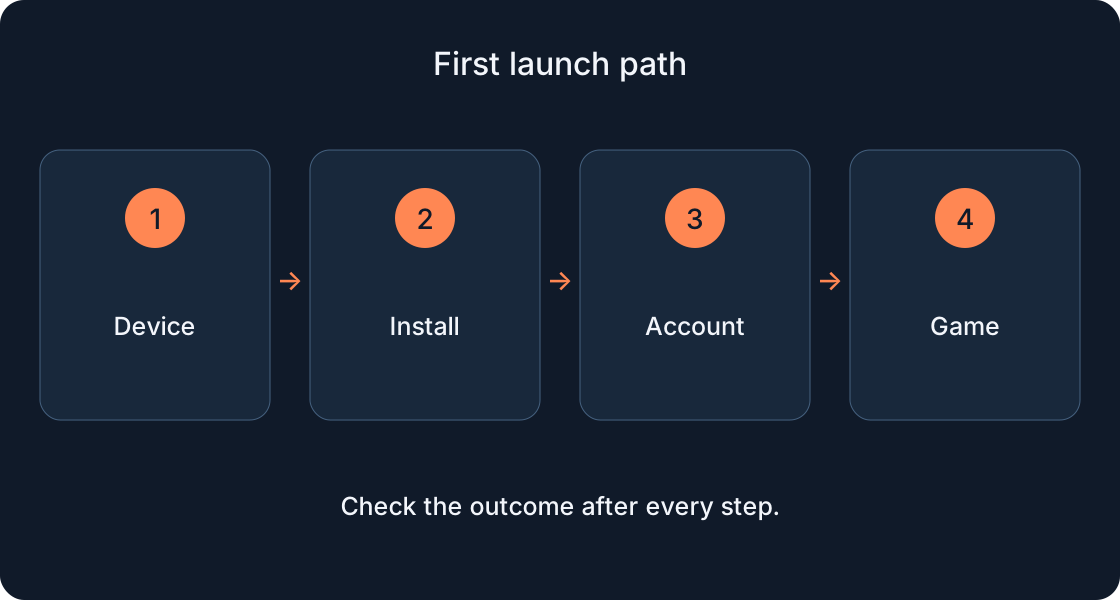
For Support, record time, public game URL, device, application version, exact error message and steps attempted. Do not send passwords, sign-in codes or private identifiers. When permission is missing, Support does not replace an owner's or parent's agreement. If the application cannot launch any accessible game, move to the installation or connection guide. That is a different investigation from finding the correct person.
| Observation | Next check | Avoid this conclusion |
|---|---|---|
| Many matching names | Exact username and profile | Every result is your friend |
| Request pending | Recipient checks their incoming request | Pending means accepted |
| Request missing | Both profiles, sending state, official eligibility | Repeated requests are required |
| Join absent | Current session and permitted visibility | The friend definitely blocked you |
| Full-session message | Later or another agreed session | Friendship reserves a place |
| Game/server denied, 524 | Game page, owner permissions and restrictions | An ordinary link bypasses access |
| Loaded but not together | Game, session, username and location | Every launch is a shared session |
11. Run one short two-person check #
Finish with a small record: “username confirmed; request accepted; chosen game accessible; Join visible or limitation recorded; meeting place checked”. This is a result template, not a claim that your accounts have already passed those steps. Keep public profile and game addresses for the next attempt so you do not compare different destinations by accident.
Start with one game both may access and one meeting time. The first player enters and remains in the session; the second checks the profile and available action. After changing games check access again: permission for an earlier session does not transfer automatically to every game. Success establishes this route under these conditions. It does not remove future restrictions, grant a private-server right or require weaker privacy for everyone.
Original sources
Roblox SupportRoblox Support — Mobile friend requests
Roblox Support — Join another player
Roblox Support — Online status and visibility
Roblox Support — Unlocking trusted friends
Roblox Support — Understanding age checks
Roblox Support — Error 524 and permissions
Roblox — Friends are back (April 2026)