For players / ROBLOX
Change your Roblox name: Display Name, username, cost and checks
Choose the right field, change your display name on the web or phone, review a paid username change and identify the correct account.
 Open full-size image ↗
First identify which name you mean #
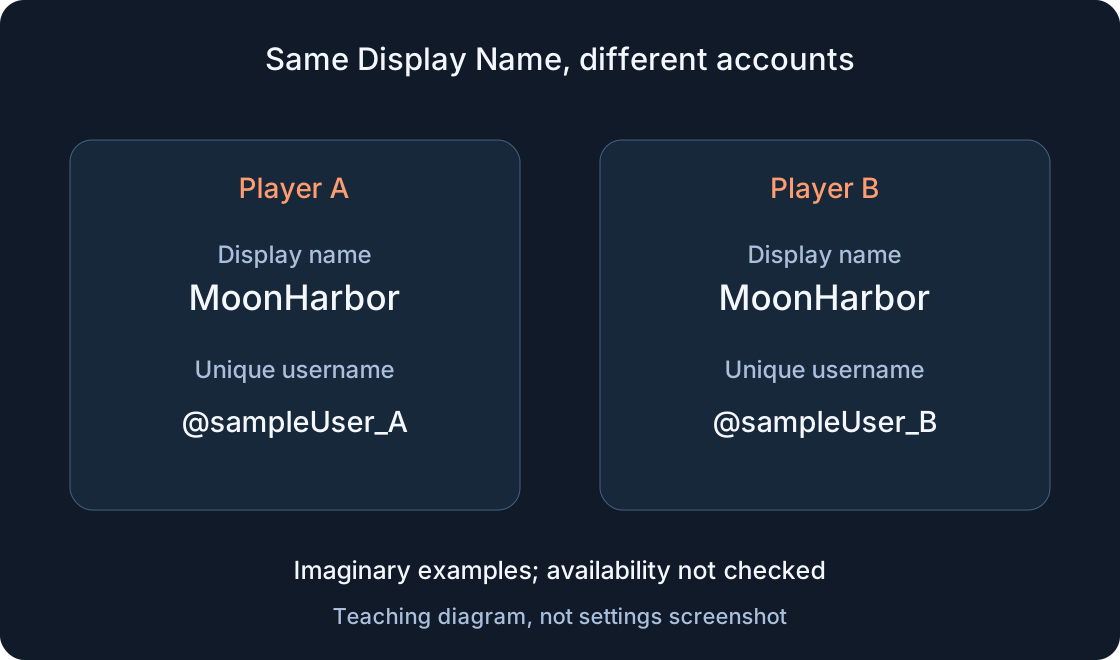
A Roblox account has a Display Name and a unique username. On its profile, look below the display name for @username. Start there: a friend asking you to change your “nickname” has not necessarily distinguished these two fields. Find out whether the task concerns presentation or the account’s unique name.
Teaching example: two imaginary players use MoonHarbor, but one has @sampleUser_A and the other @sampleUser_B. The same top line does not make them the same account. These labels explain the difference; they are not searched accounts or promises that the names are available. Our illustrations are diagrams, not account-settings screenshots.
1. Compare cost and limits first #
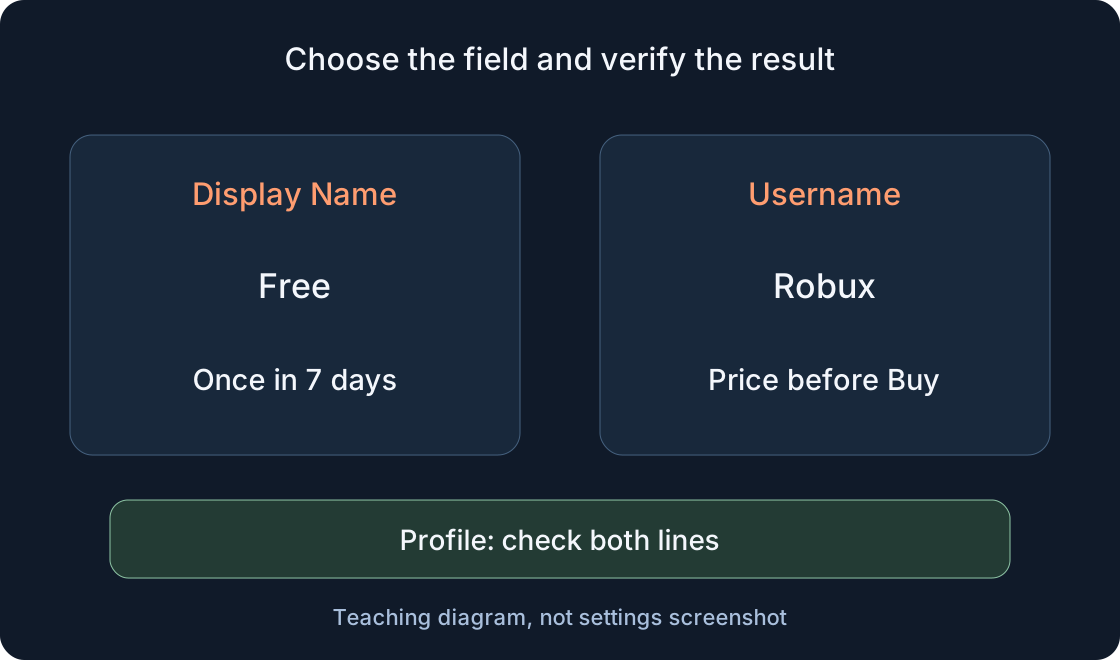
Display Name changes are free and allowed once every seven days. Another player can use the same display name. Username changes are separate and require Robux each time. The current official article confirms payment but gives no fixed amount. Check the price in your own official dialog before Buy, rather than using an old video or treating our diagram as a price quote.
The seven-day rule belongs to Display Name. The username article we checked establishes no equivalent interval, so do not transfer that rule. Changing back to an old username still costs Robux. If you only want different presentation in games, compare the free field with your goal first. A paid change is not a mandatory stage of this walkthrough.
 Open full-size image ↗
| Property | Display Name | Username |
|---|---|---|
| Purpose | Visible presentation | Unique account name |
| Cost | Free | Robux; price in official dialog |
| Interval | Once every 7 days | No interval stated in checked article |
| Duplicates | Other players may share it | Another account’s name unavailable |
| Check | Profile’s upper name line | @username beneath it |
| Return | Change limit still matters | Requires Robux again |
2. Prepare a name and a short note #
Write down current Display Name and @username, then the intended result: “change only the top line” or “replace the unique username”. Prepare a primary and alternative spelling you understand easily. Review before confirming: digit 1 and letter l, an accidental pasted space or the wrong keyboard layout can create a different result from the name you intended.
Names are filtered and must follow Roblox rules. Keep personal contact information out of public examples. Check character support in the current field: support specifically describes Japanese characters as a beta feature unavailable to some users. That is neither a promise that every alphabet works for every account nor proof that all non-Latin characters are permanently forbidden.
3. Change Display Name on the website #
Sign in to your account on official Roblox. In a browser, open settings using the gear at the upper right, then Account Info. Find Change Display Name; support describes its pencil-and-paper icon. Some accounts label this field Name. Confirm the actual field before entering the prepared spelling, instead of choosing the first pencil icon you see.
Read the new value again and select Save. If you see a purchase rather than a free save, stop and check whether Change Username is open. Refresh after saving. Record the date of a successful change privately to understand the next permitted opportunity, rather than looking for a way around the seven-day limit.
4. Use the mobile app route #
The official mobile instructions start with the three-dot More icon. Open account settings, choose Account Info, then Change Display Name or the relevant Name field. Enter the spelling and complete Save. Translated labels and positions can differ; use the field’s purpose and current official help, not our diagram as a replica of your screen.
Return to settings and the profile to check the saved value. If you cannot see the option, note your device, app version and what appears. The official website can provide another view of available settings, but it does not guarantee removal of a restriction. A separate “nickname changer” app is unnecessary for the account-setting process described by Roblox.
5. Review the purchase before changing username #
The web and app routes begin with the same settings entry: browser gear or More, then Account Info. Choose Change Username, enter the desired unique name and your current Roblox password in the official process. Before Buy, verify the account, exact spelling, displayed cost and that a username change is genuinely your intention.
Official help says you can then sign in with the new username and existing password. You cannot take another account’s name or swap usernames with an alternate account. Capitalization-only changes have no discount, and returning to an old username still requires Robux. This site does not make the purchase or establish that a proposed string is available without Roblox checking it.
6. Verify both fields separately #
After a free change, open the profile and compare both lines with your note. The expected result is a new Display Name and the original @username. After a paid change, check the new username in Account Info and the profile; a friend’s chat comment alone does not prove success. The account’s original creation date carries over when the username changes.
Then compare the name shown in the relevant game. If the profile changed but the game label differs, record those observations separately. A game’s interface can display its own label; another paid account change is not a useful first diagnosis. Record where and when you checked and the value observed rather than declaring an account-wide failure from one screen.
7. Investigate a rejected change #
Identify the field and exact rejection first. For Display Name, check whether seven days have passed since the last successful change. For username, check availability, the field’s requirements and displayed purchase conditions. If filtering rejects a string, try a different neutral option rather than substituting lookalike characters to force prohibited content through.
A generator listing a name does not prove availability or compliance. The table below is our observation workflow, not a report of testing multiple accounts. Keep a short note and use official support when help is needed. Field, device, time and message are useful details; passwords, sign-in codes and secrets do not belong in a public troubleshooting example.
| Observation | Check | Next step |
|---|---|---|
| Purchase appears instead of Save | Which field is open? | Return to Display Name for the free task |
| Change not yet allowed | Last successful Display Name date | Wait for permitted time; no bypass promise |
| Username taken | Exact string and official response | Choose another option |
| Filtered name rejected | Message and rules | Neutral alternative without evasion |
| Profile and game differ | Both actual profile fields | Record the game’s display separately |
| Several identical names found | @username and checked link | Do not identify by Display Name alone |
| Old name still visible | Previous-username history | Rename does not promise hidden history |
| Username forgotten | Previously added email/phone? | Official recovery guide |
8. Locate your own account correctly #
If signed in, open your profile and read @username beneath Display Name. Give a friend the unique username or a checked profile link rather than only the shared top line. Previous usernames remain viewable in settings, profiles and People search after a change. Finding an old name is not by itself evidence that a new account was created.
If you forgot the username and cannot sign in, use Forgot Username or Password on Login. Recovery uses an email or phone added beforehand; help also mentions some purchase receipts. A similar display name cannot replace those methods. Follow the current recovery guide when needed instead of treating a random matching search result as your profile.
9. Understand old-name visibility #
Display Name and username are visible on Roblox and associated experiences. Renaming changes presentation; it does not promise to hide history. Roblox explicitly allows previous usernames to be viewed. To help friends recognize you after a change, keep a checked profile link and share the new @username through your usual communication method.
Your private note can record the old field, chosen new value, date and observed result. A public explanation can use an anonymous example instead of a full settings screenshot. If moderation resets a value, do not copy promises of free restoration from someone else’s story. Read the account’s own message and the official support response for that situation.
10. Finish with checks, not an outside service #
“We release taken names”, “free username change” and “remove the wait” offers are not part of the official route described here. Do not give such services passwords, cookies, confirmation codes or backup codes. Entering a password in Roblox’s official username-change dialog differs from supplying it to a third-party website; identify where you are before acting.
A finished note needs four lines: chosen field, settings action, actual Display Name and @username after refresh, and any remaining issue or “checked”. Our separate two-step guide covers account security in detail. This article has a narrower goal: change the intended name without an unnecessary purchase and retain a clear way to identify your own account.
Original sources
Roblox SupportRoblox Support — Changing Your Username
Roblox Support — I Forgot My Username
Roblox Support — Keep Your Account Safe
Roblox — official support