For players / ROBLOX
How to manage Roblox notifications and quiet hours
Decide which updates you need and where they should arrive. A clear plan can reduce unwanted alerts without confusing Roblox preferences with your phone's settings.
Start with the outcome you want #
Imagine a player who wants evening invitations from friends but no sounds at night. This is a practice example, not an inspection of your account. State your own task in one sentence: a quiet phone at night, or a different delivery channel for one type of update. Those tasks can involve different settings.
Record the device and account in which you will inspect preferences. Do not change every switch together. If the goal is nighttime silence, disabling each event may be unnecessary. If one update type is distracting, begin with that type. This makes the outcome easier to understand and your earlier choice easier to restore.
Find notification preferences #
The official help page gives the route Settings → Notifications. Open Roblox settings and find that section. Labels can depend on interface language, so identify the purpose of the section instead of relying only on an exact English match. We have not opened or changed your preferences for you.
Look at the blocks actually available. Make a brief note without personal information, such as seeing general device controls and categories. If the section looks different, do not press unrelated options looking for a similar switch. Compare the available screen with the current official help linked at the end of this article first.
Distinguish category, event and channel #
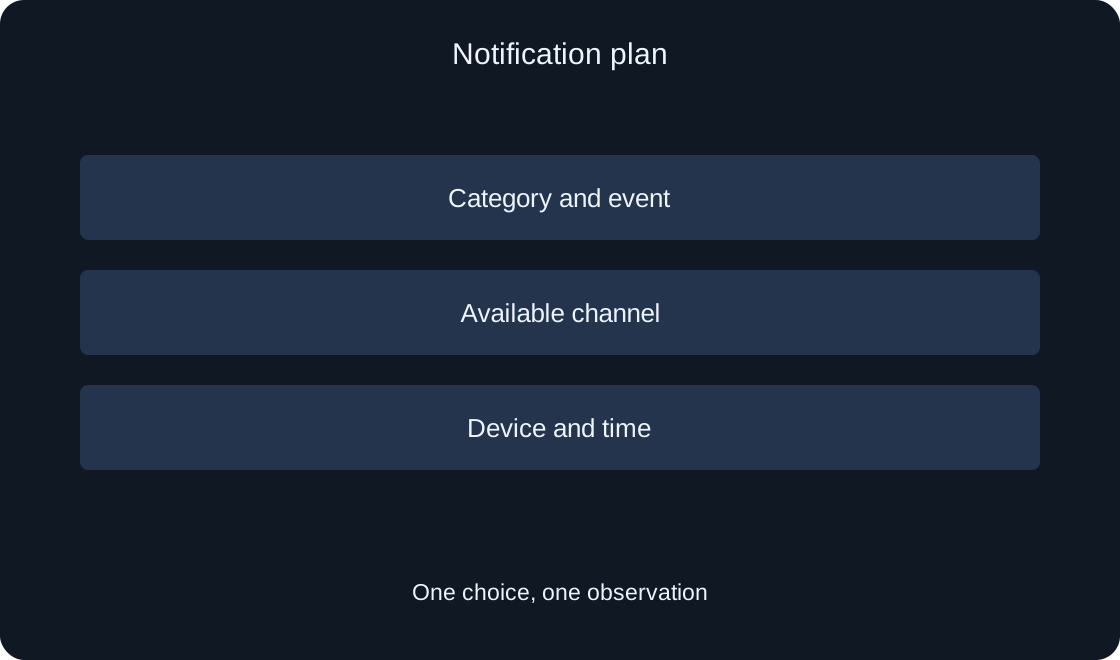
The help page describes categories, notification types and delivery channels. For example, a social category can include invitations or friend requests, while an individual type exposes its available channels. One event's choices and a general device switch are different levels of control.
For your plan, record more than simply saying notifications are on: identify the event, channel and device you need. This avoids confusion when one kind of update arrives and another does not. Do not extend an observation about one event to all the others before examining their actual preferences.
Choose an appropriate delivery channel #
The help page lists mobile and desktop push, the in-app notification center and email. Not every method is available for every notification type. Inspect the options actually shown for the selected event; an absent switch does not by itself demonstrate a fault.
Imagine two rows in a personal plan: see a friend's invitation on the phone, while reviewing some updates in the notification center is sufficient. This is an example of a choice, not a recommendation to turn everything on. Select the method you need and note the original state so that later comparisons remain meaningful.
 Open full-size image ↗
Check the general device switch #
Device Notifications contains account-level controls for mobile and desktop push. According to the help page, turning off a device channel preserves per-type preferences, which are restored when the channel is enabled again. This differs from changing each event individually.
Distinguish the general channel and the individual event choice in your notes. If a type is enabled but the general channel is off, you are examining two levels. Avoid repeatedly switching both back and forth. Record one state, make one intentional change and then assess whether it matches your objective.
Set daily quiet hours #
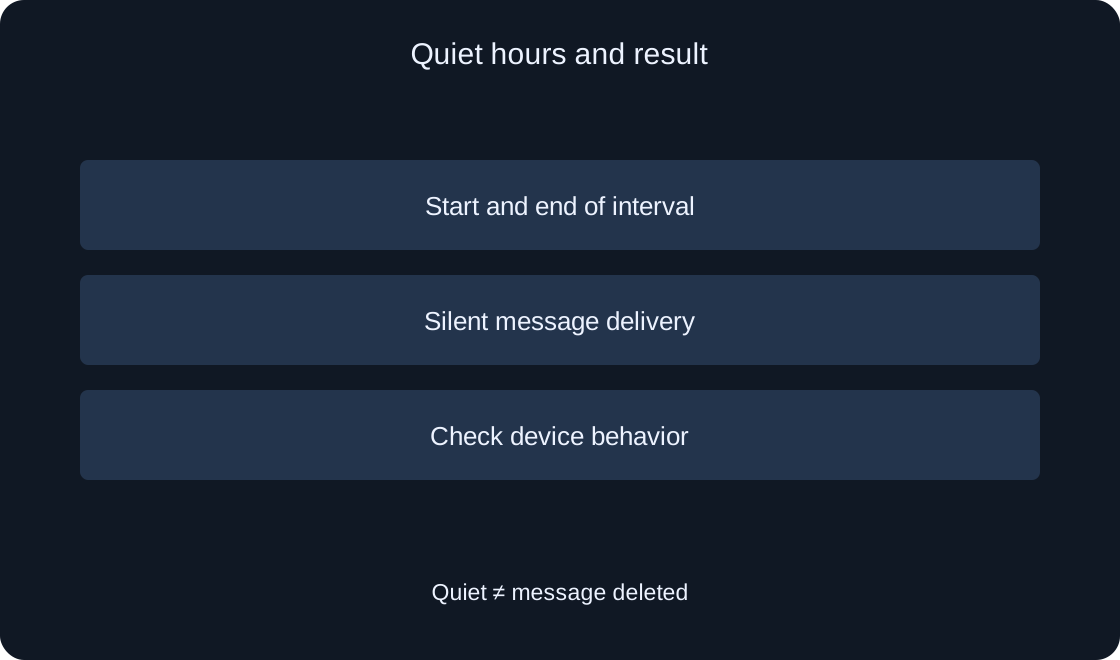
The documented route is Notifications → Device Notifications → Do Not Disturb, followed by the start and end of your chosen period. The mode makes push delivery quiet during a daily interval. Do not describe it as deleting every message: the help page distinguishes silent delivery from attention-seeking alerts.
For the practice plan, choose your own sleep times and write both endpoints before changing anything. Check the numbers and the meanings of start and end on your screen. Do not automatically copy someone else's schedule. If you want silence only today, consider whether a daily setting matches that intention.
 Open full-size image ↗
Inspect phone or computer settings separately #
Roblox preferences do not replace the device's system preferences. If behavior differs from expectations, compare two layers: your choice inside Roblox and the app's notification permissions in your operating system. This article does not provide one universal sequence for every phone and computer version.
Record the device model and system for your own support request without publishing personal identifiers. Inspect the corresponding system section next. Do not reset a device or reinstall an app just because of the first observation. Identify the behavior you want to change and the layer controlling it first.
Separate silence from missing delivery #
A useful observation identifies the event, device, time and delivery channel. Saying that nothing works leaves too much unknown. Record precisely what you expected to see and where you checked. A notification arriving without sound and one absent from a particular location are different observations.
Do not generate a stream of invitations to test preferences or ask strangers to send messages. Examine the settings and then observe an ordinary expected event. We have not sent test notifications or confirmed delivery in your account. If no result is available yet, leave it unconfirmed instead of inventing a successful test.
Treat important alerts separately #
The help page states that security alerts cannot be disabled in this section. Child spending notifications are also managed separately from the general list. Do not interpret these differences as a broken everyday switch or try to bypass them to obtain a quieter interface.
An unexpected sign-in is a different situation from invitations or game updates. Consult the related guide on signing out other sessions and official help. Do not share passwords or codes in comments or unrelated forms. Changing an ordinary notification channel does not itself establish that an account is secure.
| Task | Distinguish |
|---|---|
| Quiet phone at night | Daily interval and system |
| One update type | Category, event and channel |
| Message without sound | Silence versus absence |
| Message not found | Checked location and expectation |
Keep an understandable preferences record #
Save a short personal record: desired outcome, device, category and event, chosen channel, general switch and quiet interval. Add only the observations actually checked. This helps you resume later without repeating every setting and prepares a specific question for official support.
Before contacting support, remove email addresses, personal messages and unnecessary data from screenshots. Describe the expectation and observed behavior without asserting that an event was definitely sent if you do not know. This article supplies a setup and checking plan; your account's result remains a separate observation.
| Field | Record |
|---|---|
| Goal | Desired behavior |
| Event | Specific update type |
| Channel | Actually available option |
| Observation | Device, time and result |