For players / ROBLOX
Change Roblox language: account, game text and translations
Follow the official web or mobile account route, distinguish Game Language from automatic translation, and check the text that matters to you.
Decide which language you want to change #
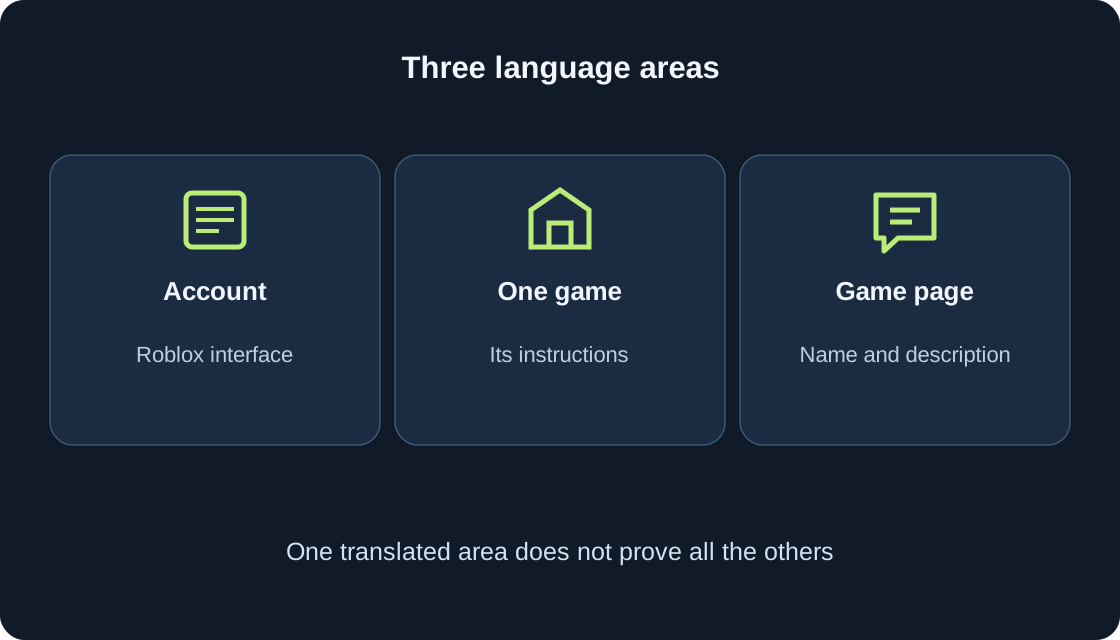
“Change Roblox language” can mean the account interface, the text inside one game or the name and description on a game’s page. These are related but separate results. Start with one example of what you cannot understand: a settings label, an instruction beside a button or the game description. That example tells you which setting to consider first.
Write the current language and your preferred language before making a change. Keep a recognizable route back to the language setting, especially if you are selecting a language you do not read well. A translated description is not proof that every game instruction has changed. Conversely, one unchanged label inside a game does not prove that the account preference failed to save.
 Open full-size image ↗
Account language in a web browser #
The official account-language help describes this route for a signed-in account: use the gear at the upper right of the site to reach Settings, select Account Info, then find the current language in Personal. Open the dropdown and select a language actually offered. This is the account preference, not a browser’s separate page-translation feature.
The help says the page reloads with the selected language. If it does not reload, it describes Save at the lower right of Personal. Afterwards, check the selected value and a familiar account label. Do not press unrelated controls merely because the layout now looks unfamiliar. If you cannot sign in, use the relevant account-help route first; changing a language is not a way around an authentication problem.
Account language in the mobile application #
The same help identifies More, represented by three dots, as the mobile entry to account Settings. Continue to Account Info and the language setting in Personal. Read the labels your version presents, open the language list and choose an available option. Record the original value so that you can return to it if the new language is inconvenient.
Compare the saved language value with an ordinary account screen, not only a game’s custom menu. If the screen has not refreshed, follow the documented Save step where offered. Do not assume that the phone’s keyboard language or system language is the same setting. There is no need to rename the account, change the device region or buy anything to follow this language-selection route.
Supported language lists have different meanings #
The current platform help lists English, German, Spanish, Arabic and both simplified and traditional Chinese among supported platform languages. Russian is not in that platform list. This guide’s Russian version therefore does not promise a Russian account-interface option. The actual language dropdown tells you what you can select; the account-language help says that a language missing there is not currently supported there.
Creator Hub’s automatic-translation list does include Russian. Its localization language codes have a different purpose again: languages for a game’s translation table. Neither list proves an account-menu option. Customer Support also maintains a separate service-language list. Check the list for the task you are doing instead of turning “supported somewhere” into “available everywhere”. The table highlights the six languages relevant to this guide.
| Language | Listed in platform Help | Listed for Creator Hub automatic translation |
|---|---|---|
| Russian | Not listed; no account-option promise | Listed |
| English | Listed | Listed |
| German | Listed | Listed |
| Spanish | Listed | Listed |
| Chinese | Simplified and traditional separately | Both variants separately |
| Arabic | Listed | Listed |
Choose one game’s language separately #
The automatic-translation help describes Game Language in the game settings menu for changing a specific game rather than the entire account. Look for that dropdown in the game you are actually playing and read the choices it offers. Keep the account language unchanged if your goal concerns only that game. A creator’s separate custom language menu, when provided, should be read under its own instructions.
After choosing, revisit one instruction relevant to ordinary play. Record whether it changed and whether its meaning is clear. If a desired choice is absent, do not infer that another hidden menu must exist. Options and available content can differ. Do not assume that selecting a language in one game sets the same choice in every other game or translates each custom graphic.
Understand Automatic Translations #
Roblox’s help describes Automatic Translations in account settings as enabled by default. It translates game names, descriptions and game content into your language, and can be disabled there if you prefer original content. This is a translation preference, distinct from the account-language dropdown and from Game Language in a particular game. Read the current setting and its explanation before changing it.
The same help warns that some user-generated content may not be fully translated and that generated translations may contain errors. Therefore an enabled preference is not a completeness certificate. For a useful comparison, keep one game page or instruction as your target, change only the relevant preference, then compare the result. Do not toggle several language controls simultaneously and lose track of what each observation means.
A translated game page is still the same project #
The name and description shown on a game page can be translated. A different-looking title does not by itself mean you found a different game. Check the game URL and creator when returning to a project, as explained in our find-and-save guide. Keep a permanent link rather than relying on remembering one translated title.
Treat description translation and in-game instructions as separate observations. A readable description can help you understand the intended activity, but it does not establish translation of the first objective or every item label. If a term seems confusing, compare it with the original where that option is available. A translation of a paid offer is also not evidence of a purchase or a guarantee of its outcome.
Why a game may contain mixed languages #
A game contains several types of text: interface elements, names, images and content written by users. Some may remain in the original language or have translations with different coverage. Creator Hub says automatic text capture does not capture every object; images with embedded text and default chat are among its exceptions. This does not mean that images can never be localized by another method.
Record the specific missing translation rather than calling the whole game untranslated. Is it the first objective, a sign, an image or a player’s message? A proper name may intentionally remain unchanged. A word inside a picture needs a different check from ordinary interface text. Do not infer author intent or a platform fault from a single unchanged term; focus on whether you can understand the next action.
Report a translation problem with context #
The account-translation help describes a translation-feedback tool in game settings. In its feedback mode, you can select text, identify the issue and suggest a translation. Use it when offered for a genuine translation problem, keeping your description tied to the actual text and the selected language. Generated errors should not automatically be attributed to the game’s author.
A teaching example: a control intended to return to a menu is translated as if it restarted a level. Describe the expected action, location and misleading wording without repeatedly activating a potentially disruptive control. It is an invented example, not a finding about our games. If the game’s meaning is unclear even in the original, the question may belong with its creator rather than solely with translation feedback.
Localizing your own game is a creator task #
Your account preference does not publish a translated game. Creator Hub identifies game localization in Creator Dashboard: Manage Experience, then Audience → Localization; Configure Localization from the Creations menu is another documented entry. This is for your own project with suitable permissions. An ordinary player cannot edit another creator’s translation table simply by choosing a language.
The game’s source language and supported target languages are separate decisions. Creator tools also distinguish the name and description from text within the game. Automatic and manual translations can work together, with context helping clarify ambiguous strings. Begin with the first objective and essential controls before expanding coverage. Detailed implementation belongs in creator documentation; for a player, the useful question is which text the current game actually shows.
Check one change through observable text #
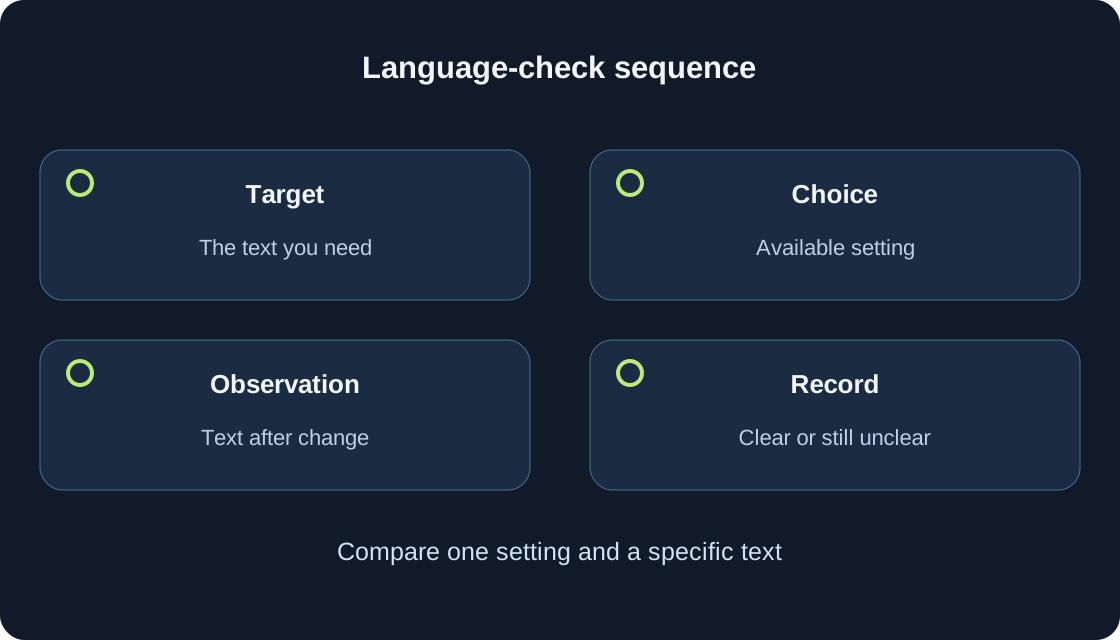
Keep a small comparison record: target, original setting, chosen available option, text before, text after and meaning. A teaching case: the account labels change but an illustrated sign inside the game does not. The account result may be successful while that graphic’s translation remains unresolved. Another case: the description changes but the first objective is unclear. Check the objective’s scope, not another unrelated account setting.
Use the table to choose one next check. Include the game URL, place or stage and device when relevant. A selected value and an understandable instruction are two results worth recording separately. Stop comparing once the text needed for your task is clear. Leave uncertain cases marked uncertain rather than declaring that every page and every game is now fully translated.
 Open full-size image ↗
| Observation | What it establishes | Next check |
|---|---|---|
| Account menu changed, game image did not | Separate areas have separate results | Image text and available localization |
| Description readable, objective unclear | Page understood, objective unresolved | Specific game instruction |
| Preferred option missing | Currently offered choices | Relevant support list; no bypass |
| Wrong translated term | Specific text and context | Translation feedback when available |
| Only browser translated page | Page appearance | Saved account-language value |
Return to a comfortable setting and ask the right question #
If a chosen language makes navigation difficult, return through the same documented account route and select an available language you understand. For one game, use its language control instead of changing the whole account again. Keep the original value in your note and read the save or refresh result. Do not change unrelated account information while trying to find your way back.
For unavailable account options or a platform-setting notice, use official Roblox help. For a custom game rule or missing essential instruction, consult the creator’s available help; for translation wording, use the documented feedback route where offered. Include the exact text, language and context without login secrets. End with what is understood, what remains unclear and the next relevant action, rather than repeating the same language change.
Original sources
Roblox Support — account language on web and mobileRoblox Support — account translations and Game Language
Roblox Creator Hub — player setting and game localization
Roblox Creator Hub — automatic translation and its supported languages
Roblox Creator Hub — manual translations and context
Roblox Creator Hub — localization language codes
Roblox Support — Customer Support has a separate language list