For players / ROBLOX
Review Roblox sessions and log out other devices
A practical guide to browser and mobile settings, choosing one session or all other sessions, and checking the outcome without mistaking a location hint for proof of account theft.
What a session tells you #
A Roblox session is a signed-in use of your account. Closing a game window and ending an account session are different tasks: when you want another device to stop using your sign-in, look at account settings rather than the list of game servers. The official Where you’re logged in section provides device information, approximate region and last-active time. Use those clues together. A familiar device label does not identify the person holding it, and a region is not a street address. This guide concerns your own account; it is not a way to inspect another player’s sessions.
Prepare before pressing Log out #
Start on a device you control, with the account you intend to manage. If a household uses several Roblox accounts, compare your username before changing anything. Decide which result you need: end one identifiable sign-in, or remove every other sign-in while keeping this one. Also check that you can use your normal sign-in method on a device you intend to keep using. Do not test this by giving a helper your password or verification code. Preparing avoids a common practical mistake: removing access from your own tablet while the borrowed computer remains signed in.
Find the section in a browser #
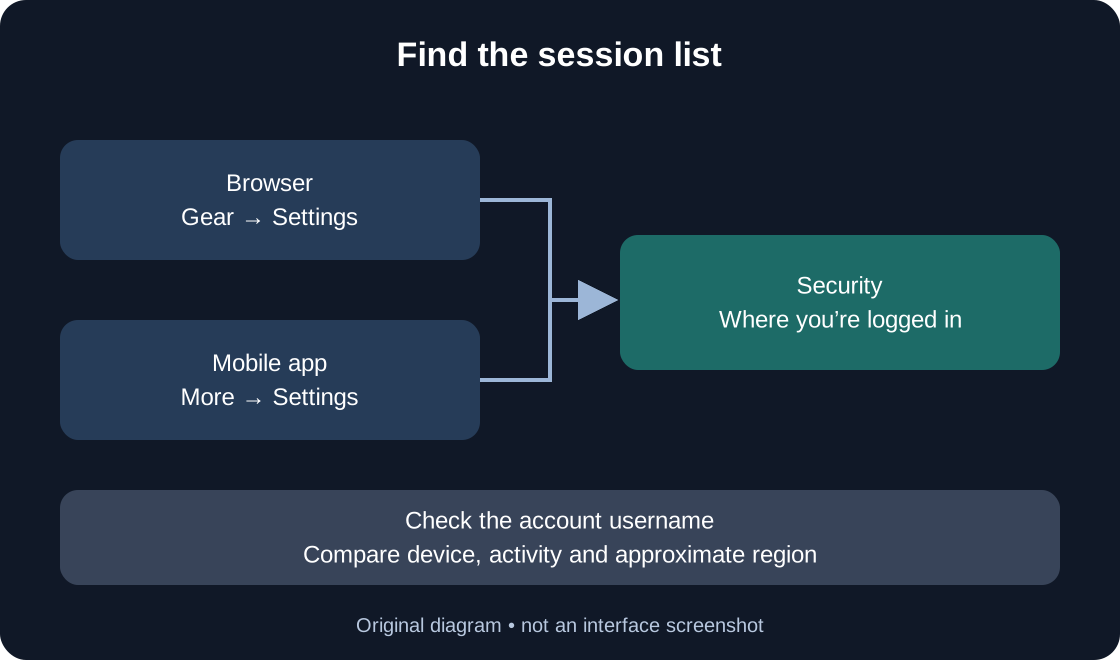
Open roblox.com yourself and sign in. The official instructions point to the gear at the upper right for Settings. Open Security, then scroll to Where you’re logged in. Keep these stages separate: the Roblox account page, its security tab, then the session list. A settings menu inside an individual game is not the same screen. If the site is in another language, match the meaning of the labels; the English names in this article help you recognize the official instructions. Check the username again before selecting a row, especially if you switched accounts earlier.
Find it in the mobile app #
In the official mobile app, Roblox describes the More menu through its three-dot icon. Go from there to Settings, choose Security and scroll to the session section. Read a row before acting; on a narrow screen, device information may require opening its details. If you cannot find the section, use the Help link for Session Management to compare the current instructions with your screen. Describe which screen you reached rather than assuming that the account has no other sessions. Do not install a session-checking extension or enter account details into a replacement website to reveal a missing menu.
 Open full-size image ↗
Compare several clues together #
Think of the list as a set of records to compare with your own use. Ask which devices you actually used, whether a previous sign-in on a shared computer is plausible, and whether the recorded activity fits that use. For example, a tablet you used recently and still keep at home can be expected; a borrowed device you no longer use may still be one you want to sign out. These are fictional examples, not observations of your account. Do not base an accusation on the regional label alone. The table separates information supplied by the interface from conclusions it cannot establish.
| Clue | Helps compare | Does not establish |
|---|---|---|
| Device | Your device or a previous shared computer | The person who used it |
| Activity | Timing against your use | A full action history |
| Region | An approximate geographical hint | A home address |
| Unknown | Incomplete older-session information | Identity or account compromise |
Understand Unknown without guessing #
Roblox explains that older inactive sessions can have incomplete or unavailable information and appear as Unknown. That label is not the name of a person. Do not rename it mentally as “attacker,” or invent a device from a missing field. If the record cannot be matched to your use, choose an action based on the access you want to retain, not on an imagined identity. You can decide that only your current controlled device should remain signed in without claiming to know who used every old session. Actual changes you did not make are a separate reason to follow the account-recovery guidance.
End one identifiable session #
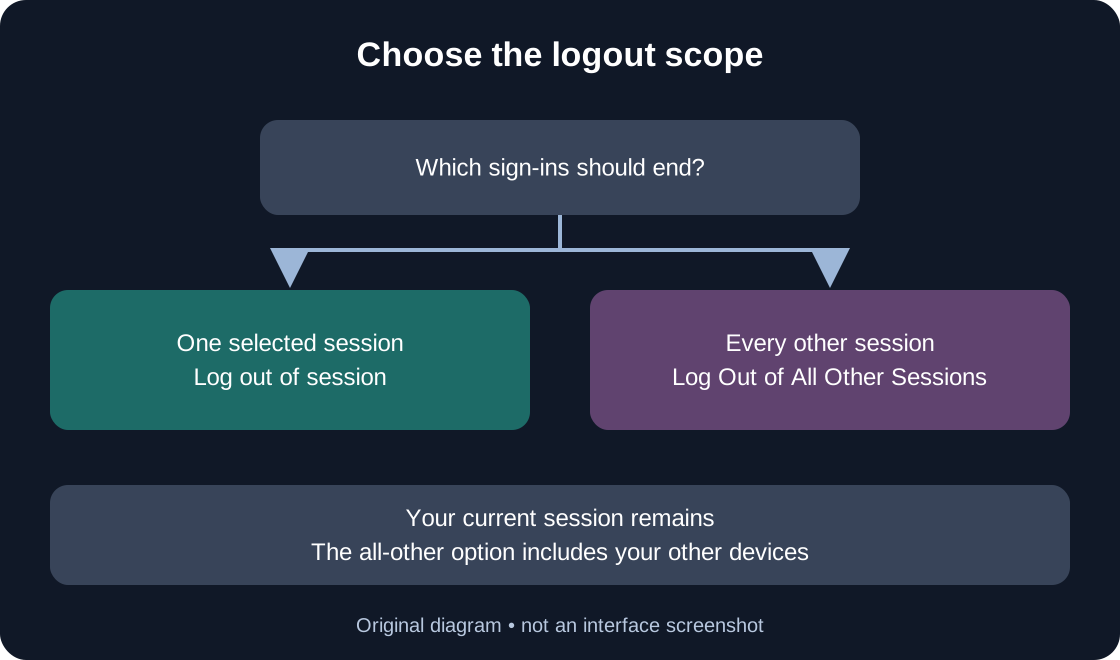
Select the relevant record in Where you’re logged in. Review its device, region and last-active information once more, then use Log out of session. This is the targeted choice when you recognize the sign-in you want to remove. Keep a simple distinction in mind: selecting a row opens information; the logout action changes access. Read any message the interface displays, rather than assuming selection itself completed the task. Afterwards, return to the list and check what it shows. If the other device is yours and available, you may also inspect whether Roblox asks it to sign in again, without sharing credentials.
End all sessions except this one #
For the broader choice, the official help places Log Out of All Other Sessions at the bottom of the section. Its scope is every other signed-in session, while the current one remains. Consider a familiar phone, laptop and tablet before using it: the choice includes your other legitimate sign-ins too. Choose it when that scope matches your intention, rather than as a compulsory step after an individual logout. The two actions are alternatives. Read the button label and any displayed notice. This guide does not promise an exact refresh time or claim that logging out reverses changes already made to the account.
 Open full-size image ↗
Example: a borrowed computer #
Suppose you played at a friend’s home yesterday and are now on your own phone. You want the borrowed computer to stop using that account. Open the session list on the phone and compare the computer’s record with the use you remember. If you can identify it, select that session and end it. If the records are too unclear and you want only the phone’s present session retained, the all-other-sessions choice fits that different intention. This example illustrates the decision; it is not a performed account test. Next time, log out on the shared device when you finish, rather than relying on a later remote check.
If the outcome is unclear #
Separate an unclear display from an explicit error. Note whether you opened a record, pressed the logout control, saw a message, or returned to the list. If an error appears, keep its wording privately and compare the steps with official help. Do not repeat unrelated actions merely to make the screen look different. A missing menu, an unchanged list and a failed request are different observations. When contacting Support, explain the action and what you saw; a stranger does not need a screenshot of your entire session list. This article has not measured Roblox’s logout propagation or tested every app version.
When session management is not enough #
If you cannot sign in, this settings route may be unavailable: use the official account-recovery process instead. If account information changed without your action, do not treat a cleaner session list as proof that the problem is resolved. Roblox’s compromised-account guidance also covers harmful downloads or extensions, password recovery and two-step verification. Follow that separate procedure on a trusted device; this article does not replace it or promise restored items. Never send a password, browser cookie, verification code or backup code to someone offering to check sessions for you. Our related guides explain recovery and Support requests separately.
Finish with a concrete record #
Write down only the useful outcome for yourself: the device you intended to remove, the action you chose and what the interface actually reported. Keep observations separate from expectations. “I pressed the button” and “the other device now requires sign-in” describe different evidence. You do not need to publish either observation or repeat the check for every game you play. Before leaving, confirm you managed the intended account and retained the access you wanted. The final table is a checklist you can use for your own verification, not a report of tests we performed. For future shared-device use, make logging out part of finishing the session.
| Check | Record privately | Do not replace it with |
|---|---|---|
| Account | The intended username | A familiar page appearance |
| Scope | One selected session or all others | Automatically pressing both controls |
| Interface response | Message, error and list state | A claim that everything is fixed |
| Your other device, if available | Whether sign-in is required again | An assumption about someone else’s device |
Original sources
Roblox Support — Session ManagementRoblox Support — Keep Your Account Safe
Roblox Support — My account was hacked