Studio / ROBLOX
Roblox Studio version history: find a known scene state
Version history helps you locate a particular saved scene and understand what worked there. Using a fictional lighthouse bridge, prepare useful notes, choose a comparison candidate and distinguish opening a copy from restoration and a new release.
Describe the change you are looking for #
Imagine an instructional route to a lighthouse. In an earlier scene a player could cross a bridge onto a landing; a later rearrangement made that landing awkward. The task is to find the state before the rearrangement rather than the oldest entry or the most appealing version name.
Define a comparison criterion: the route from the start, bridge position and landing access. This is a fictional exercise, not a report that your games broke. A concrete criterion lets you choose by scene content instead of guessing when the last good save occurred.
Write a useful checkpoint note #
A useful version name explains the stage, such as Bridge landing before rearrangement. Describe the edited area, purpose and observations actually obtained in that work session. If a check is only planned, preserve that status instead of labeling the version verified.
Add what the checkpoint does not cover, such as unfinished new decoration. Final without context soon becomes unhelpful. Our sample is a format for a future note; it is not a record of a real Studio run or an existing project version.
Save context with the version #
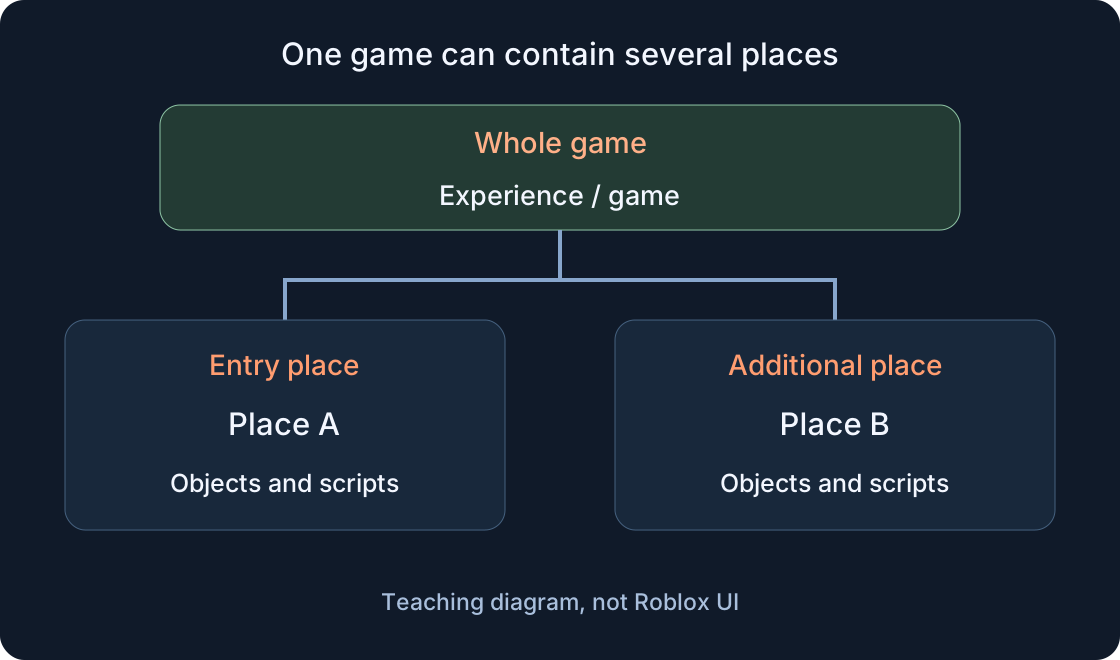
The documentation describes File → Save to Roblox with Notes, where a name and note accompany a place save. For the exercise, first identify the game and place involved. In a game with several places, a note about one bridge should not be mistaken for the state of the whole game.
Record the checkpoint's purpose and next expected step in your handoff. A note describes the author's decision rather than performing a gameplay test. If checks remain incomplete or their conditions change, keep the record explicit so another participant does not confuse intent with an observed result.
Locate an entry in history #
Open Window → Version History in Studio. Start with a meaningful word from a note, then narrow the period or other available filters. History supports save and publication characteristics, collaborators and note presence. Record the filters used so the selection can be repeated.
No result under a narrow filter does not prove no version exists. The documentation notes that older entries may lack newer metadata fields. If a suitable candidate is absent, relax the condition and inspect available entries rather than declaring a lost project based on one empty result list.
Compare a candidate in a local copy #
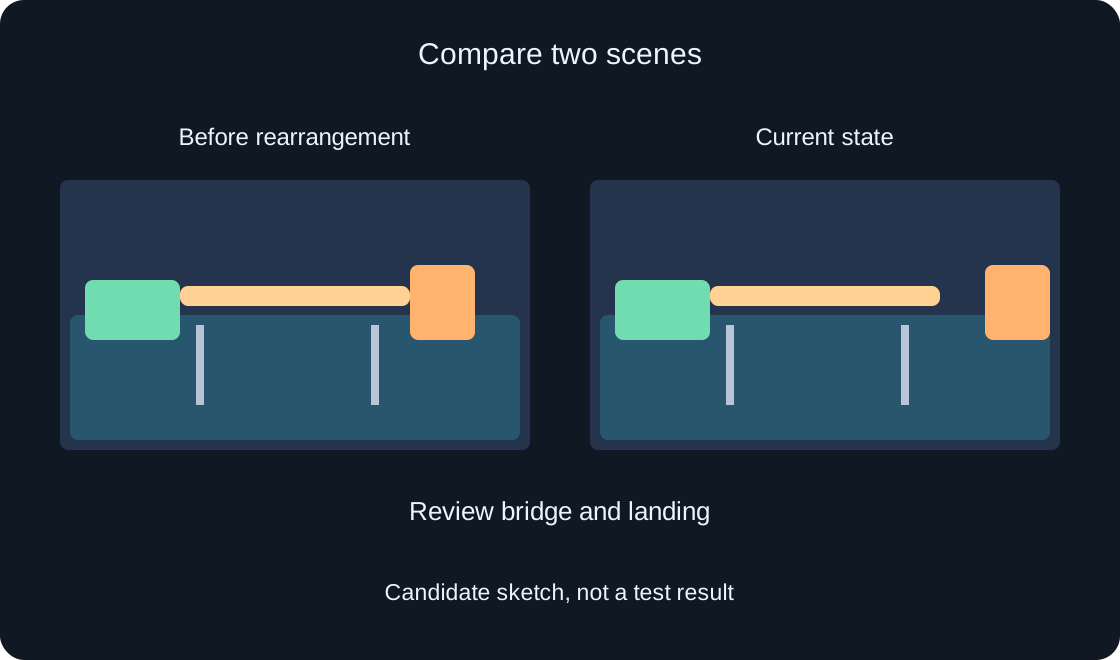
Open Local Copy for the chosen entry opens a copy in another Studio session. This provides a stage for a future comparison: inspect the scene and route without calling a mere opening a restoration of the working place. First confirm that you selected the intended historical entry.
In the exercise, review the start, bridge and landing in the same order. Separate expected and actual results. If the route fits, list later edits that the candidate lacks. A better bridge does not establish that every other part of the scene suits the current project.
 Open full-size image ↗
Keep the current work separately #
Before deciding to return, prepare a separate copy of the current state. Place files describes local export through File → Save to File or Download a Copy. A .rbxl or .rbxlx file contains data for a particular place; a clear filename distinguishes current work from the historical candidate.
Give a future copy check a concrete outcome: the file exists, opens and contains the expected current scene. A filename alone is not content evidence. If the copy is unconfirmed, keep that step incomplete in the plan; this article created or opened no actual Roblox files.
Separate restoration and publication #
The documentation explains that restoring creates a new place version and does not automatically publish it. In Studio the later path uses Save to Roblox As with a destination; in Creator Dashboard history is under Configure → Places. These actions differ from inspecting a local copy.
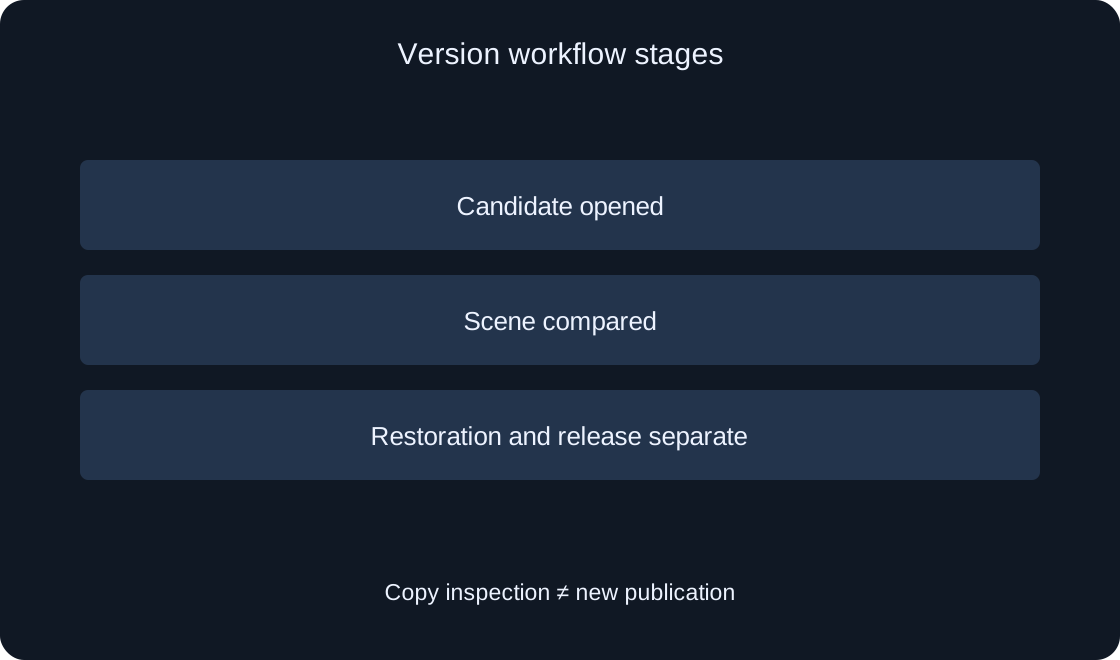
Track four states for a future project: candidate opened, scene compared, saved version restored and new release published. Replacing a public version requires the separate publication and server restart steps described in the documentation. Here we prepare a plan without restoring, overwriting or restarting anything.
 Open full-size image ↗
Consider what returning will not solve #
The scene before the bridge rearrangement helps only if its overall changes are suitable. Later useful text, another room's fix or a new object might be missing. Compare the required part and the losses before choosing between restoring a state and making a targeted correction.
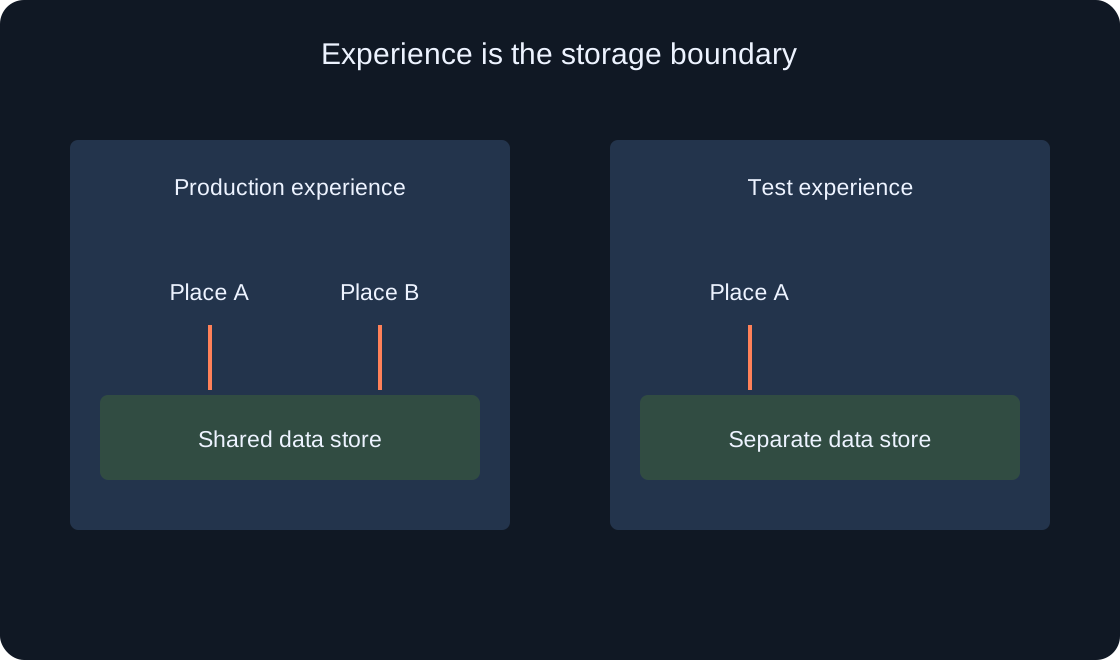
Place history does not promise to restore player data. Do not report recovery of currency, inventory or rewards merely because an earlier scene was selected. Our example concerns object arrangement and development notes; separate data stores and their processes are outside this exercise.
Prepare a collaborator's comparison #
Hand over the candidate with a short review route: where to start, what to observe and which difference matters. Ask a future participant to distinguish a found entry from a verified state. This is a planned collaborative review rather than an experiment already conducted with a colleague.
The table separates notes, filters, copy contents and the decision. Avoid a single ready status when only a similar name was found. Each row needs an observation or clearly proposed check, a version and a next step. A restoration decision can then rely on scene evidence instead of a title.
| Stage | Evidence |
|---|---|
| Note | Which stage is described? |
| Filters | Why choose this entry? |
| Copy | What does the scene contain? |
| Return | Which later changes are missing? |
Leave a clear decision record #
The final record identifies game and place, reason for comparison, current copy, selected historical entry, observed differences and decision status. State what was saved separately from what was published. If work stopped at local inspection, record that exact stage.
Official sources explain history and files; the lighthouse, note example and comparison matrix are original teaching material. Existing places were not restored. The next developer receives a method for locating and assessing a scene, while an actual release decision follows a separate check of the specific project.
| Field | Record |
|---|---|
| Destination | Game and specific place |
| Current file | Current scene copy and its check |
| Candidate | History entry and differences |
| Decision | Opened, compared, restored or released |
Original sources
Roblox Creator Hub — Version HistoryRoblox Creator Hub — Place files