Studio / ROBLOX
Organize Roblox Studio objects with instance tags
Tags help you find objects sharing a role even when they live in different folders. In a fictional parcel workshop, define the intended set, add one tag, inspect the Explorer results and leave a clear record for the next developer.
Start with a project question #
Imagine three parcel intake boxes on separate workshop tables, with decorative crates nearby. You want to find exactly the three objects scheduled for review. Moving everything into one folder just for this search would disrupt the hierarchy that already describes the rooms.
Write the purpose before changing anything: find the objects to review as intake stations. That sentence defines membership. It does not promise that a tag creates parcel acceptance, payment or saved progress. Those actions need their own implementation and verification.
Separate name, folder and tag #
A name distinguishes one object, a folder places it in a hierarchy, and a tag groups selected instances by a shared characteristic. Objects in different rooms can join the same review set while keeping different names and parents. This is useful when a role crosses the physical organization of a scene.
For this exercise choose ParcelReview. Keep existing object names unless there is another reason to change them. In the project record explain that the tag means review an instructional intake station. Avoid wording another developer might mistake for proof of a working gameplay feature.
List the expected members #
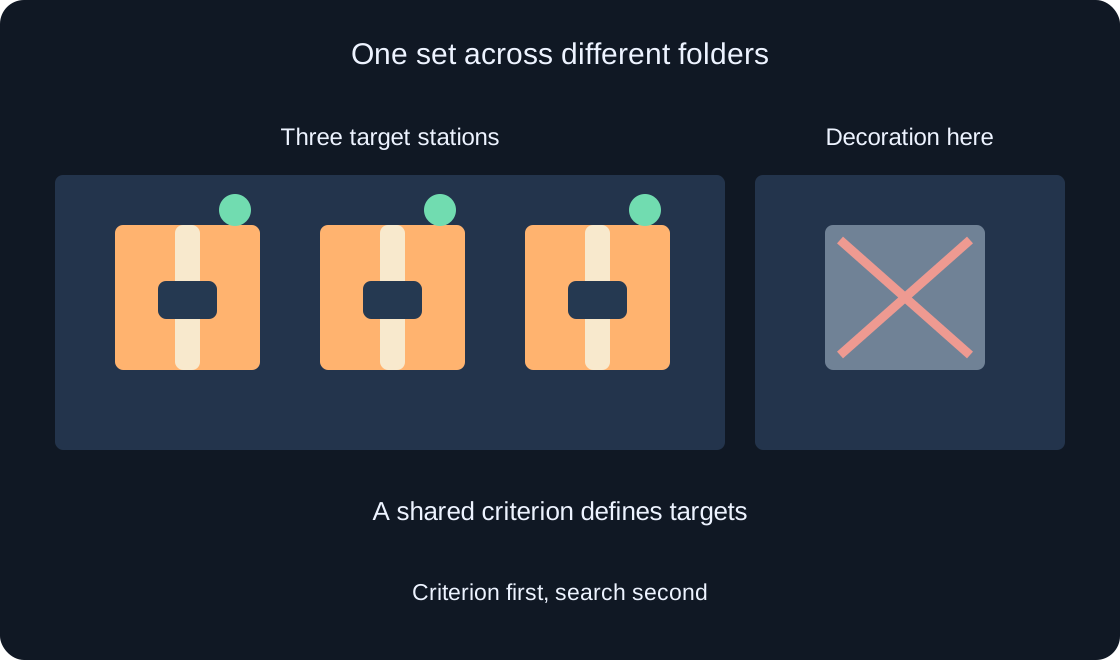
Before adding the tag, list three target instances and one decorative crate that must remain outside the set. Record each target's Explorer path and class. If the role belongs to a part inside a model, identify that part; a similar appearance does not make the parent model and its child the same instance.
The expectation list catches both missing members and accidental extras. The original diagram shows the criterion, intended instances and an exclusion. It illustrates a fictional organization task rather than showing your project or proving that it has been repaired.
 Open full-size image ↗
Add a tag through Properties #
In a working copy of a small project, select one target instance. Open Properties, find Tags and press the plus button. Enter the chosen name or select an existing tag in the popup. Confirm that the entry appears on the intended object before selecting the next target.
Work individually on your first attempt. This makes a mistakenly selected neighboring crate or parent model easier to spot. Remove a mistaken tag using the cross beside that entry on that object. Removing a tag differs from deleting the instance: correcting membership does not require destroying decoration.
Find the set in Explorer #
Use tag:ParcelReview in Explorer search. Inspect every result against your expectation list: path, class and intended role. Ordinary name search and tag search answer different questions. A matching object name alone does not establish that the instance belongs to the tagged set.
Our example tag has no spaces. For a real name containing spaces, the Explorer documentation describes quoting the complete name. Save the exact search string in the record. The next developer should not need to guess whether part of the name is a separate search condition.
Review selection before bulk changes #
With an active Explorer search, select all selects instances matching the query. This is useful after inspection. Before changing a group's properties, confirm the filter, find every expected target and ensure the decorative crate is absent from the results.
Do not begin the exercise with bulk deletion or reparenting. Reviewing membership and recording discrepancies is enough initially. If a shared edit is later needed, identify the property, intended effect and way to restore its previous state. An organizational query is not permission to change every result's gameplay behavior.
Use an attribute for a value #
A tag answers whether an instance belongs to a set. For a separate value, such as an instructional station number, consider an attribute. Properties lets you specify its name, type and value. Avoid dozens of nearly identical tags merely because stations need different numbers.
In our proposed design ParcelReview remains the common marker, while StationNumber could be a numeric field. This is a data organization proposal. It creates neither an interaction handler nor a player reward check. Specify who would use the value and how missing or invalid data would be noticed.
Audit again after scene edits #
After copying, renaming or moving instructional objects, repeat the query and compare it with the current expectation list. An earlier result does not prove the state of the edited scene. If there are now four stations, update the expectation deliberately; adding decoration should not expand the group under its stated criterion.
The documentation describes tags being saved with places and replicated from server to client. That does not promise automatic behavior. A future script using the tag needs a separate review of object lifecycle and execution context. This article neither implements nor tests such a controller.
Check the naming agreement #
Ask a future collaborator to read the tag description without verbal guidance. Could they identify the targets, exclude decoration and reproduce the query? If interpretations differ, clarify the criterion and an exclusion example. This is a proposed review exercise, not a completed user study.
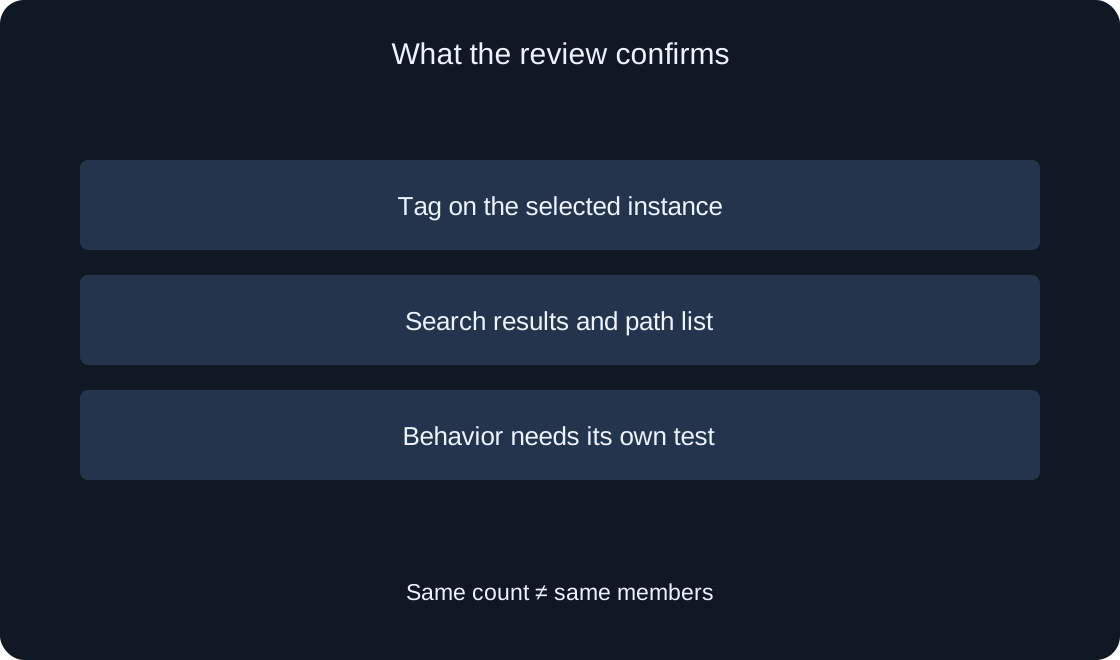
Keep membership criterion, actual results, separate values and gameplay behavior in different table rows. Record the count, but do not rely on it alone: an extra crate can conceal a missing station. Save the object paths as well so equal totals do not hide unequal sets.
 Open full-size image ↗
| Review | Compare |
|---|---|
| Criterion | Why do objects belong? |
| Results | Do all paths match the list? |
| Values | Is a separate attribute needed? |
| Behavior | Is there an independent test? |
Hand over a small group record #
The finished record contains the exact tag, its meaning, search string, intended instance list, explicit exclusion and the date of review for a particular version. Document a proposed attribute's type and purpose separately. This lets another developer continue organizing the scene without reconstructing your assumptions.
We prepared a way to review a fictional group rather than modifying existing games. The official links explain Properties and Explorer; the workshop, names and review matrix are original teaching examples. If membership is correct, implementing and testing behavior can be a separate next step rather than declaring it already complete.
| Field | Hand over |
|---|---|
| Tag | Exact name and meaning |
| Query | Saved search string |
| Targets | Instance paths and classes |
| Exclusion | Decoration outside the set |
Original sources
Roblox Creator Hub — Properties windowRoblox Creator Hub — Explorer window