For players / ROBLOX
How to switch Roblox accounts and confirm the profile currently selected
Find the web account picker, distinguish its entries from your current profile and verify the result before an account-specific action. An original two-profile journal keeps the browser, another computer and an already running game client separate.
Decide which profile you want to use #
Before switching, define one small task: open the intended profile on the website and confirm its username. Do not simultaneously change settings, launch several games and repair logins on other devices. First establish one understandable result. For example, you want to view saved experiences in another account you own. Record which account should become current and which information will let you identify it before starting the transition.
Our exercise uses two fictional profile roles, Route and Builder. They are journal labels rather than existing accounts or links to other users. Route is currently selected in the browser; Builder is the destination. Record the device, intended username and actually opened profile. We created, added and switched no real accounts for this article. The exercise demonstrates an observation order for a reader's own check rather than claiming to have examined their private account state.
Check the current account first #
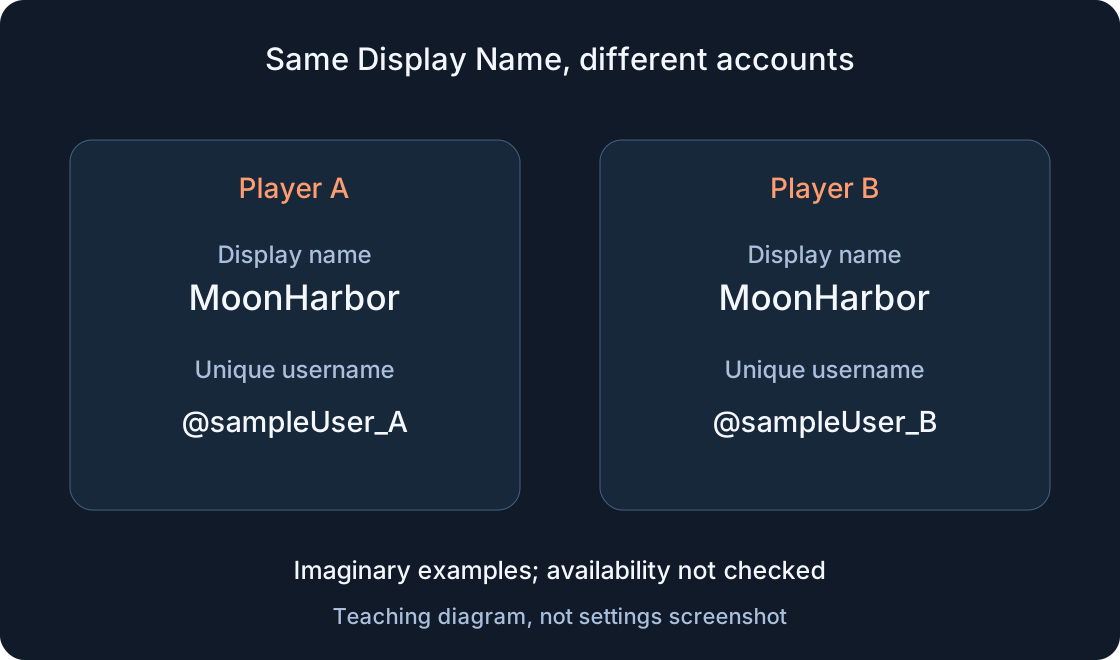
Look at the profile available in the current website window. Open its page and compare the username and profile address instead of relying only on an avatar picture or similar label. If names differ between locations, establish which field you are reading. Display Name and username serve different purposes. The separate naming guide can clarify that distinction before you try to decide whether the current profile matches your intended account.
Give the journal two rows: before switching and after switching. In the first, preserve the name and page you actually found. Do not substitute the expected profile because it is familiar from memory. A useful entry can say destination Builder, currently observing Route. That is not yet a failure; it describes the starting state. The comparison becomes convincing only after you separately observe what the selection actually opened.
Find Switch Account on the website #
The official help page describes Account Switcher for the web. Its route is to open the gear icon at the top right of Home and select Switch Account. The official illustration places that command separately from Settings, Quick Log In and Log Out. Do not choose a different action because one word looks familiar. Read the command that actually concerns switching and confirm that you are using the intended website.
The current help page specifies availability for users aged 13 and older and accounts without parent privileges. Those are conditions in its published description, not a promise that every reader will see the command on every device. If it is absent, record the device and visible menu, then consult current help. Do not interpret absence of a web command in another interface as proof of a malfunction or change account details to bypass the conditions.
Separate adding an entry from selecting it #
The picker may already contain prepared entries. First compare them with your destination. If the intended profile is present, identify that entry rather than the most similar avatar. If it is absent, follow the addition action offered by the official interface and the ordinary sign-in flow for your own account. This article does not promise an unchanging label for that next control: the official illustration establishes the Switch Account entry, not every subsequent form.
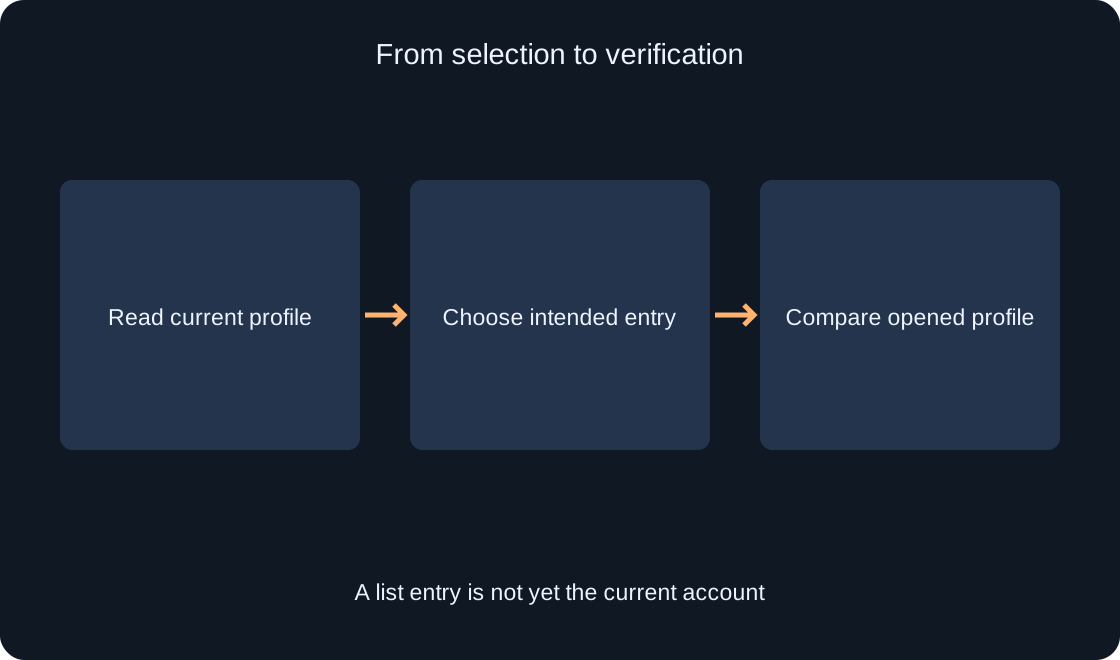
An added profile and the current profile are separate journal fields. An entry appearing in the list does not complete our check. After choosing it, you still need to read the opened account. Do not record passwords, verification codes or session contents in the worksheet; a name and page are sufficient for the comparison. We do not save readers' login information or authenticate on their behalf. Adding a real account remains an action for its owner.
 Open full-size image ↗
Account for the list limit #
The help page specifies a maximum of five accounts in Account Switcher. If the list is full, first count the entries you can actually see and identify the profile required for this task. Do not create another account simply because the intended entry did not appear on the first attempt. Keep entry count, destination and selection outcome distinct in your journal: they answer different questions and should not be merged into one result.
Two profile roles are enough to follow the exercise without a large list. Mark intended entry found separately from intended account opened. If you investigate managing a full list, read the purpose of the offered command before applying it. Removing a saved login, ending a session and deleting an account should not be treated as the same operation because their labels seem related. This article carries out none of those operations.
Confirm the result after choosing #
After selecting the intended entry, open the current profile again and compare its username and address with your destination. Do not stop at the menu closing or an avatar refreshing. Our criterion is the observed selected profile on the website. If it matches, fill the after switching row. If it does not, preserve the actual value and return to the last understood step instead of repeating unrelated actions at random.
In the fictional journal, the starting Route profile is expected to become Builder. That is an intended scenario, not our measured outcome. The reader fills the observed row using their own interface. Only after this comparison should they proceed to an action belonging to a specific account. Selecting another profile should not be described as transferring items or experience progress between accounts; choosing a picker entry does not check either of those separate tasks.
| Stage | What to check |
|---|---|
| Destination | Intended name and page |
| Before selection | Current profile |
| Picker list | Intended entry found |
| After selection | Opened profile matches |
Check an already running game client separately #
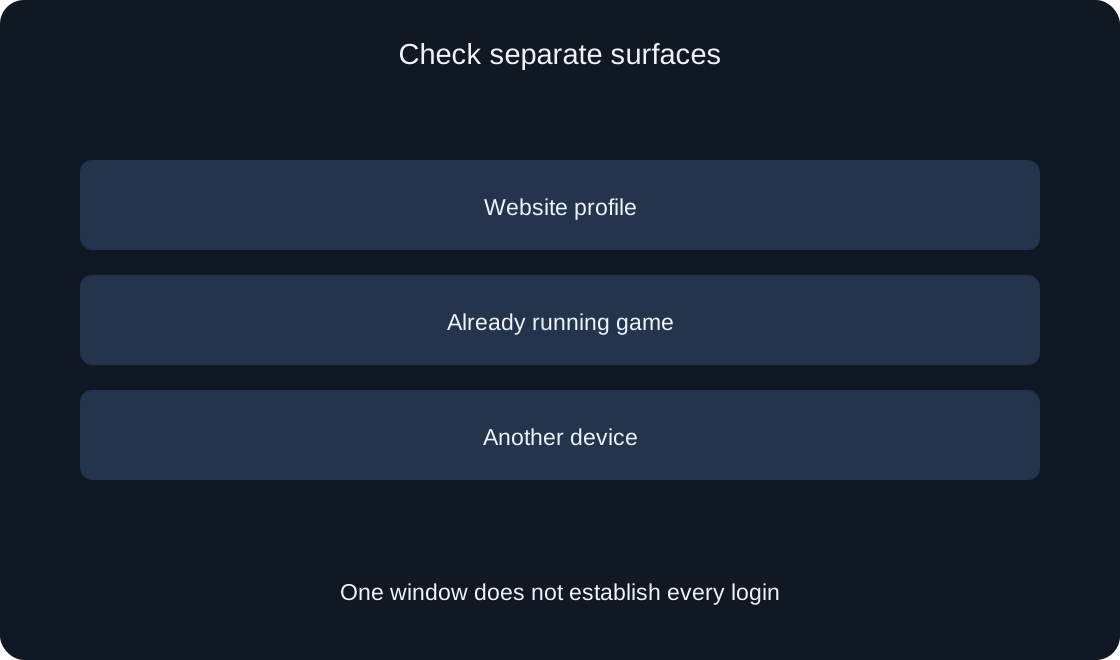
If a website and a running game are open at the same time, record them as two surfaces to inspect. Information on the web page describes the current browser profile. It does not by itself identify the participant already playing in an existing client session. Do not promise that choosing an Account Switcher entry automatically changed that participant's identity without observing the information available in the game client itself.
The worksheet needs separate fields for website profile, gameplay-session profile and device. If the client field has not been checked, say so. Do not replace uncertainty with an assumption based on the website avatar. This article launches no games and tests no native-session change. It supplies an observation order that helps prevent an action in one location from being justified solely by evidence gathered in another location with a potentially different current account.
 Open full-size image ↗
Do not expect the same list on another device #
The official help page says picker entries are stored on the current device and do not appear on other devices. An empty list on another computer therefore does not prove the accounts themselves disappeared. First compare where you opened the picker. Record the computer or phone and browser, then inspect entries available there rather than substituting your memory of the list on the previous device for a new observation.
The page also says the picker does not show other users which accounts you switch between. That describes the feature; it does not establish complete privacy for every shared computer. Our journal only needs the local context: which list is visible here and which profile is selected here. This article does not investigate other people's physical access to a device or collect private account information for comparison between computers.
Distinguish account selection from session management #
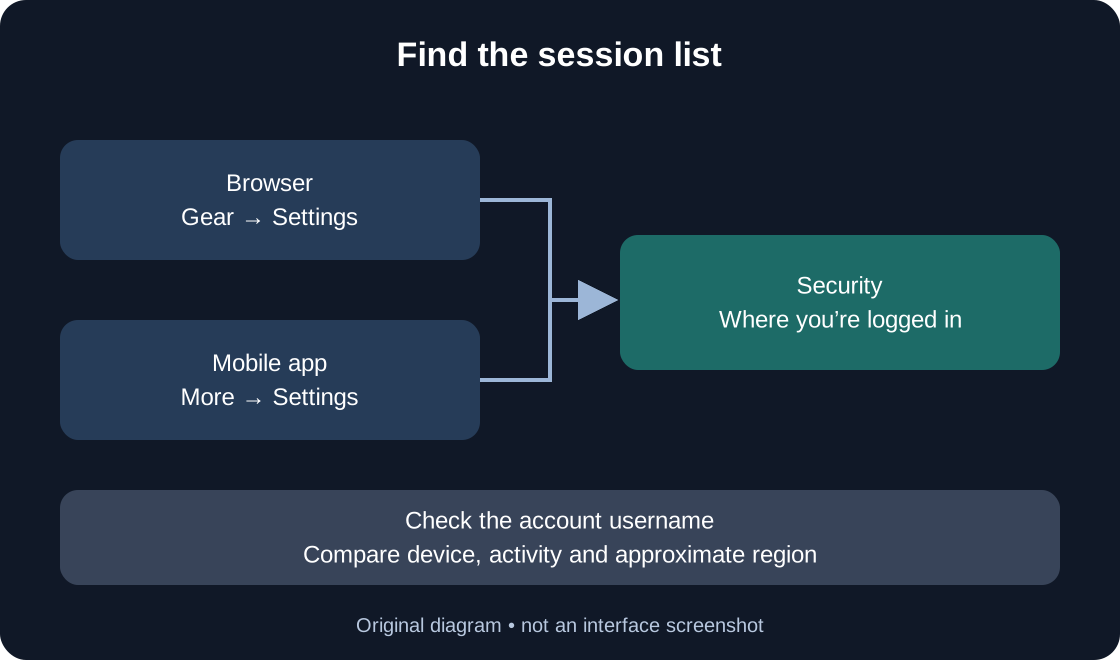
Where you’re logged in within security settings displays login sessions with device information, approximate region and last activity. Official help describes it as session management. Account Switcher answers another question: which profile you are selecting on the website now. Its account list is not a list of every device used by one account, and it does not replace checking sessions when the task specifically concerns those sessions.
Do not mark all other devices signed out after merely choosing a different profile. That conclusion would require another action and verification. The dedicated session guide covers reviewing and ending sessions; here we preserve the boundary between functions. If session information is unclear, record what is visible rather than inventing an exact location or cause. Profile selection alone neither diagnoses login history nor demonstrates that sessions elsewhere have ended.
Finish with a verified transition record #
Keep four items: intended profile, starting profile, located picker entry and actually opened profile after selection. Add the device and whether you checked a separate game client. Login secrets are unnecessary. When the destination matches the result, the record establishes whose profile you are using on the inspected website. When they differ, it identifies the stage needing clarification without reducing everything to the vague statement switching does not work.
The original roles and journal support a self-check, but they are not a report on your accounts. Consult official sources for current conditions and commands before repeating the exercise. Success here means the intended profile has been confirmed on the inspected surface. It does not mean data transferred, every session ended or another device authenticated. You can then continue the account's specific task while preserving a clear connection between your destination and observation.
| Context | Record |
|---|---|
| Device | Actual device |
| Website | Selected username |
| Game client | Check separately |
| Another computer | Local list does not transfer |
Original sources
Roblox Support — Account SwitchingRoblox Support — Session Management