For players / ROBLOX
How to block and unblock a player in Roblox
Follow the profile, in-game menu and blocked-user settings. Learn how to choose the correct account, undo a mistake and decide when a separate report is needed.
Choose the result you want #
Blocking is useful when you decide to end direct contact with one account. After an unpleasant conversation, for example, you can stop that contact without starting another argument. Reporting has a different purpose: it gives Roblox specific content to review. If your aim is to stop invitations from one person, start with blocking; if a rule was broken, separately find the appropriate Report Abuse tool.
Do not use the button to win an argument or punish an opponent for a match result. Describe your task in one sentence: “I want to limit contact with this account.” That helps distinguish the action from leaving a game, removing a friend or changing settings for your whole account.
Check the account before selecting anything #
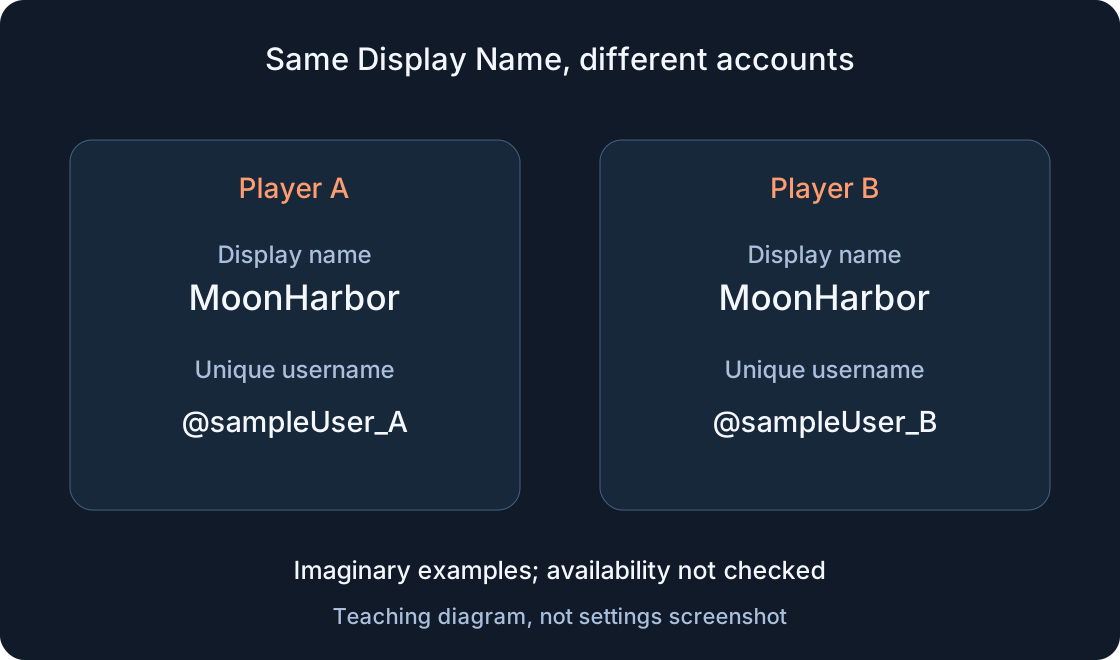
Open the person's profile and compare their username with the account you actually interacted with. Check spelling, particularly digits and similar-looking letters. The name above a character and the avatar picture can help you orient yourself, but use the profile details for the final check. If you have a profile link from the conversation, use it rather than the first similar search result.
Here is a fictional example: you remember “RiverFox” from a game, but several search results look similar. A fox avatar is not enough to choose one. Return to the participants in the conversation or game and open the relevant profile from there. If you are unsure, stop at identification instead of blocking unrelated people just in case.
Block through a profile on mobile or in a browser #
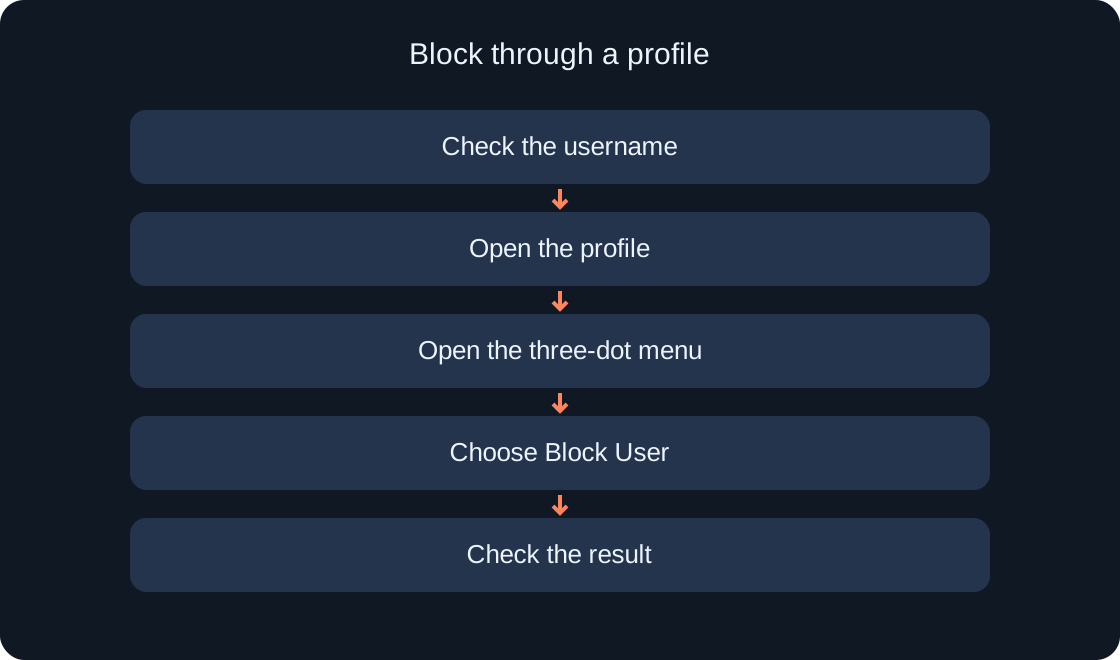
On the correct profile, find the three-dot menu in the user details area. Open it and select Block User. Roblox Support describes this route for both browsers and the mobile app. Check the account name again before acting; afterwards, read the available confirmation or menu state.
Take the steps individually: profile, menu, correct command. If your app has a different layout, do not use the exact position in our diagram to locate a button. The diagram explains a sequence rather than reproducing the current Roblox interface. The command and selected account matter more than the button colour or its distance from the edge.
 Open full-size image ↗
Find blocking while playing #
On a computer, open the menu with Esc, go to People, select the relevant participant and choose Block. Roblox describes a separate confirmation dialog for this route. Do not confirm automatically: the account name should match the one you checked. Afterwards, return to your activity or leave the unpleasant conversation.
Another route uses the player list: select the person and choose Block in their menu. A closed list can be opened through Leaderboard or the Tab key. On a small phone screen, the list may be unavailable; use the profile route in the previous section instead. There is no need to change device settings merely to find a list when the profile is available.
| Situation | Route |
|---|---|
| Profile is available | Profile → three dots |
| No player list on phone | Use the profile |
| Playing on a computer | Esc → People |
Understand what blocking changes #
According to Roblox Support, blocking removes the friend and follower relationship between the accounts and prevents direct contact, including messages, friend requests and invitations. The other person receives no separate notification that you blocked them. Consider this before acting: the change concerns the accounts' relationship rather than just one sentence in a conversation.
Do not treat blocking as a promise to remove someone from every shared server or automatically ban their account from Roblox. The cited help article offers neither guarantee. If the situation continues in the current game, separately decide whether to leave that session and, if there is a violation, report the specific context. Check the outcome of the action you actually selected.
Open your blocked list and unblock one user #
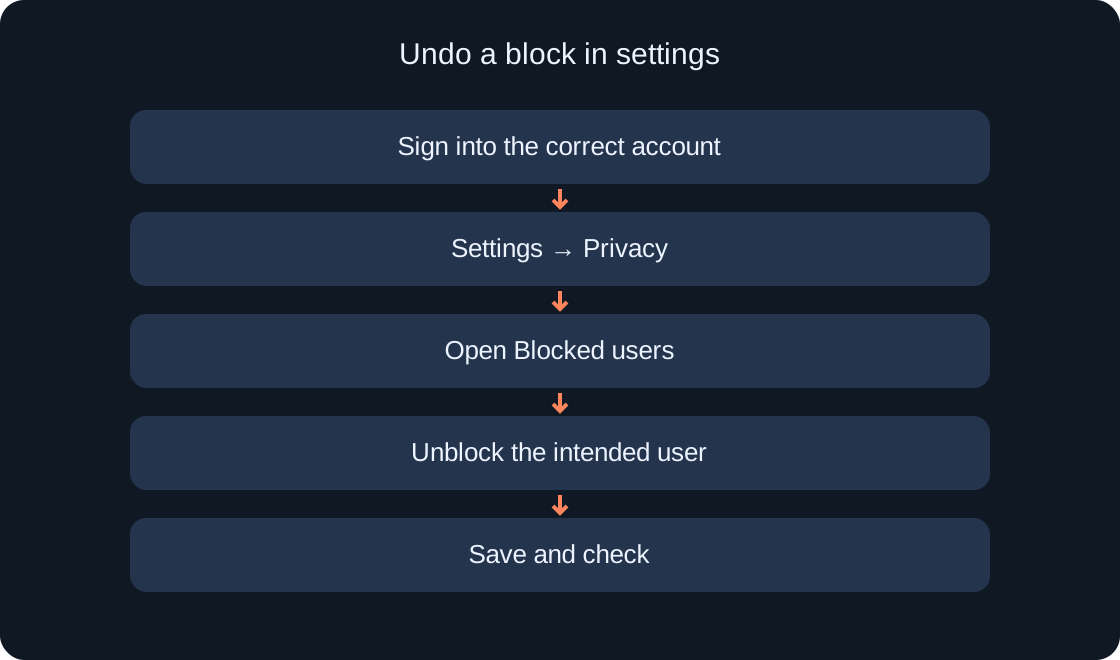
Sign into the account that made the block. Open Settings, using the gear icon in a browser or More in the app. The documented route then goes through Privacy & content maturity to Blocked users. Find the correct entry, select Unblock beside it and finish with Save.
Change only the intended entry. You do not need to clear the entire list to fix one mistake. If the user is missing, first check which account you are signed into and compare the username spelling. After saving, inspect that entry's state again. This tutorial does not alter your settings: account actions happen only in your own Roblox app or on its website.
 Open full-size image ↗
If a parent made the block #
Roblox describes a different procedure for a block set through linked parental controls. A child cannot undo it with ordinary self-service unblocking. Selecting Unblock instead leads to the on-screen steps for requesting permission from the parent. This differs from correcting a mistake in your own blocked list.
Tell your parent which account you mean and why you want the decision reconsidered. Bring the exact username and a calm description rather than trying to bypass the setting. For the parent, friend management starts at Settings, Parental Controls and Friends → Manage. The person responsible for that control should review and change the decision.
If you cannot find the command #
Start with simple checks: are you viewing a user's profile rather than an experience page, are you signed into the intended account, and are you searching for a player list on a small screen? Compare your route with the current official help linked below. A button missing from a remembered location does not, by itself, explain the cause.
If the interface differs, record the device, app or browser, the section you opened and the exact message shown. That brief description is more useful than “nothing works.” Leave out passwords, sign-in codes and other people's private conversations. When contacting support, share only what is needed to explain the menu problem.
When you need a separate report #
Blocking and Report Abuse serve separate purposes. To report a violation, Roblox recommends reporting the actual chat, message, experience or other content. A profile-only report does not show moderators what happened. Use the tool where the problematic material appears and describe the observed action rather than guessing about the person.
A personal decision to stop contact does not require inventing a violation. For a real report, do not gather people to send mass reports. Consider this fictional distinction: “I do not want more invitations” points to blocking contact; “I need moderators to review this specific message” points to reporting that context. Roblox determines the review outcome and timing.
Check the result before finishing #
Ask three questions: did you choose the correct username, use the correct command and save the change where Save is required? When unblocking, check that particular list entry; for a parental restriction, check the request to the parent. Someone disappearing from your screen alone does not prove that an account setting changed.
After undoing an accidental block, consider any further relationship separately. This guide does not promise automatic restoration of previous connections or chat availability; those are other account states. Remember the route to the blocked list so you can correct one entry confidently next time. Our diagrams are original sequence guides; no real blocks or reports were performed to prepare this article.
| What to check | Action |
|---|---|
| Wrong account selected | Compare the username |
| Entry is missing | Check account and spelling |
| Parent set the block | Request permission from parent |
| Change requires saving | Select Save and check |
Original sources
Roblox Support — How to block another userRoblox Support — How to unblock a user
Roblox Support — How to Report Rule Violations