For players / ROBLOX
Roblox Communities: find the intended page and check your joining status
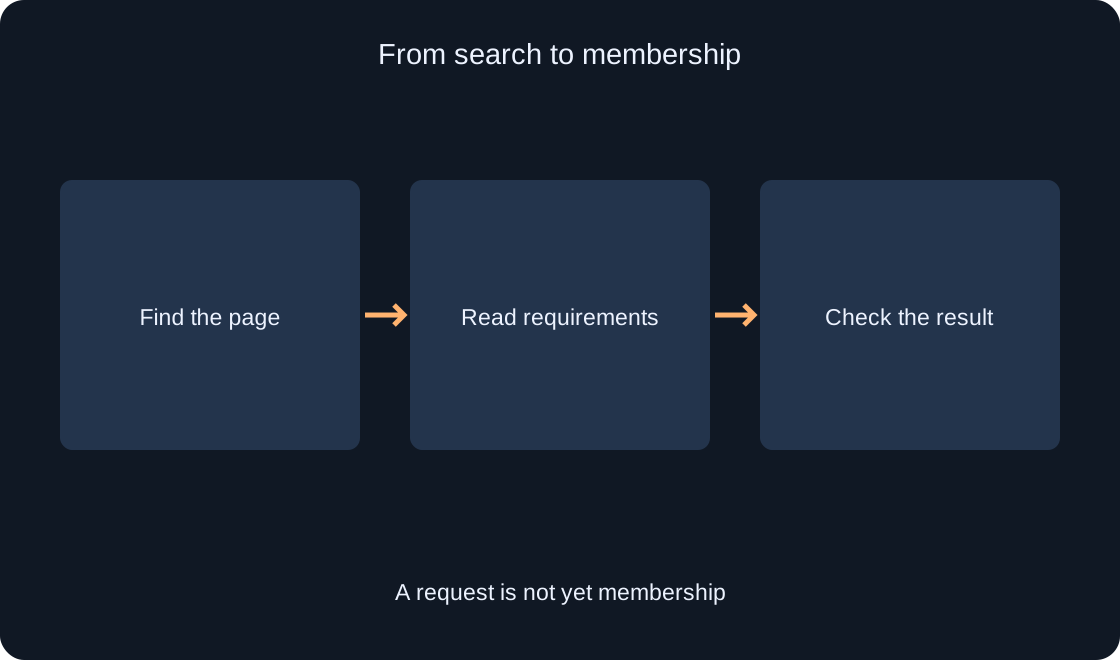
Separate community discovery, account requirements and manual approval. An original action journal helps distinguish a found page, a submitted request and confirmed membership without guessing button behavior or approval times.
Decide which community you actually want #
A Roblox Community is a separate page with a description, members and related sections. It is not the same as an experience server, a friends list or DevForum membership status. If you want a particular creator's community, begin with an exact name or link from a clear source. A familiar game name or the word Roblox alone does not establish that a result belongs to the intended creator.
For the exercise, use a fictional community called Island Routes. Your worksheet contains its name, expected creator and purpose: reading route updates. This article does not create that page or assert that it exists. It is a comparison card for checking a discovered result against an expectation. Replace the fictional information with the details of your intended real community before taking any account action.
Open the Communities section #
The official help page describes Communities in the website's left navigation. In the app, the path begins with More, represented by an ellipsis at the bottom or in the side navigation depending on the device, followed by Communities. Consequently, do not expect one fixed screen position on a computer and a phone. The navigation layout may differ while the section's purpose remains the same.
Check that you are using the intended account. Membership state belongs to that account, rather than to the browser in general. If the page asks you to sign in, an absent personal community list does not demonstrate that you left those communities. Establish a clear page context first. We did not access readers' accounts or verify their settings; the article describes a sequence for checking your own visible state.
Find the page and compare its information #
The help page also describes searching by community name. Use the name from your worksheet and open a suitable result. Read the description and available creator, membership and experience information. In the fictional Island Routes card, you expect route-related updates. A result about a different topic or creator needs clarification even when the name looks similar to the one you remembered.
Keep the exact page link so that subsequent checks concern the same destination. Do not substitute an experience card: pressing Play begins a different workflow. If the description does not establish why you want to join, remain at the discovery stage and clarify the purpose. Finding a result is not yet a decision to become a member, and certainly is not evidence of successful membership.
 Open full-size image ↗
Read the conditions before Join Community #
Locate Join Community and the available joining conditions. An owner can use manual approval and account verification requirements. The same button label therefore does not promise the same outcome in every community. First identify the expected next step: immediate membership, a request for approval or a prompt to complete a required verification through Roblox's own interface.
Record only visible information in your journal: the chosen page, displayed condition and expected stage. Do not infer requirements from member counts or attractive artwork. If you are already a member, avoid trying to join again just for testing; inspect the actual page state instead. This guide does not suggest joining every result you discover and does not perform community actions on your behalf.
Distinguish the verification levels #
The official Join Requirements page lists None, Low, Medium and High. Low accepts phone, email or ID verification. Medium requires ID verification or the combination of phone and email verification. High requires ID verification, while None imposes no account verification requirement for joining. Read the logical condition carefully: one accepted route and a required combination are different eligibility rules.
Inspect the current prompt in Roblox's official interface. Do not send identity documents, passwords or verification codes to a community owner merely because a similar request appeared in another message. For our worksheet, noting that a requirement is displayed and not yet satisfied is enough. That is a different state from an application being submitted. The article does not verify identity or establish that your account meets a selected level.
Separate a submitted request from acceptance #
When Manual Approval applies, pressing Join Community submits a request to the owner. Waiting for approval is a distinct stage rather than confirmed membership. The official guide does not specify a universal response time. Do not promise yourself acceptance after an invented ten-minute interval or conclude that the page is broken just because a decision did not appear immediately.
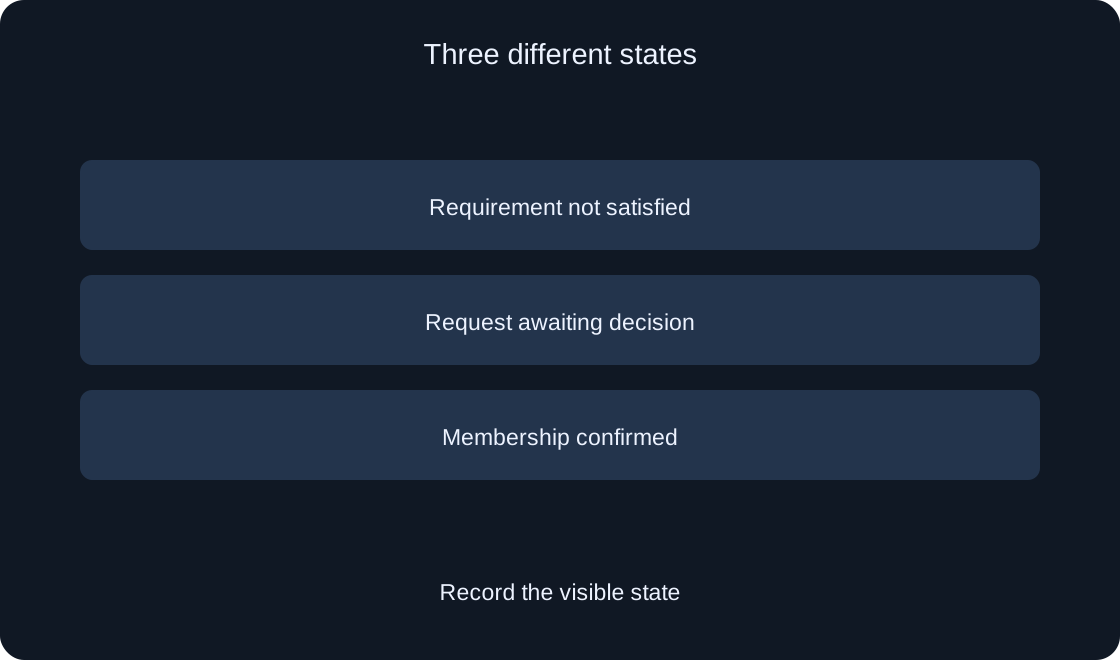
Describe the observed result in your own words: a request was submitted, verification is required or a membership indicator is visible. The worksheet does not require an invented uniform message label. Return to the same page later if you want to check a decision. Avoid sending repeated requests or automatically messaging the owner. A separate message is another action, not a necessary step in this status check.
 Open full-size image ↗
Check the actual membership state #
After taking an action, compare the page state with the expected stage again. Your community list and available membership details can help, but read the interface in its current version. A changed button color alone is weak evidence if the surrounding page still asks you to wait for approval. Prefer an explicit outcome message or available information showing actual membership.
Our fictional player's journal has three independent entries: the correct page was found, the requirements were understood and membership was confirmed. The first two do not substitute for the third. If the result remains unclear, keep it uncertain rather than rewriting it as joined. This approach also helps a support request: the specific action and visible result explain the issue better than saying that nothing works.
| Stage | Evidence |
|---|---|
| Intended page | Name and URL |
| Conditions | Visible requirement |
| Request | Submission result |
| Membership | Participation information |
Explore sections without assuming permissions #
The description explains the community's purpose, and Experiences shows related games when they have been added. Members and announcements can help you understand activity, but joining alone does not establish access to every tool. Available actions may depend on your role and account capabilities. Read visible sections before assuming that you may edit settings or publish messages.
The route exercise only needs a relevant description and update, rather than immediately posting to a wall. Reading a Community does not automatically grant DevForum member status; they are different Roblox surfaces. This article does not post messages, assign roles or promise special game rewards. If a community mentions a bonus, its actual current conditions need a separate check instead of an assumption based on membership.
Treat leaving as an ordinary-member workflow only #
If you decide to leave an ordinary community, verify its name and your role again. The help page describes Leave Community on the page, including among the ellipsis menu's actions. Use the current visible command rather than an old screenshot's location. After your action, inspect the changed state. Leaving a community is different from leaving an experience server or closing a browser tab.
Ownership requires separate consideration. Roblox warns that rejoining a community you owned does not restore ownership after leaving it. If your role is owner, stop this ordinary-member exercise and read the management guidance separately. This article does not leave anything in your account. Do not use leaving as a universal repair for an unclear request or an unavailable button; it may change more than the state you wanted to investigate.
Finish with a concise verification record #
Keep the community name and URL, device, displayed requirement, performed action and actual result. Separate found page, eligible to request, request submitted and membership confirmed. The fictional worksheet can be completed without taking any account action. In a real case, record observations rather than presumed owner responses or guaranteed waiting periods. A useful journal preserves the difference between an expectation and evidence.
If you need help, describe the specific mismatch between the expected and visible stage. Keep passwords, codes and identity verification documents out of an ordinary issue report. The primary sources at the end let you check changing Roblox rules. The original journal and diagrams explain the verification sequence; they are not screenshots of your account or a claim that a joining procedure was performed for you.
| Record | Example |
|---|---|
| Device | Actual device |
| Page | Exact URL |
| Action | What you did |
| Result | What you saw |
Original sources
Roblox Support — Finding and Joining a CommunityRoblox Support — Join Requirements for Communities