For players / ROBLOX
Roblox inventory: find owned items and identify the right list
Check the exact item, category and account. Browser and mobile Inventory routes, and how they differ from Avatar, a look, Creator Store assets and a particular game’s inventory.
 Open full-size image ↗
One missing-item question, several different lists #
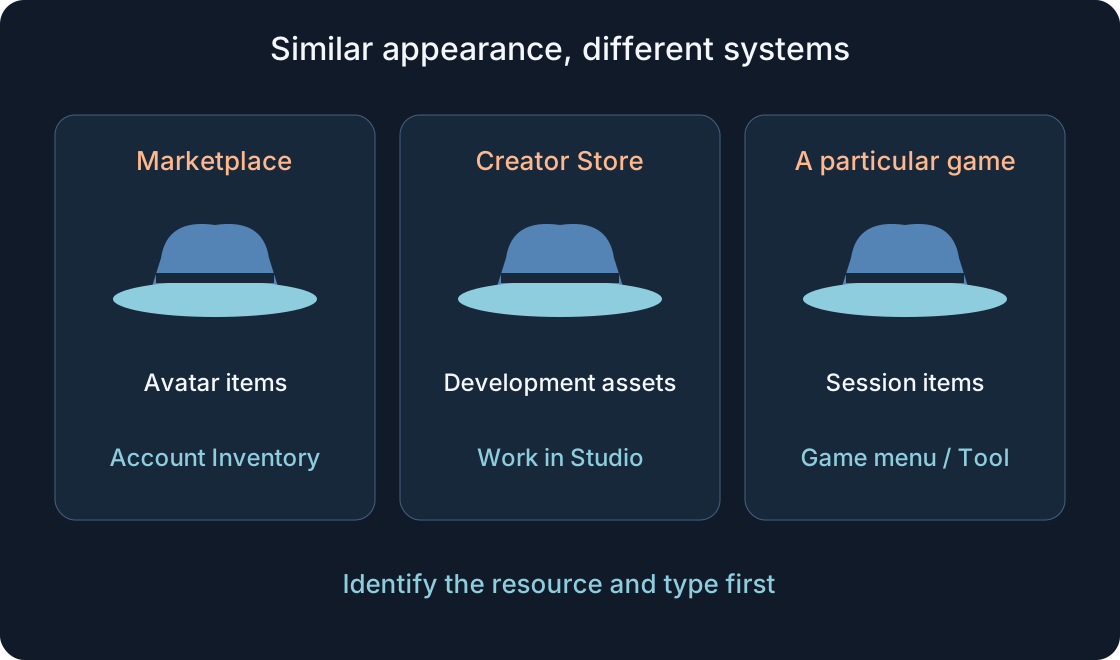
An avatar hat, a developer's image of a similar hat and an in-game tool can look alike while belonging to different systems. Begin with “Which exact item am I looking for, and where should it belong to my account?” rather than “Why has everything disappeared?” This guide covers finding and identifying ownership. Wearing items is explained in the linked avatar guide.
Our examples are fictional: a blue hat, a traveller's look and a lantern inside a teaching game. They are not real products, purchases or inspected accounts. The aim is a short precise record distinguishing an owned resource, current appearance and an in-game result. Similar pictures alone answer none of those questions.
1. Prepare the item’s exact details #
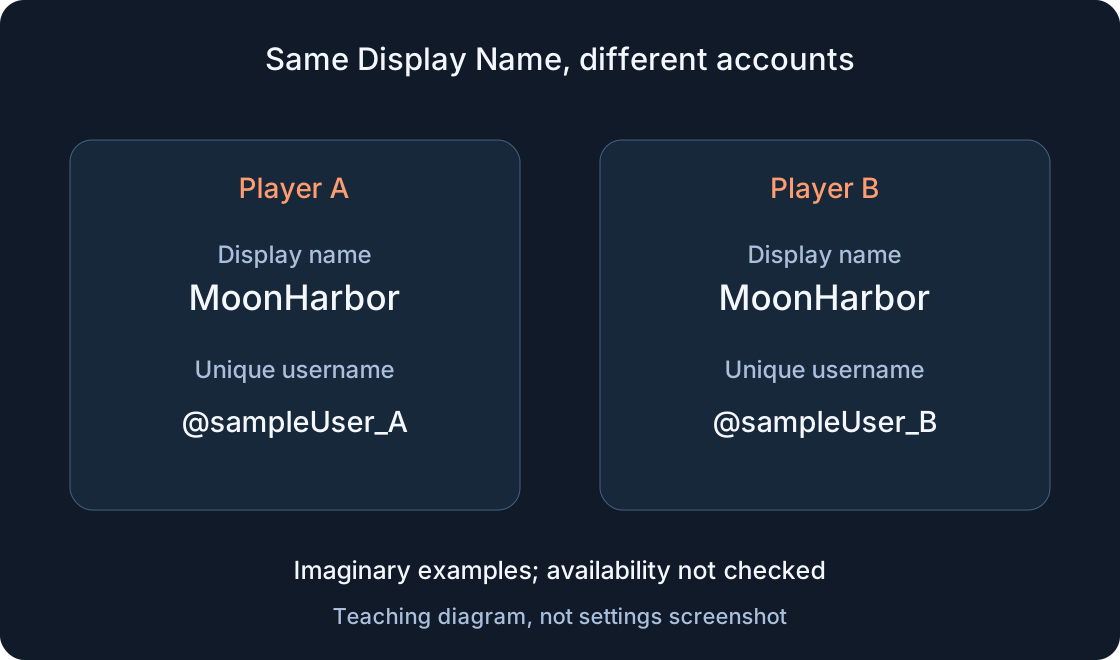
Use your own account on the official site or application and check its username, particularly if you have several accounts. Display names can look similar across users. Record the sought item's name, link, type and where you saw it: Marketplace, the avatar editor or a particular game.
If you only recognize a picture, find the exact details page first. Similar names, a bundle and an individual component may refer to different resources. Do not invent an identifier from memory. For an in-game item, include the game link and its menu name. This record requires no password. It lets you choose the right category and explain the problem without an ambiguous “that hat from the video.”
2. Open Inventory in a browser #
Current Roblox Support describes the menu icon at the top left, followed by Inventory. Select a category and a subcategory where applicable. Browse the entries and further pages using the bottom arrows. Open the chosen item's image to reach details rather than stopping at the grid.
The documented owned-item page displays Item Owned with a checkmark. Check the exact resource while signed into the correct account. One empty page in a selected category does not establish an empty inventory. Review type, subcategory and later pages first. If your version's navigation differs, record the menu you actually see and consult current help. An old screenshot does not establish a permanent location for every control.
3. Find the mobile list, not the editor #
The currently documented phone and tablet route is More at the bottom → Inventory. On a phone, Category and Subcategory use a dropdown; on a tablet, select them in the box on the left. Browse with page arrows or available automatic loading, then open the item's image for details.
This is separate from appearance customization. Mobile help says Avatar is being renamed Me through a regional rollout. That editor label does not justify replacing Inventory with an invented route. If the option is absent, note device and app version, and compare your own account in a browser. A different mobile grid alone does not prove disappearance. Check category and the exact resource before making that conclusion.
4. Search by type, not resemblance alone #
Categories organize different resource types. Hair, accessories, animations and character components need not be inside the same selected group. Use the type shown on the details page to identify the appropriate place. A bundle page and a component page are not interchangeable; retain the link for what you are checking.
In our teaching example, a player searches animations for a blue hat and finds nothing. The useful next step is checking type and category, not obtaining another similar-looking object. Browse beyond the first page when the list is long. Its first row cannot establish that the account owns nothing. The table helps choose a system before searching; it is a concept map, not an immutable menu list for every Roblox version.
| System / label | Meaning | Where to check |
|---|---|---|
| Marketplace | Avatar-item offering, not ownership proof | Type and exact details page |
| Account Inventory | Owned resources organized by category | Own category/page and Item Owned |
| Avatar / Equipped | Editable appearance and worn items | Editor, not the complete collection |
| Look | Appearance or component combination | Individual component pages |
| Creator Store | Assets for building games | Development-resource type |
| Backpack / game menu | Session Tool objects or creator’s custom list | Specific game and its rules |
| Saved game inventory | Data that the project elects to store | That game’s documented behaviour |
5. Details, preview and ownership are distinct #
The details page supplies name, type and description. Its image or 3D view lets you inspect the object; Try On previews it on your avatar. Preview helps understand shape without establishing that you own the item. For ownership, return to the exact details page and your account's indicator.
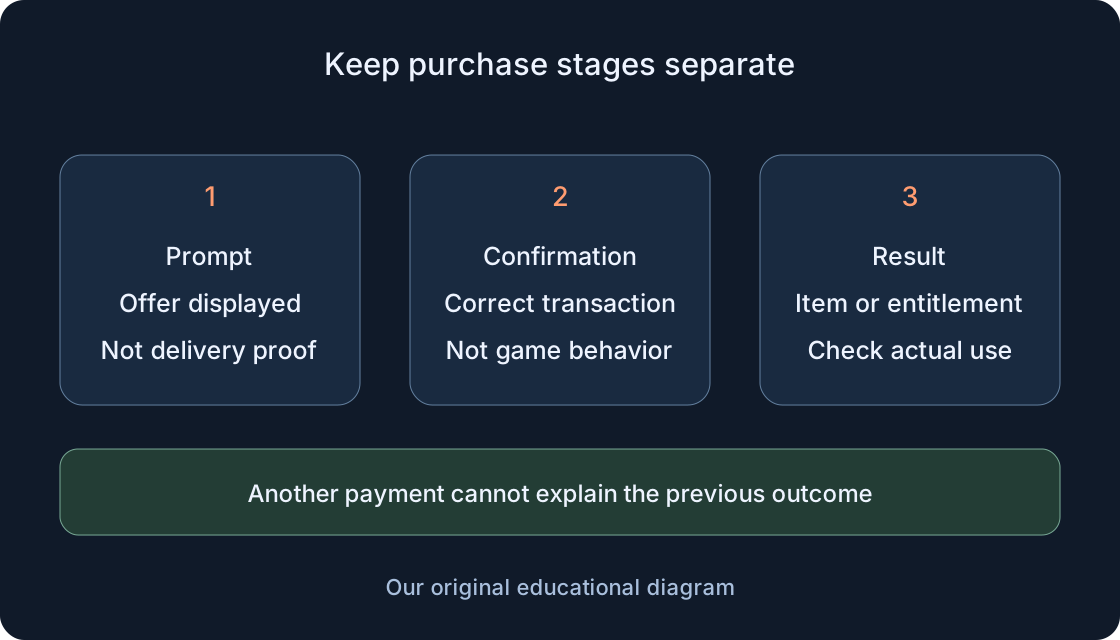
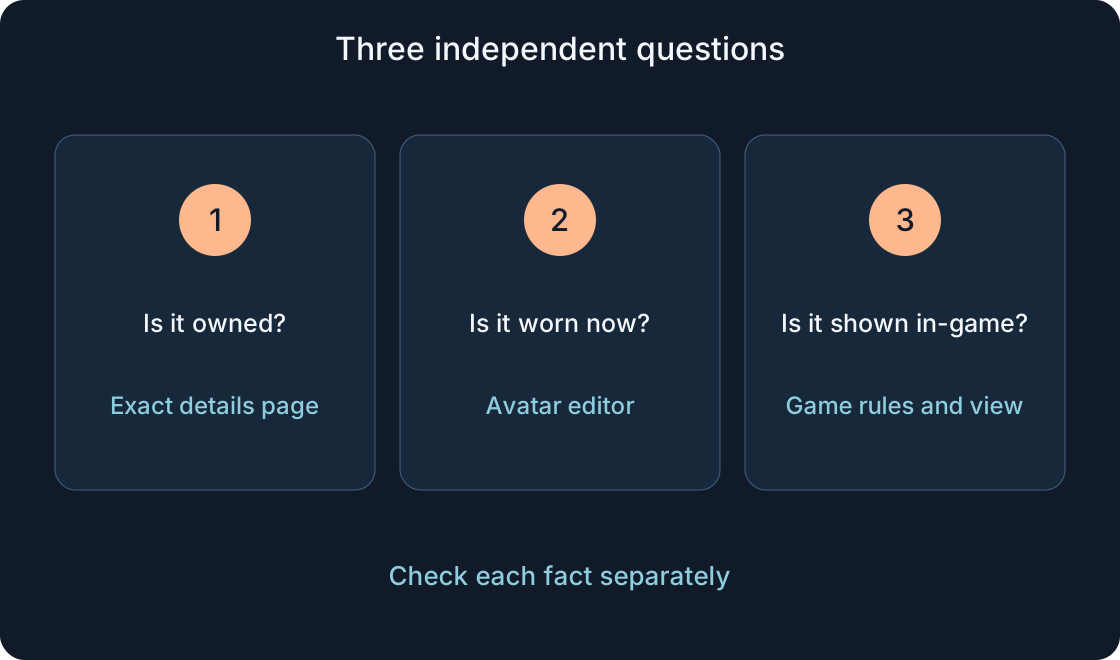
Item Owned, an inventory entry and current equipment answer different questions. Record each relevant fact separately: resource page, ownership indication, editor and game. Do not infer trading or resale eligibility merely because an item appears; those have separate conditions. This guide requires no purchase, trade or new payment confirmation. For a recent-purchase issue, use the related purchase-result guide while retaining the same exact link. A picture of a successful preview is not a substitute for the ownership check.
 Open full-size image ↗
6. Avatar, Equipped and a look describe appearance #
The avatar editor selects what the character wears. Equipped items, where your version uses that label, are not the full collection of owned resources. An item can belong to an account without being worn. Do not limit a search for all possessions to the current outfit.
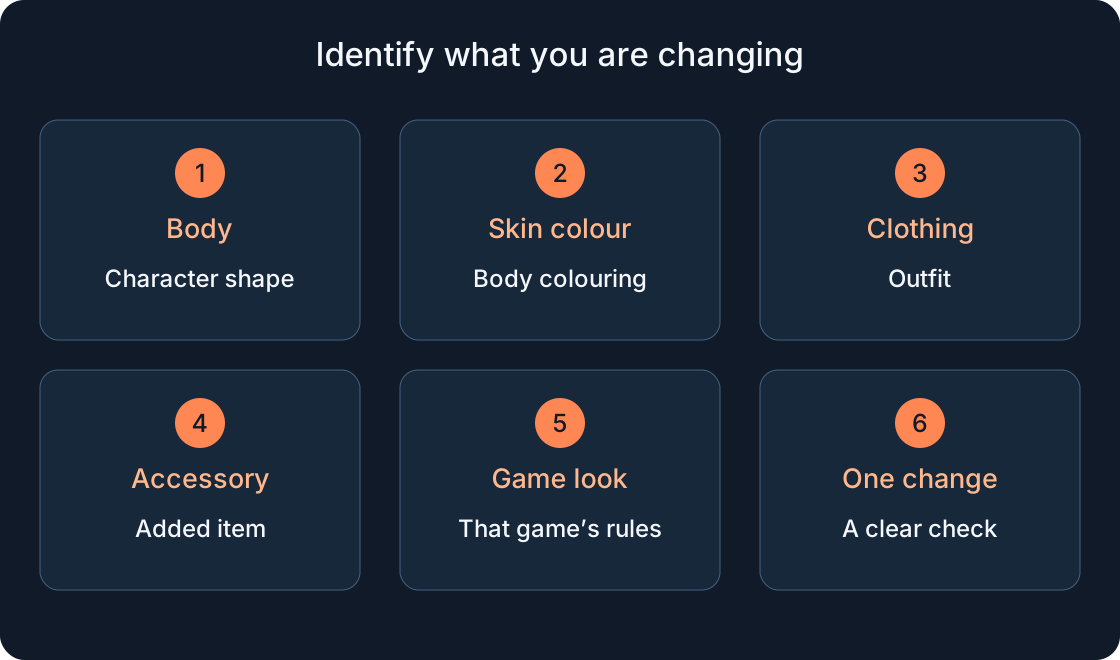
Look means an appearance or combination. If an interface offers a saved look, inspect its individual components rather than treating the entire picture as a separate owned item. Even a complete avatar image cannot explain why one game uses a different body or outfit: its creator may configure characters differently. The linked guide covers wearing and removing items. Here the question remains which resource is owned, not how many clothing buttons to press.
7. Marketplace and Creator Store have different purposes #
Marketplace offers avatar resources such as bodies, heads, clothing, accessories and other appearance items. Creator Store supplies development assets, including models, images and plugins. A similar-looking image in the creator shop does not become a wearable hat.
Roblox Support also notes that packages or decals can resemble official items; the page's type helps distinguish them. In our example, a blue-hat image for decorating a wall differs from the avatar accessory. Do not search equipped clothing for a Studio asset simply because its name includes Hat. Link, type and purpose matter more than styling. A development resource belongs in its development workflow; the avatar question needs the appropriate avatar-resource page.
8. An in-game Backpack is not account Inventory #
Roblox's Backpack container holds in-game Tool objects; the usual interface can show them as inventory buttons. It belongs to a game session, not the account's complete wardrobe. Games may also provide custom pet, vehicle, collection or saved-equipment menus. Calling each Inventory does not make them one service.
A lantern granted in our teaching game need not enter Marketplace Inventory or travel to another game. Backpack follows the character lifecycle; long-term storage is designed separately, for example through the game's data system. An item restored on another visit does not prove transfer between unrelated games. Check the rules and menu of the game that supplied this lantern. A missing panel and a lost saved record also need different observations.
9. Inventory visibility is a separate setting #
Browser help gives Settings → Privacy & content restrictions → Trading & inventory → Inventory visibility. It controls who may view the list; No one hides it from other users. You need not change it for this guide. We describe why another person's view might differ from yours.
An inaccessible list does not prove that its owner has no items. Hiding Inventory does not promise to hide an already visible avatar appearance: these are different surfaces. Treat neither as proof of an absent item or universal secrecy. Search your own account. There is no need to collect other people's inventories or ask them to make everything public to diagnose one resource. Record who actually observed which screen instead of merging several viewpoints into one supposed result.
10. Match the recipient to the problem #
For a pet, lantern or collection inside a particular game, start with its description and the creator's available help channel. Roblox Support identifies the developer as responsible for in-game item quality and rules. An account or platform-item issue unresolved by category and exact-page checks belongs with official Support.
Include username, device, resource link and type, observation location, date and precise symptom. Roblox asks for a suitable help category and descriptive report; additional material depends on the case. Do not label an item deleted when it has merely not been found in one group. The diagnostic table suggests checks without promising a refund, restoration or response time. Absence on a game character and absence of account ownership indication remain different questions.
| Observation | Next check | Recipient if still unresolved |
|---|---|---|
| Item absent in one group | Username, type, subcategory and later pages | Support if platform-account issue remains |
| Only Try On / preview visible | Exact page and ownership; do not infer it from preview | Support for unresolved platform state |
| Item Owned present, absent from outfit | Distinguish owned/worn; linked avatar guide | Support for unresolved editor issue |
| Editor avatar differs from game | Character rules of this particular game | Game creator for its appearance |
| Similar picture, decal/model type | Development resource or avatar item? | Exact resource creator about its purpose |
| Another user cannot view list | Whose view and Inventory visibility; no proof of emptiness | Support for account-setting fault |
| Lantern missing after respawn / return | Session Tool, custom menu and promised saving separately | That game’s creator |
| Exact resource ownership still unclear | URL, username, type, date, device and observation | Official Roblox Support |
11. Finish with a verifiable short record #
A useful conclusion reads, “My account; exact page; accessory type; ownership indication visible; not used in the current outfit.” Or, “Lantern present in this game's menu; platform-avatar ownership not established.” These are teaching record formats, not checks performed by us.
Identify system and resource first, category and ownership fact next, then appearance and the appropriate recipient. Our diagrams are original explanations rather than Roblox screenshots. Saved game data and platform wardrobe follow different rules. That sequence helps find what you own and describe a genuine discrepancy, instead of replacing it with “everything vanished” or promising one button for every kind of item.
Original sources
Roblox Support — Browser inventory and visibilityRoblox Support — Mobile inventory
Roblox Support — Item details
Roblox Support — Mobile avatar / Me rollout
Roblox Creator Hub — Marketplace and Creator Store
Roblox Creator Hub — Backpack
Roblox Creator Hub — Data stores
Roblox Creator Hub — Avatar Settings
Roblox Support — Marketplace vs experience items
Roblox Support — Contact Us