For players / ROBLOX
How to report a message or rule violation in Roblox
Find Report Abuse for a specific message, player, experience or item. Prepare a clear description, check the selected context and distinguish reporting from blocking contact.
Find the material that needs review #
A useful report starts with something specific: a message in a conversation, a participant's action in a game or content on a page. Roblox Support recommends reporting that context. Reporting someone only from their profile does not show moderators what they did wrong. Before finding the button, describe the task: “This message needs review” or “The problem is in this experience.”
Do not replace observation with speculation. Disliking an opponent is different from identifying a particular message that violates the rules. This guide teaches how to find the appropriate tool; it does not send practice reports against random users. No actual reports were created while preparing it.
Choose the object: person, experience or item #
For a participant's behaviour, use the Person route. For a problem with the experience itself, choose Experience. For a catalog or library item, use its page menu. These choices identify what needs review. An author's name appearing on a page does not mean their profile is the right reporting target instead of the content.
Consider a fictional example: a conversation participant sent a message, but you accidentally opened the experience where you met. Reporting that experience does not explain the message. Return to the conversation. Conversely, if the issue concerns the experience's content regardless of any participant, select the experience rather than the first person in its player list.
| Object | Appropriate route |
|---|---|
| Participant in a game | Menu → Report → Person |
| Experience itself | Report → Experience or About |
| Conversation | Relevant conversation menu |
| Item | Item page → Report item |
Report a participant while playing #
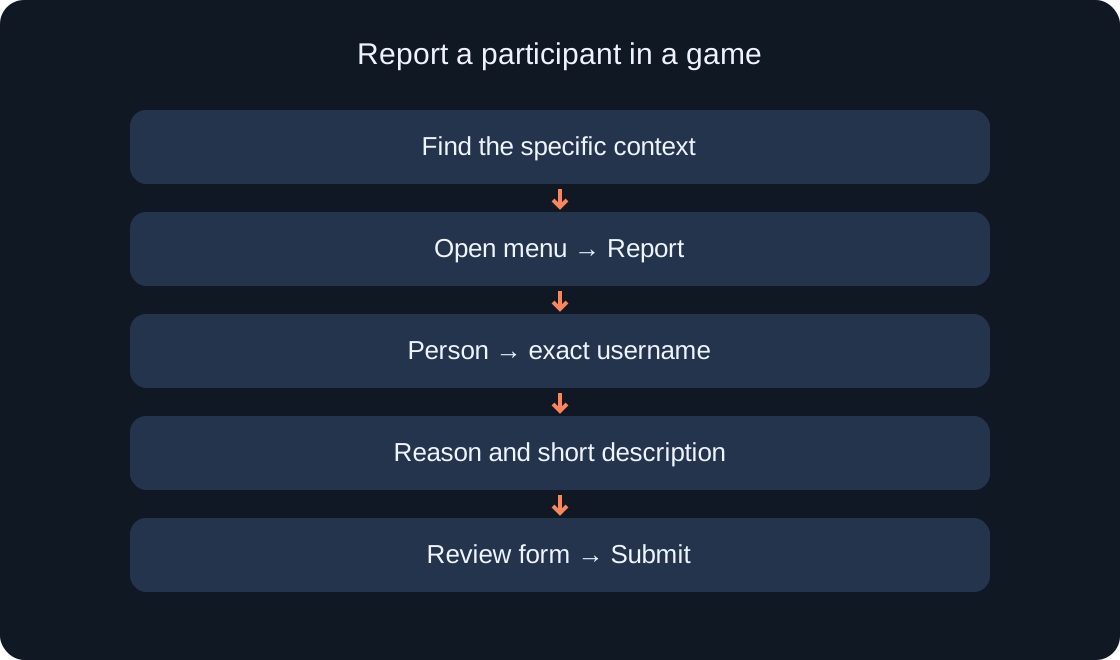
Open the Roblox menu at the upper left of the screen. The help article describes a flag beside a participant's name and the Report tab. For a person, select Person and find the exact username under Which Person?. Then choose the appropriate Reason for Abuse? and, if necessary, add context in Short Description.
Before Submit, check the name and description calmly. Do not choose a participant merely because their row appears first. If names look similar, match the account to the person whose action you observed. The important combination is the correct participant, reason and specific context, rather than how quickly you submit the form.
 Open full-size image ↗
If the report concerns the experience itself #
In the game's Report menu, select Experience instead of Person. Outside the running game, Roblox Support describes a red Report Abuse button in the description area of the experience's About page. These are routes for reporting the experience's content, rather than any person you happened to meet inside it.
Explain where the problematic material is and what needs review. Do not turn the report into a review of level difficulty, a loss or an inconvenient route; those can be discussed with the creator as feedback. If you are unsure whether you selected the correct object, fix the selection before submitting.
Find reporting in a conversation #
For browser chat, the documented route starts with the chat window's gear icon and Chat Details, then the three-dot menu beside the username and Report. Continue to the form to fill it out and submit. On mobile, the route differs: use the information icon (i), the conversation participant or the menu beside them, and then Report Abuse.
Treat these names as landmarks rather than a promise of identical layouts in every version. Our diagram shows a sequence and is not a Roblox interface screenshot. Check that you remain in the relevant conversation and have selected the right participant. You do not need to move the discussion to a third-party website just to report it.
Report a catalog or library item #
Open the specific item's page and its three-dot menu in the information area. Roblox's instructions then say to choose Report item and complete the form. This route concerns the item's content, such as a model or another object, rather than a general question about your account.
Check the title and page before submitting: switching among similar items makes it easy to leave the wrong tab open. Explain which element concerns you and where it appears. Do not add unrelated personal information. For a purchase or sign-in problem, first identify the appropriate support category; that is a different request, rather than automatically a content violation.
Write a short description without speculation #
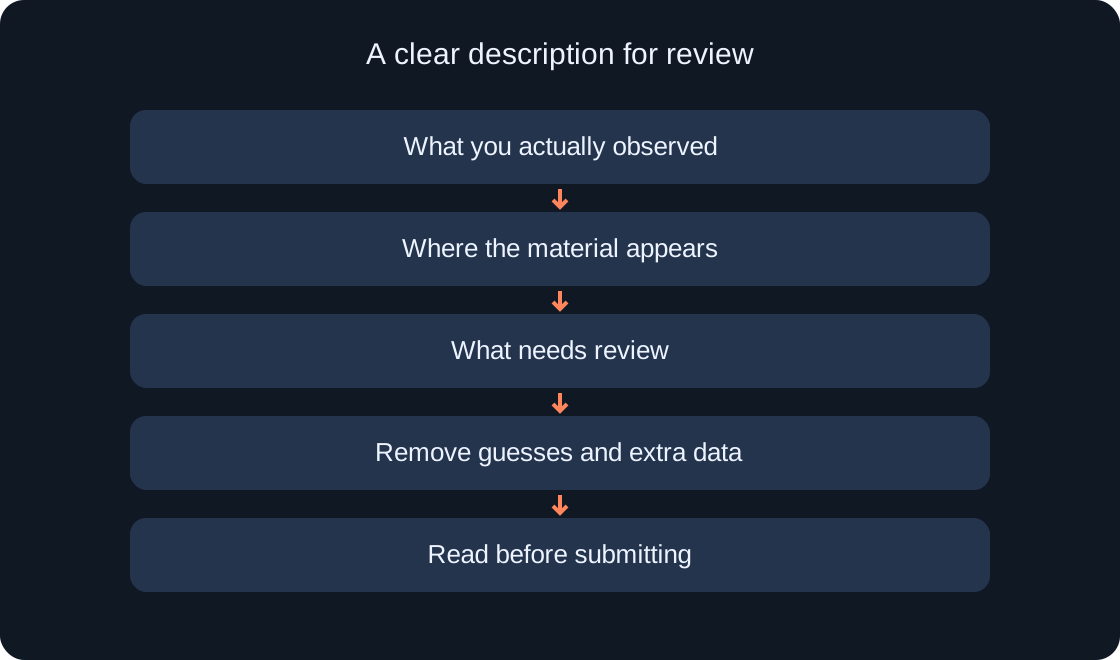
A practical order is what you saw, where it appears and what action you want reviewed. Include observable details needed to understand the issue. If the form already identifies the selected user or experience, do not spend the entire description repeating the name. Add the missing context and write calmly so it is easy to read.
For an exercise without submitting, use this neutral template: “A specific participant message in the selected conversation needs review. It is located at this point in the conversation.” Then consider which details locate the material and which are guesses. Do not invent quotations, threats or circumstances to make the report sound stronger, and never include passwords or sign-in codes.
 Open full-size image ↗
Review the form before submitting #
Check the selected object, username for a person report, reason and description. Read it once as someone who did not witness the situation. Is it clear what should be reviewed? If not, add the specific context rather than a lengthy history of how you met.
Do not send repeated copies as an experiment or ask others to make mass reports. If you are only learning the menus, stop before the final submission. A real report should concern actual material that needs review. An open form alone does not mean that a report has been submitted.
| Check | Why it matters |
|---|---|
| Selected object | Distinguish game from person |
| Exact username | Avoid selecting a similar account |
| Context description | Explain the observed action |
| Final submission | An open form is not yet submitted |
Reporting does not replace contact controls #
Report Abuse sends information to moderation. If you also decide to stop direct contact with an account, blocking is a separate task. Do not treat opening a report form as proof of a block, or blocking as confirmation that a message was reviewed. Choose each action according to its purpose.
After submitting, do not promise yourself a specific deadline or punishment for the other account: Roblox determines the outcome. If a conversation is unpleasant, you can end it and return to your usual activities. To find your blocked users or correct an accidental block, use our separate guide to the blocked list.
If the route differs or a button is missing #
First check where you are: inside an experience, on an item page, in browser chat or in the mobile app. Read the corresponding route in the current official help linked in the sources. Do not expect the same button on every page; the available actions depend on the object.
If you need to explain a menu problem to support, record the device, app or browser, open section and exact interface message. Do not publish someone else's entire conversation on public sites or include sign-in details. Remember the key rule: a useful report identifies specific context, and submission does not guarantee a predetermined decision.