For players / ROBLOX
Roblox sound controls: lower volume, mute music and check effects
Separate Roblox volume, a game’s own Music/SFX controls and your listening device. Compare one scene, keep useful effects and prepare a clear missing-sound report.
Choose the goal: quieter, no music or understanding silence #
First name the result you want: more comfortable sound, music disabled while effects remain, or an explanation for hearing nothing now. These are different tasks. Reducing every sound may remove useful feedback when only the melody bothers you. If you prefer silence, you do not have to treat that preference as a fault.
This guide proposes observations and small changes. Its pictures are original diagrams, not Roblox settings screenshots. We have not measured headphone loudness, playtested these games’ audio controls or confirmed identical menus everywhere. Choose one scene, one available control and one understandable outcome instead of changing everything together.
1. Separate three places that affect listening #
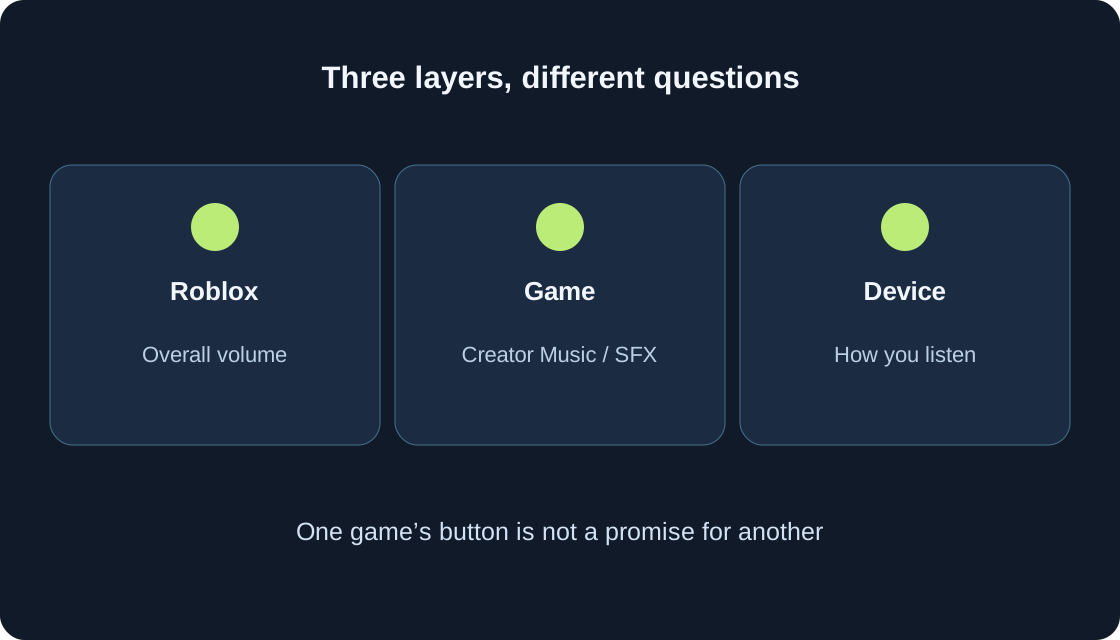
There is overall Roblox volume, possible creator controls inside a particular game, and the device through which you listen. They answer different questions. Roblox’s volume control is not a promise of independent music muting. A creator may supply Music and SFX controls, but their names and availability depend on the game. Headphones and speakers are part of your listening setup.
Record which layer you intend to check before changing it. The comparison table separates “I want the melody off” from “I hear nothing”. A control in one game does not establish an equivalent control in every other game. This process does not require changing another person’s open programs or their settings on a shared computer.
 Open full-size image ↗
| Layer | What to check | What it does not establish |
|---|---|---|
| Roblox | Overall volume in settings | An independent Music control |
| Specific game | Provided Music/SFX labels and states | Equivalent controls in other games |
| Listening setup | Speakers/headphones; changed conditions | The cause of every missing track |
2. Prepare one short repeatable scene #
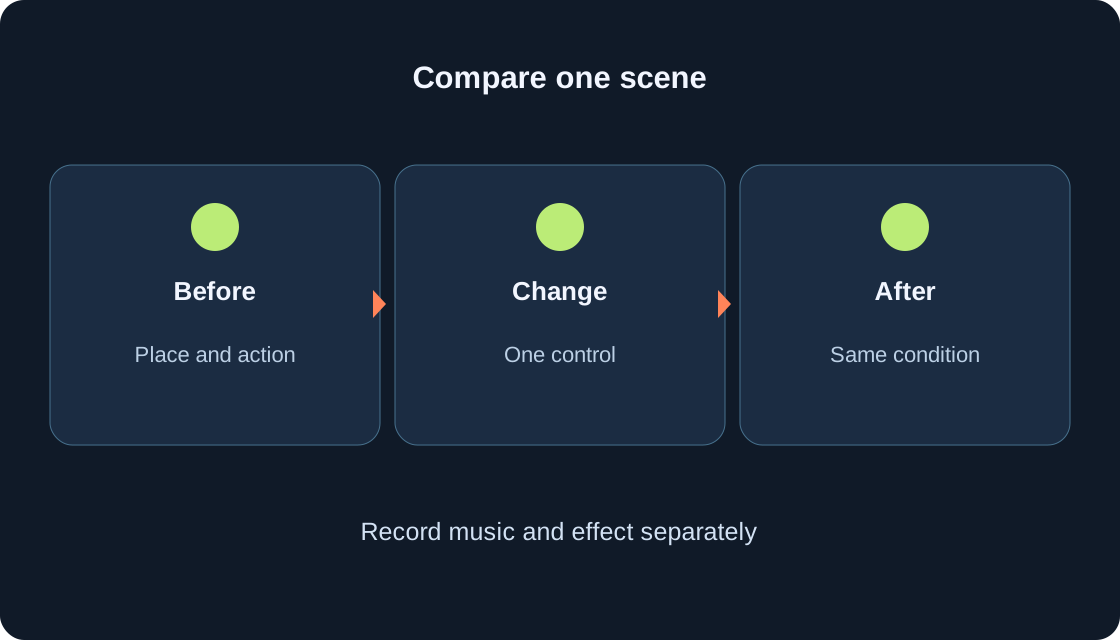
Choose a safe place and one ordinary action whose sound you want to compare. It might be a familiar game button or interaction, if you heard that effect there previously. Note the starting volume and music state. Write “this effect was previously audible here” rather than inventing a rule that every jump must produce sound.
Repeat the action before and after the change in the same scene. Do not compare a quiet platform with a new district that may use different music. A teaching example starts with an intrusive melody and an audible familiar effect, then checks both after one change. This is a comparison plan, not our measured test result. Avoid risking progress to find a loud event.
3. Adjust overall volume inside Roblox #
Official support places volume among in-experience settings. Open the Roblox menu, enter Settings and find the volume control. For a computer, support also describes opening the menu with Esc. On a phone use the visible Roblox menu control rather than searching for a keyboard key on screen. Our diagram does not reproduce the control’s exact position.
Lower the level by one small available step, return to the scene and compare. For a quieter result, assess comfort; for missing sound, compare with your starting state without a sudden large increase. Record which setting changed. Leave graphics and camera alone for this observation: those belong to separate guides and do not test the volume control.
4. Find creator controls if the game provides them #
To remove music while retaining effects, examine the game’s own settings. Look for clearly labelled Music, SFX or equivalent controls if the creator supplies them. A game settings button and Roblox’s menu are different controls. Read the label and present state before changing just the selected category.
A speaker icon alone may stand for overall audio, one category or another action, so do not infer its purpose from its shape. Without separate controls, do not assume a hidden universal button. Use available overall volume for comfort or ask the creator whether separation is supported. You do not need a third-party mod, extension or access to another game’s scripts for this check.
5. Check music and effects independently #
After changing Music, repeat the familiar action and listen for two things separately: the melody and the effect. If the goal is no melody, record “music not heard” and separately whether the effect is heard. Losing the entire soundscape does not verify independent effects. If needed, restore the starting state and compare one control again.
When only an overall control exists, choose a comfortable compromise rather than expecting unannounced separation. Silence is a valid preference. Also use visible instructions and text; we do not assume every event has an audio cue. Avoid maximum volume simply to force a test, and do not leave an unexpectedly loud scene for the next person using the device.
6. Identify your audio output device #
Record whether you use speakers, wired headphones or wireless headphones, and whether that arrangement changed before the symptom appeared. This is useful context: Roblox volume and the actual listening path are different observations. On a shared device, agree any changes with the person currently using it.
This guide does not require closing other games, switching system apps or adjusting their sound. Start with your own scene and available Roblox controls. If you already know the same device produces sound, record that fact; launching unrelated software is not a mandatory test. Such a note narrows the question but proves neither every audio component healthy nor a specific piece of hardware responsible.
7. Check whether the sound depends on location or an event #
Creator Hub distinguishes non-positional sound from spatial sound whose volume depends on the listener’s position relative to a source. Creators can also trigger audio at a gameplay event. A quiet area, a distant object and the moment before an event are therefore not automatically comparable to an active scene under identical conditions.
If you previously heard a sound beside a particular object, safely repeat that approach and action. Record the place and moment. We do not claim all music is spatial or that a specific object in our games must sound. Silence outside that condition does not establish failure. The diagram reminds you to identify conditions, make one change and repeat the same check.
 Open full-size image ↗
8. Compare games cautiously #
To understand the symptom’s scope, you may additionally check a familiar scene in another game with the same Roblox settings and listening arrangement. Choose a place where you previously heard sound. “Audible in one scene, not in another” is more useful than “every game is broken” after checking only two.
Different games may use different tracks, effects and creator settings. A successful comparison neither establishes an exact cause nor confirms that every track is available. Missing sound alone does not prove a network fault or require reinstalling. If a separate login or movement error also appears, record it separately, then use the appropriate guide instead of combining symptoms into one audio diagnosis.
9. The creator checks asset access, not the player’s volume #
Official documentation connects audio with permission to use assets. A game needs the appropriate access to a restricted asset; raising a player’s volume cannot grant it. This is one possible area for a creator to investigate, not a diagnosis for every silent scene or a claim of a fault in our games.
Players can more usefully report the place, expected event and control states. Do not extract restricted audio, substitute somebody else’s asset IDs or use an outside service to “fix permissions”. The creator can examine access and playback in their project. This guide does not teach audio publishing tools: its purpose is to manage your listening and prepare understandable observations.
10. Stone Trail example: a quieter practice attempt #
Stone Trail: Temple Escape Run’s public description explicitly says music and sound effects can be switched off. For quieter practice, find the available in-game controls and change one category first. Choose a safe section, read the current labels and repeat a familiar route action. Exact button locations and whether the selection persists have not been verified by our gameplay tests.
If music or an effect changes, record the two categories separately and continue at a comfortable setting. The first-run guide covers the route and checkpoints. We do not promise an equivalent Music/SFX button in Paws and Finds or Meme City Wars; the descriptions available to us do not confirm it. One game’s controls are not a universal catalogue feature.
11. Keep a result or report a clear problem #
For your own note, record game, device, scene, setting before and after, music and effect separately. The outcome can be simple: “melody off, familiar action audible; comfortable for me”. If the goal is met, keep the useful result. Continuing changes just for another test is unnecessary, and sound need not be compulsory.
If unclear, use the observation table and a contact supplied by the creator. Explain the expectation and checks actually completed. Do not attach passwords or account secrets. Use official help for a general Roblox problem. This method produces a reproducible description rather than a repair promise. A specific place and event are easier to investigate than an unqualified “no sound”.
| Observation | Useful next check | Unsupported conclusion |
|---|---|---|
| Everything too loud | Overall level; one small step | Other people’s apps must change |
| Only melody bothers you | Separate Music if available | Every game supplies it |
| Effect heard, melody absent | Categories and current scene | All Roblox audio is broken |
| Quieter away from an object | Same position and action | Must be a network fault |
| One game is silent | Known scene and control states | Player can grant asset access |
| Problem remains | Game, device, place, condition, result | Diagnosis already proven |
Original sources
Roblox SupportRoblox Support — opening the in-experience menu on a computer
Roblox Creator Hub — audio objects and positional sound
Roblox Creator Hub — audio assets
Roblox Creator Hub — asset privacy and usage permissions
Roblox Support — contacting a game creator
Roblox — Stone Trail: Temple Escape Run