For players / ROBLOX
Roblox movement, jumping and camera controls on PC and phone
Practise a short route, check common controls and investigate missing movement, a fixed camera or input going into chat.
 Open full-size image ↗
Separate walking from looking first #
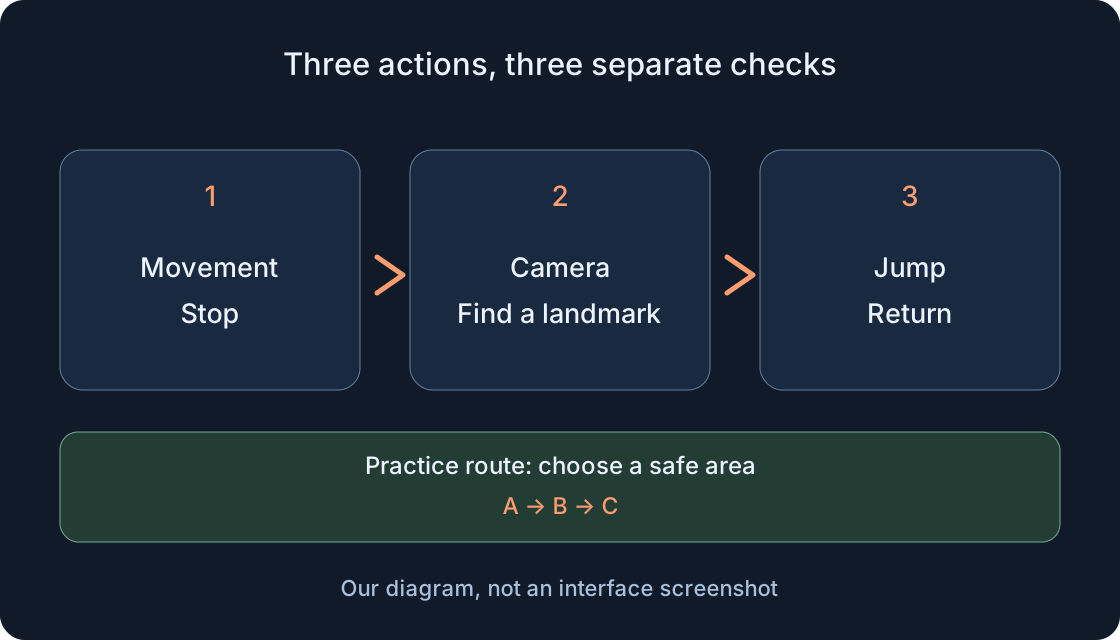
Movement changes your character's position, the camera changes your viewpoint, and jumping is a separate action. Trying to learn all three over a difficult hazard makes the check harder. Begin on open ground: one step and stop, then a look around, then one jump. This order makes it clearer which part of control is causing trouble.
This is a practice protocol for games with an ordinary character, not a test of a particular account. A creator can replace controls, lock the camera or temporarily restrict an action. Our diagrams are original process illustrations, not Roblox interface screenshots. Do not transfer a key from one game to every other game. Your first goal is a controllable short route, rather than a promise to complete every level.
1. Confirm that you entered the game world #
A Roblox page with a title, description and launch button is not yet a running game. Look for the opened world: a visible area, your character or the creator's intended control method, and recognisable landmarks. If you are still on the website or only see loading, the WASD check has not begun. A page that does not respond to movement does not establish a broken keyboard.
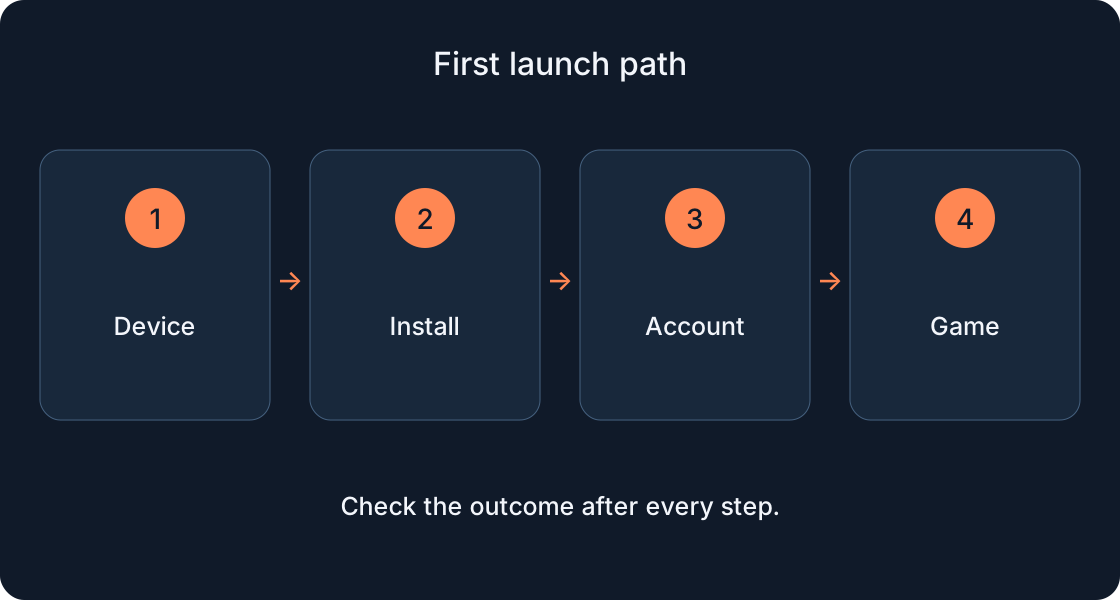
Wait for an available area and finish any opening instructions that hold control. Do not invent a waiting deadline; record what is displayed. If the application never opens or a connection error appears, use the related installation and error guides. This material continues after entry. It does not require moving a character in Studio or pressing keys in another open application.
2. Read Help and the chosen game’s instructions #
On a computer, ESC or the Roblox logo opens the in-game menu; on a phone use the logo. Check Help, where official Support describes keyboard, mouse and mobile gestures. Settings contains camera and other options. Use Resume to return to the check. Remember the starting viewpoint and avoid changing several settings at once.
Also read the creator's tutorial or description: doors, vehicles, items and special abilities can have their own controls. Do not assign E for interaction or Shift for running to every game. If an action prompt appears only near an object, test it at that location. Ordinary movement and a special interaction are different questions. A missing special button at spawn does not show that every key is failing.
3. On PC, start with a step and stop #
Familiar keyboard movement uses WASD: W forward, S backward, A left and D right. Official tutorial examples also list arrow keys; use that alternative only when the chosen game's Help confirms it. Camera and game mode can change how a direction feels. Begin on flat ground, away from an edge.
Hold one key briefly, then release it. Check whether the character moved relative to a landmark and stopped afterwards. Try backward and sideways movement separately next. If your keyboard layout has different labels, compare the game's hints and physical key positions instead of diagnosing a failure from one printed letter. Do not turn the camera at the same time: obtain a clear outcome from one command first. This creates a useful baseline for the route later.
4. Check camera rotation and jumping separately #
In ordinary Classic camera control on PC, hold the right mouse button and move the mouse to look around. Stand still first: find a landmark to the side, turn towards it and restore your view. Record your world position and viewing direction separately. Moving the mouse without holding the button may behave differently; first-person control also differs.
Space is used for the standard jump request. On open ground press it once and wait to land, then combine a short step with a jump. Do not make the first test over a drop. The creator may change or disable jumping, or the current game state may prevent it. Check instructions and location rather than promising a result from repeated presses. The table compares common actions, not identical controls everywhere.
| Action | Common PC option | Common phone option | Limit |
|---|---|---|---|
| Move | WASD; arrows only if Help confirms | Visible virtual thumbstick | Creator can replace controls |
| Look | Hold right mouse button and drag in Classic | Drag across an unobstructed world area | Creator can lock the camera mode |
| Jump | Space | Visible jump button | Game or current state can prevent it |
| Special action | That game’s prompt | That game’s prompt | E, F or Shift are not universal |
5. On a phone, separate the stick, view and button #
The default touch interface includes a virtual thumbstick and jump button; a creator can change or remove them. Find the visible controls on your actual screen. Move with the stick, release your finger and check the stop. Standard camera rotation uses touch-and-drag in a free world area. Do not start the gesture on a button or text field.
Stay still while learning the view. Next use movement with one finger and a short camera turn with another, without hiding the landmark behind your hand. Tap the shown jump button separately. If the game uses another touch mode, follow Help rather than searching for a nonexistent stick. Being unable to reach a button and receiving no response after touching it are distinct observations. Record which problem actually prevents the exercise.
6. Walk the practice route A → B → C #
Choose A as a safe start, B as a nearby visible landmark and C as a place for one simple jump. These letters label your exercise, not an existing map. If there is no suitable step, jump in place. You should be able to return to A without a difficult hazard or an accidental fall changing each attempt.
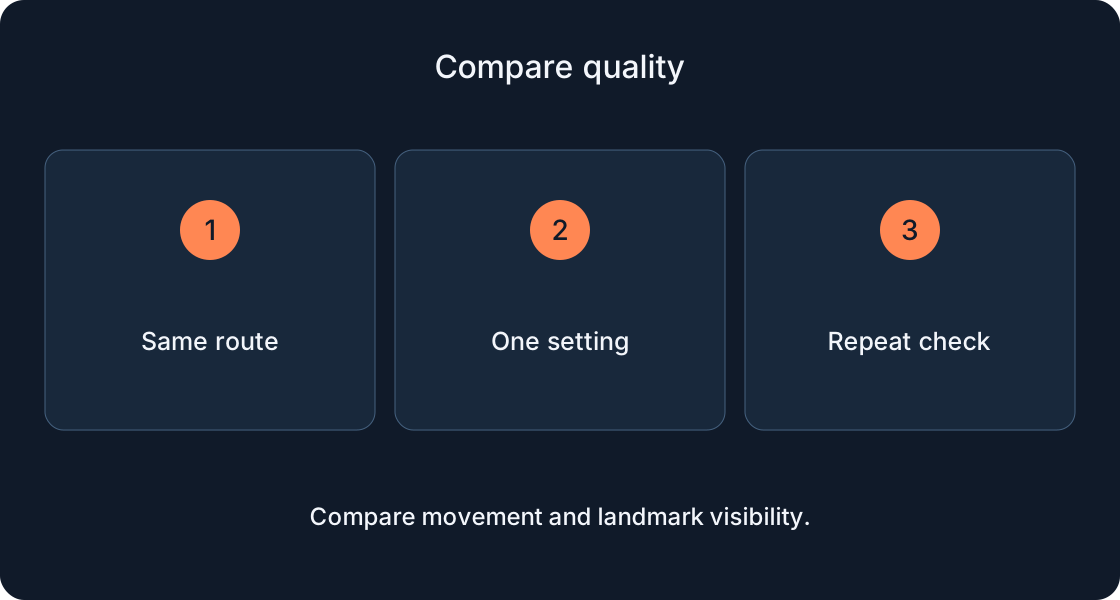
First walk A → B and stop. Standing at B, turn the camera until A is visible again. Go to C, perform one permitted jump and return. Record three outcomes: movement, looking and jumping. On the second attempt change only the troublesome element. For example, learn stopping before changing sensitivity, graphics and the route together. Failure in one part does not erase the successful checks of the others.
7. Follow mode and Shift Lock depend on the game #
Settings may offer Classic and Follow if the creator has not fixed the camera mode. In Follow, the view turns with the character's movement, so a sideways step can feel different. Walk the short route in your current mode before comparing one available alternative. Record what changed so you can restore it.
Try Shift Lock only if the option is available and the game permits it. It is not a mandatory feature of every game or a solution to missing entry or connection. A creator may assign another action to Shift. If a scene, vehicle or tutorial holds the camera, use its intended instructions. Wanting a view behind the character does not establish that the creator allows it. You can continue learning movement without Shift Lock.
8. Return focus to the world if letters enter chat #
When your key presses type text, a field is receiving input rather than character movement. Do not send an accidental line as a test. Leave the input field by selecting a free area of the world, and finish using any open menu. On a phone check whether the on-screen keyboard covers the game. Then repeat one movement command on safe ground.
On a computer also confirm that Roblox, rather than the browser or another application, is active. A separate selection outline on interface elements may indicate UI navigation; Help and Settings explain its controls. Do not change everything at random. If movement returns after restoring focus, record precisely that change. It does not establish a graphics or network fix. It shows where input was directed during this attempt.
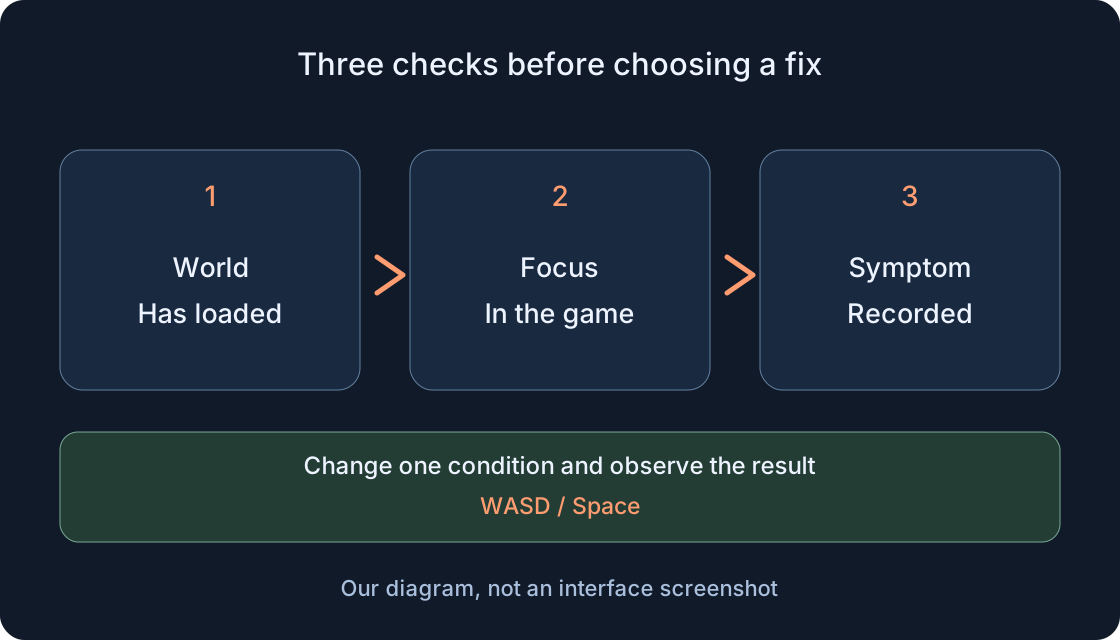 Open full-size image ↗
9. Distinguish no command, stutter and delayed actions #
“My character does not respond” calls first for checking entry, focus and permitted controls. “The camera turns, but the image stutters” is another observation. “My view is smooth, but other people's actions arrive late” is also different from a failed key. Describe the outcome concretely: what action did you try and what changed on screen?
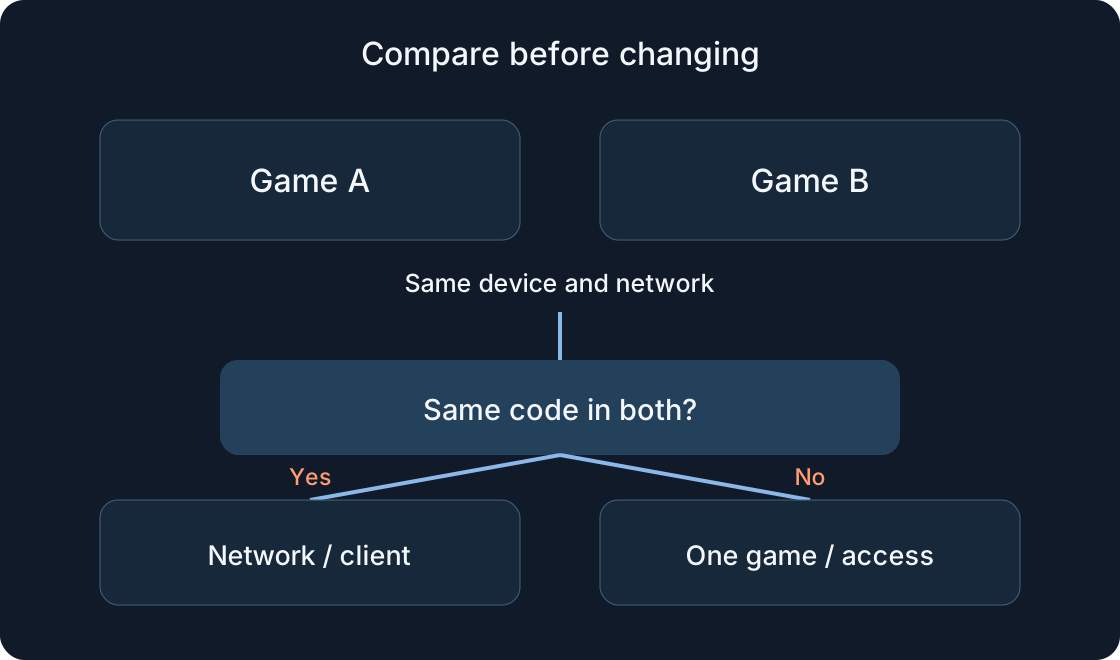
Repeat the same area without switching scenes. For visible stutter use the separate graphics-comparison guide; for connection messages use the error guide. Lower quality is not promised to repair input or a server. If the symptom occurs only in one game, keep its address and the creator's instructions. If it repeats in different accessible games, that is useful evidence for Support, but still not a final diagnosis. Keep each observation separate rather than calling them all lag.
10. Select the next check from the table #
The table helps select one step instead of a collection of random fixes. Start with the earliest unconfirmed stage: has the world appeared, does it receive input, does the particular action occur? Low FPS cannot explain a missing jump by itself when you are still typing spaces into a text field. A precise symptom usually makes the next step shorter.
Record no change too: “after leaving the field, movement still fails”. Then check the game's Help and another available action. Do not download programs promising unlocked controls or bypass a creator's restrictions. A useful issue report needs the public game address, device, input method, area and observation. Passwords, sign-in codes and another person's details are unnecessary. The comparison uses ordinary Roblox controls.
| Observation | Next check | What remains unproven |
|---|---|---|
| Website or loading screen | Is the world available? Then use launch guidance | Keyboard is broken |
| Letters appear in chat | Leave the field, focus the world, try one step | Reinstallation is necessary |
| World open, no movement | Help, permitted state, repeat on flat ground | Every device key is faulty |
| Camera remains fixed | Game rules and available camera mode | Shift Lock must unlock it |
| Jump does not happen | Is jumping permitted now, and which control is shown? | Repeated presses guarantee a result |
| Your view stutters | Same location and separate graphics comparison | Focus or network is the cause |
| Other players are delayed or a connection error appears | Exact symptom and connection-error guidance | Lower quality guarantees a fix |
11. Keep a short check for your next visit #
Record device, keyboard/mouse or touch, selected camera mode and A/B/C route. Note “movement worked”, “view checked”, “jump permitted and performed”, or the exact unfinished stage. This is a note template, not a claim that our games have already been tested on your phone. Later you can repeat the same route after a game update.
Once the basics are clear, try the normal task. A camera turn and one jump before a difficult area help separate control skills from the obstacle. Learn using a readable landmark before adding difficulty. If you ask the creator for help, provide the sequence and exact symptom. Success establishes control in this game under these conditions. It does not establish identical keys, speed or camera behaviour across all Roblox games.
Original sources
Roblox SupportRoblox Creator Hub — Run the game (project controls example)
Roblox Creator Hub — UserInputService (jump requests and focus)
Roblox Creator Hub — Player (camera modes)
Roblox Creator Hub — Disable default UI (touch controls)
Roblox Support — Graphics Quality (in-game menu route)
Roblox Support — How to Reduce Lag and Speed Up Play