For players / ROBLOX
Roblox voice chat: availability, microphone and mute controls
Check access, connect to an available voice channel, distinguish your microphone from the voices you hear, and record a useful result without guessing.
Four checks before saying voice works #
“Voice is on” can describe several different things. The account may have access, a game may offer the feature, the current session may be connected, or the microphone may be unmuted. None of those observations alone confirms that a particular person heard you. Start by naming the result you want: listen quietly, say something to a willing participant, or stop receiving one person’s voice.
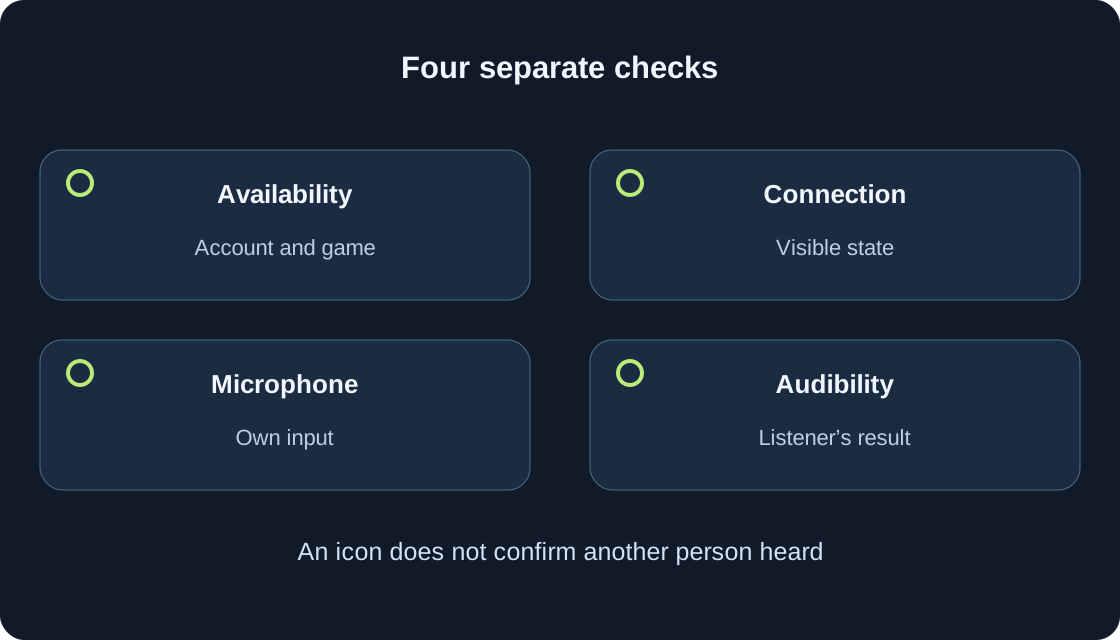
Use four checks in order: availability, connection, your input, and the intended listener’s reception. Write down where the chain stops. A quiet room is not automatically a broken microphone; a visible microphone is not a successful conversation. This is a plan, not a completed audio test.
 Open full-size image ↗
Current access requirements, not old shortcuts #
The current Roblox activation article describes eligible users aged 13 or older who have completed an age check. ID verification and facial age estimation are the methods it names, but these methods are not available to every account. Voice may also be unavailable in some regions. The same article explicitly says that phone verification no longer grants voice access. An old video asking only for a verified phone therefore cannot settle your case.
Parental restrictions can still matter after an age check. Read the explanation shown for your account instead of treating a birthday, an ID submission or another player’s experience as a guarantee. The help describes ordinary voice between users in similar age groups. Do not alter an age, borrow an account or move a region to bypass a restriction. Missing access belongs in the availability branch of the check.
| Observation | What is established | Next check |
|---|---|---|
| No Voice connection control | Element not offered or not found | Game description and account conditions |
| Connected | Visible Voice connection state | Own microphone, then reception |
| Red microphone slash | Local mute described by FAQ | Whether you want to transmit |
| Green animation | Observed local input | Willing listener confirmation |
| Music audible, voices absent | Some output is audible | Voice reception and game rules |
| Restriction notice | Exact wording and context | Current official help |
Check the actual game and current place #
Roblox creators choose whether to support voice. The Voice FAQ directs players to the experience description to check support. Read the correct game page, then compare it with the controls actually available in the place you entered. “Voice” in a title, someone talking in a promotional clip, or your friend having used it yesterday is weaker evidence than the current description and session.
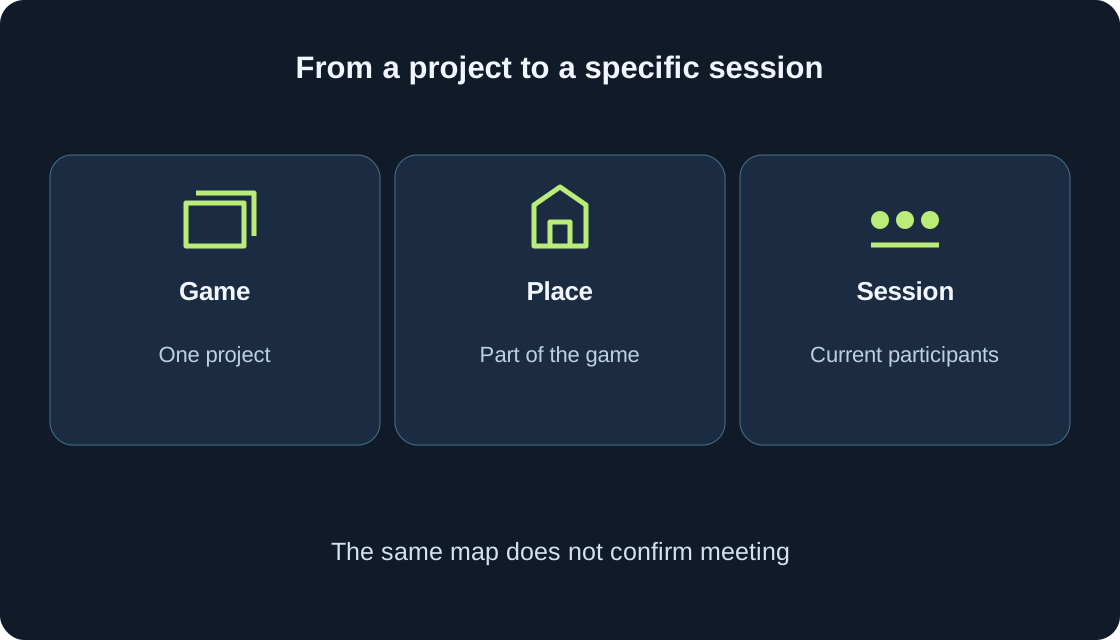
For a game with multiple places, keep the place or stage in your note. If there is no supported voice option, ordinary play may still be available; use the game’s non-voice instructions. Do not buy a pass or Robux simply because a stranger claims it will unlock a platform communication feature. This article does not establish voice support for our five games.
Connect through the control that is offered #
For an eligible account in a supported experience, the official activation article describes connecting through the headphone icon or the in-experience Voice Chat setting. It identifies the in-experience settings route for PlayStation. Follow the control your version offers; do not assume that a phone screenshot matches a desktop or console screen exactly.
Make one deliberate connection attempt, then read the resulting state or notice. The Voice FAQ uses Connected and Disconnected for the connection setting. If the control is absent or unavailable, record that result instead of searching for an imaginary hidden switch. Entering the game and connecting to voice are separate events.
Mute and unmute your own microphone #
The Voice FAQ places the in-experience microphone control at the upper left. It describes a red slash when muted, a solid microphone after unmuting, and green animation while speaking. These signs help you observe the local state. They do not identify the listener, their volume, their mute choices or the creator’s routing rules. A red dot indicates recording according to the FAQ, rather than a failed connection.
Before unmuting, decide whether you want to transmit and whether your surroundings are suitable. If you choose to test, use a short neutral phrase with a participant who agreed to listen, then mute again. Do not leave the microphone open just to keep watching its animation. When a control changes, check its new state once before pressing it again.
Separate device input from platform access #
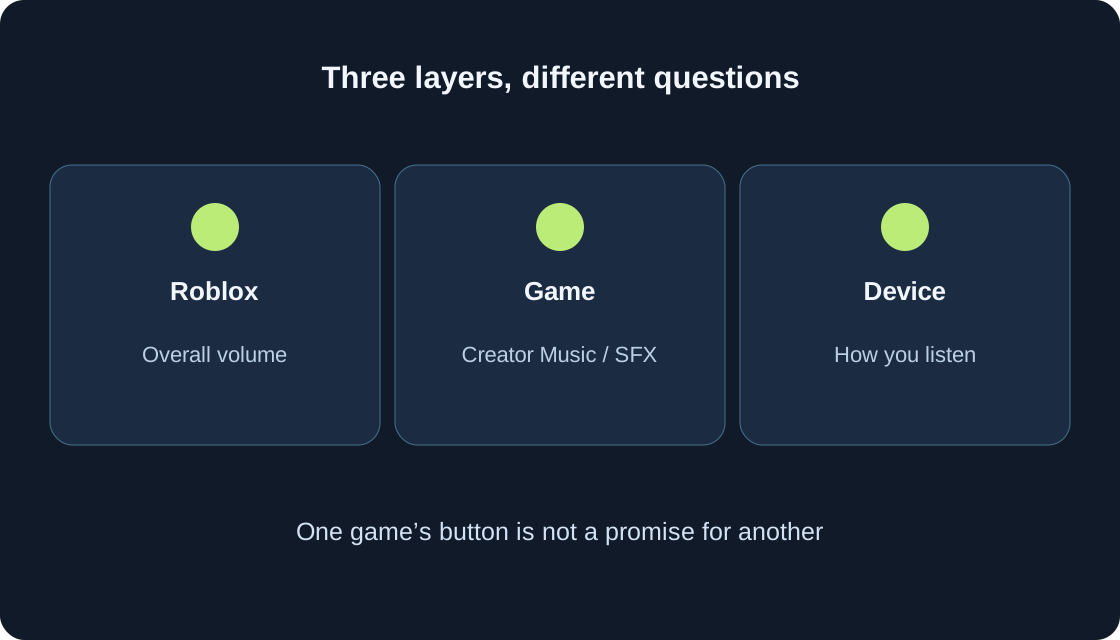
A physical microphone, an application’s permission to use it, and Roblox voice eligibility are different layers. If your device presents a microphone permission request, read it and choose according to your intention. A permission decision does not bypass an unavailable Roblox feature. Conversely, an available voice connection does not prove that the intended physical input is working.
Check the device you meant to use and any visible hardware mute switch. If your current device or Roblox interface offers an input selection, inspect its label rather than assuming a headset name was chosen automatically. Exact permission and selection routes differ, so this guide does not invent one menu for every operating system. Change one relevant item at a time; note the outcome before considering another. You need not enable every application’s microphone access.
Hearing other people is a separate direction #
You can hear someone while your own microphone is muted. You can also have an active local input while another person cannot hear you. Describe the direction clearly: “I hear them”, “they hear me”, both, or neither. Ask for a simple confirmation through an available permitted method, without requiring anybody to speak or disclose private information.
If all game sound is silent, begin with the output and volume checks in our sound guide. If music or effects are audible but voices are not, record that narrower observation; turning music off is not a voice test. Check whether the intended person is present, willing to speak and available to communicate under the applicable rules. Do not treat silence as consent to repeated calls or louder requests.
Distance, teams and phases can change audibility #
Creator Hub describes proximity-based voice as the default, with creators able to customize how voices are routed. Its tutorial also illustrates team-only, push-to-chat and time-based arrangements. Those are possible designs, not a promise that your current game includes all three. The sample key in a developer tutorial is not a universal player shortcut.
Read the game’s actual instructions before diagnosing an input fault. A teaching example: one participant is audible nearby but not across a room. Record the positions and the result; do not infer a fixed hearing radius for every game. Another example: a briefing allows conversation but a later phase does not. Check the stated phase rule, then stop toggling unrelated settings. There may also be no one currently transmitting.
Muting someone else changes what you receive #
To silence one participant, the FAQ describes their speaker icon above the avatar or beside their name in the Roblox menu. Confirm the username so that a similar display name does not lead to the wrong person. This individual voice mute applies only to the current experience session and does not mute text chat. The menu speaker control also provides the documented route to unmute them.
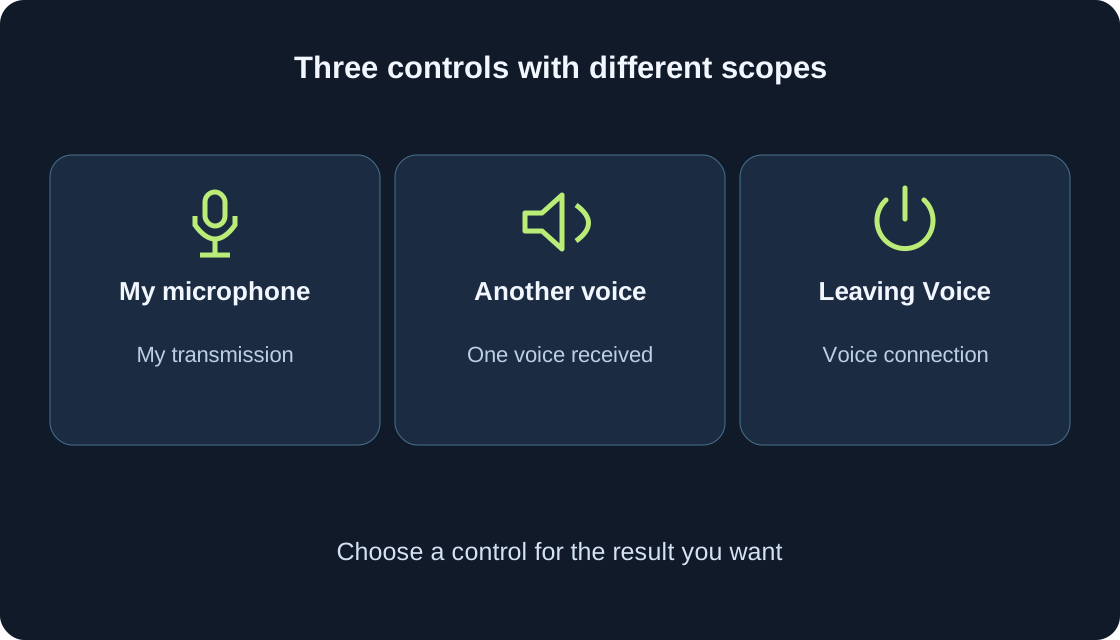
Your own microphone mute, another participant’s mute and disconnecting from voice have different scopes. Choose the smallest action that meets your intention, then check the result. You do not need to unmute a troubling participant to prove a problem. If conduct violates the rules, use Report Abuse with the relevant person and context; avoid continuing a confrontation merely to gather more speech.
 Open full-size image ↗
Disconnecting and voice-data preferences #
For leaving voice entirely, the FAQ describes changing the in-experience Voice Chat state from Connected to Disconnected. Read the resulting state. Turning down general volume only changes listening; it is not a reliable statement that your microphone stopped transmitting. Likewise, closing a settings panel is not the same action as disconnecting.
Roblox’s voice conversations are subject to recording and moderation. The Voice FAQ describes a separate Voice data for product improvements preference under Settings → Privacy & content maturity → Communication → Voice data usage. That preference is not an option to remove safety recording. Read the current explanation before deciding; this guide promises neither recording-free communication nor a storage deadline. You can choose to play without voice when you do not want to transmit.
Three teaching cases with different next steps #
Case one: a game loads, but no voice connection control appears. Record the game, place, device and absence of the control; consult current availability information rather than adjusting microphone gain. Case two: Connected is visible, but your microphone remains marked muted. Observe the local mute control and the intended input, not the friend list. Case three: the input animation responds but a willing listener hears nothing. Check the receiving direction, individual mute and stated game rules.
These are invented diagnostic cases, not verified faults in any game. Choose one matching observation and one next check from the table. Avoid changing several controls simultaneously, because you lose the explanation for any improvement. A result can remain “not established”; that is more useful than claiming a successful conversation from an icon alone.
| Teaching check | Useful record | What it does not prove |
|---|---|---|
| No voice control | Game, place, device, time | The particular availability cause |
| Own mute | State before and after one action | Other people are muted |
| I hear; they do not | Each direction separately | The whole audio system is broken |
| Distance check | Positions, game rule, observation | A universal hearing radius |
| Leaving Voice | Visible Disconnected state | All game audio turned off |
A short record and a sensible stopping point #
Keep a small record: game URL, place or stage, device, time, visible connection state, your microphone state, who was willing to listen, and the result in each direction. Include safe exact error wording if there is an error. Do not attach passwords, identity documents, private audio or another person’s personal details to a public request for help.
An unclear custom game rule belongs with the creator; unavailable platform controls or a platform notice belong with official Roblox Support. For rule violations, report the specific relevant content rather than a vague profile complaint. Stop testing once the desired result is established, and finish with the microphone and connection state you intended. This plan has not changed an account, performed an age check or accessed a real microphone.
Original sources
Roblox Support — current voice eligibility and connectingRoblox Support — voice controls and individual mute
Roblox Support — age milestones and parental restrictions
Roblox Creator Hub — proximity and creator voice configuration
Roblox Creator Hub — possible team, push and phase configurations
Roblox Support — voice moderation and recording
Roblox Support — reporting specific rule violations