For players / ROBLOX
Update Roblox and check error 280 on computer or phone
Choose your device’s official update channel, record the message and retry one game to separate a client-version issue from a connection problem or a game update.
 Open full-size image ↗
An update with an observable result #
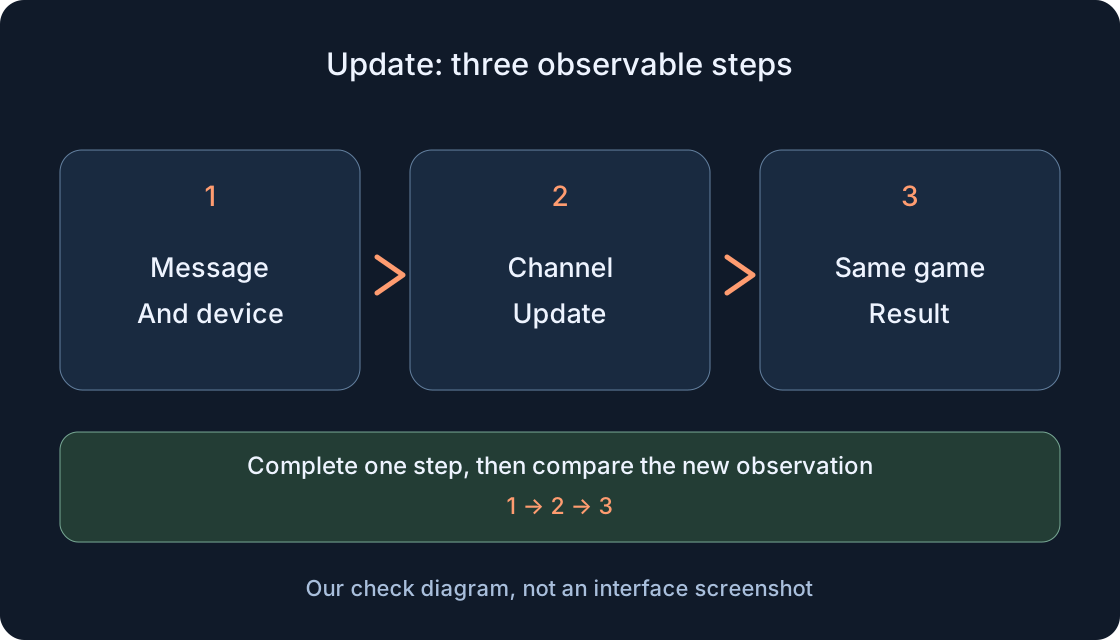
Start with a small goal: close the previous client, obtain the available update through the appropriate official channel and retry one chosen game. Record whether the original message disappeared and whether the game world opened. That checks a concrete outcome, rather than merely noticing a different application icon. If the message changes, the next action should follow the new text.
Official Roblox Support associates error 280 with an issue involving the running Roblox version. That does not establish that every failed entry means an old client. Website-launched Player and the Microsoft Store app have different update paths, while phones use their device’s store. This is a procedure for a person on their device. A version number printed in an article cannot replace checking the current official channel.
1. Record the message, device and failure stage #
Copy the exact message and code if one is displayed. Note Windows, Mac, Android or iPhone/iPad, where the installed client came from and the attempt time. Identify the stage: before the application opens, while launching the chosen game or already inside its world. That creates a usable observation instead of “Roblox does not work”. If there is no message, record that rather than assigning 280 yourself.
Record a client version only where the application, system or store actually displays it. If you cannot find it, write “not shown”. Operating-system version is a separate field; on phones it is available in device information. Do not compare an Android or iOS number to a Roblox version. Keep one game address and its launch method for the retry, avoiding several simultaneous changes to the conditions.
2. Finish the session and close Roblox itself #
If the game remains accessible, read its saving rules and finish a safe current step. Use the creator’s save action if there is one, and wait for its displayed confirmation. A checkpoint does not necessarily persist after leaving. Reinstalling is not a way to investigate whether game balances were saved. Do not press a progress reset or new-yard action just to update the application.
To leave an accessible experience, open the menu using the Roblox logo, choose Leave and confirm. Then close the Roblox window normally; on Mac quit the application itself through Quit rather than only closing its window. On a phone, close the Roblox card through that device’s app switcher. Avoid closing every application at once. If Roblox is unresponsive and normal exit is unavailable, record that separately: awaiting a save and closing a frozen client are different situations.
3. Choose the channel before downloading #
Identify the source of the current client. For Player launched from roblox.com on Windows or Mac, start at the official game page in a browser. For a Microsoft Store installation, use that store. Android uses Google Play and iPhone/iPad uses App Store. The table helps select one route without confusing it with a browser update, operating-system upgrade or Roblox Studio update.
If Windows has two Roblox icons, their matching application names are insufficient. Roblox Support distinguishes the new Store listing Roblox - Windows from the older Roblox listing. Establish which entry you are updating and which application actually opens after Play. A completed download in one channel does not confirm another installation was updated. Record either the store name or “Player from website” so the next comparison remains understandable.
| Device and client | Official route | Evidence |
|---|---|---|
| Windows: website Player | roblox.com → game page → Play | Flow completed, same game retried |
| Windows: Store | Microsoft Store → Check for Updates; Roblox - Windows | Intended listing updated and opened |
| Mac: website Player | Browser game page → Play | Upgrade Failed outcome checked |
| Android | Google Play → Roblox update | Download completed, app reopened |
| iPhone / iPad | App Store → App Updates → Roblox | Update completed, entry retried |
4. Windows: check website-launched Player #
Open roblox.com in a normal browser, sign into the intended account and visit the saved game page. Select Play. If the official flow offers Player installation or updating, follow it, wait for completion and allow the browser to open Roblox when it asks you to choose an application. Use the installer supplied by that flow rather than an old download left from a previous attempt.
After completion, repeat the same page and observe the launch. A browser asking which application handles the link is not yet a client-version message. Record the prompt and use the separate first-launch guide. If installation loops, record its repeating text. Do not run several installers simultaneously. First obtain one completed attempt: no application window after Play and error 280 inside an opened client are distinct outcomes requiring different evidence.
5. Windows: check Microsoft Store separately #
Open Microsoft Store and select Check for Updates, as described by current Microsoft guidance. Check the Roblox - Windows entry and its available update, then wait until it completes. If the older Store Roblox is still installed, read Roblox’s migration guidance and install the new official listing. Do not treat the website Player as the same Store entry.
Roblox’s guidance for the new Store app describes linking Roblox and an Xbox profile. Follow the displayed official flow for the intended accounts. This is a condition of that channel, not a requirement for every platform. Afterwards open the new entry and the intended Roblox account. Removing the older app is not the first step of our protocol: establish that the new app is installed and sign-in works first. An unfinished game session’s saving still follows that game’s rules.
6. Mac: distinguish Upgrade Failed from a game update #
For Upgrade Failed when opening Roblox through its application, official Roblox guidance suggests visiting the game page in a browser and selecting Play there. Use that route after quitting the previous Roblox. Allow the offered official update or installation to complete, then check the same game. If the browser asks you to choose a link-handling application, complete that selection through launch guidance rather than treating it as another error 280.
A Mac application obtained from Roblox’s website is not updated simply by opening App Store’s updates section. Identify the installation source first. Record the before-and-after result: Upgrade Failed remained, another message replaced it or the world loaded. If updating cannot complete, report the exact stage and text to support. Do not delete random folders hoping to obtain a latest version. Any later reinstallation needs a separate, understandable procedure.
7. Android: update Roblox through Google Play #
In Google Play, open the profile icon, select Manage apps & device, and under Updates available select See details. Choose Update next to Roblox if an update is available and wait for completion. Google also explains that Update appears on an app’s details page when an update exists. Updating Roblox alone is sufficient for this comparison; changing every application simultaneously makes the result harder to interpret.
Confirm the real Roblox listing and read the store’s actual status: downloading, waiting, action required or completed. A queued download is not an installed update. If Update is absent, record the available button and check device compatibility using current guidance rather than obtaining a file from an arbitrary page. Once the update completes, open Roblox afresh and return to the saved game. When the store reports a specific required action, investigate that message before continuing.
8. iPhone and iPad: use App Store #
Open App Store, tap My Account or your photo at the top, then App Updates and Update beside Roblox. This is Apple’s current route; labels depend on interface language. Wait for completion before opening the application. Select Roblox individually rather than Update All for this check. If the store displays Open while the client requests an update again, record both sides of that loop.
Roblox has an iOS App: Update Loop article, but its older bottom-navigation labels should not be guessed in a newer interface. Recheck updates directly in App Store using current Apple instructions. If the action remains unavailable, retain the message, device and iOS/iPadOS version for support. Absence of an Update button does not demonstrate that the client is fully working. System compatibility and the installed application’s version remain separate questions.
9. Retry exactly one chosen game #
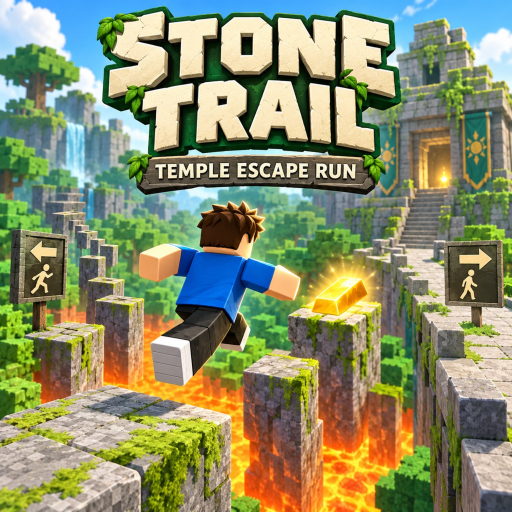
After a completed update, open the same account and the same game address. Stone Trail: Temple Escape Run is one possible example; its exact Roblox link is included among the sources. It supplies a repeatable entry point, not a claim that the game has just been tested on your device. If your original problem occurred in another game, retry that game first to keep the comparison consistent.
Observe the sequence: application opened, update prompt appeared or disappeared, game world loaded or a new message appeared. If the world is available, perform one ordinary step and record the result. Do not simultaneously change graphics, server and account. One successful launch establishes that attempt, not the resolution of every possible problem. For another comparison use the same sequence rather than opening dozens of different games and losing the original conditions.
10. Choose the next check from the new result #
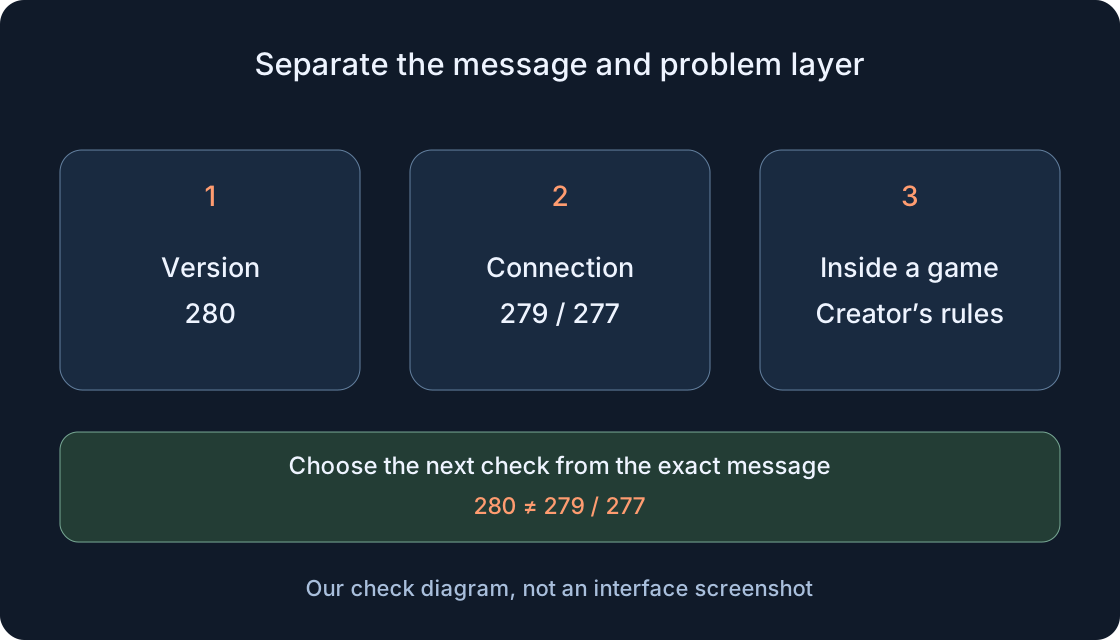
If 280 remains, check which Roblox installation actually opened, whether the download finished and whether the store belongs to that installation. If 279 or 277 replaces it, use the separate connection guide instead of indefinitely repeating updates. If the world opens but one game announces a season, a server restart or different rules, that is a creator’s notice and a separate observation.
The table below does not diagnose a cause from one number. It connects observations to a next check. An incompatible-system message requires current system requirements; a client update neither upgrades the operating system nor bypasses its limits. If downloading never completes, compare the exact text with the official installation-loop article. Before trying another action, record the outcome of the completed one. This shows the precise stage where the procedure stopped.
 Open full-size image ↗
| Observation after the step | Next check | Avoid this conclusion |
|---|---|---|
| 280 remains | Actual opened client and completed update | Any installation already fixed it |
| New 279 / 277 | Separate connection guide | Keep updating indefinitely |
| Download queued / refused | Store message and status | Update is installed |
| Open and another update prompt | Store updates and exact loop | Open proves the client works |
| OS incompatible | Current device requirements | Client update bypasses limits |
| World opens, creator notice | That game’s session and rules | Must be an old client |
| Browser asks for an application | Official first-launch route | Already error 280 |
11. Keep a useful result for support #
A useful record includes device and OS, channel, original message, performed update, time, game address and the message after retrying. Add a screenshot without personal information if it clarifies the problem. Do not send passwords, login codes or payment details. Contact Roblox Support for client issues, the relevant store for download refusal, or the game creator with a concrete description of an in-game feature.
Reinstallation can be a later separate step when official guidance for your symptom recommends it and normal updating did not help. First prepare access to the intended account and follow the procedure for your channel. This guide does not require deleting AppData or phone data. When the retry succeeds, record the date and keep store auto-updates in a suitable mode. Next time check the official channel again rather than trusting a fixed latest-version number in an old article.
Original sources
Roblox Support — Error 280Roblox Support — How to Install and Play Roblox
Roblox Support — New Microsoft Store app
Roblox Support — Mac Upgrade Fail
Google Play Help — Update apps
Apple Support — Manually update apps
Microsoft Support — Store updates
Roblox Support — iOS update loop
Roblox Support — Installation loop
Roblox Support — Reinstallation
Roblox Support — Computer requirements
Roblox Support — Mobile requirements
Roblox Support — Leave an experience
Stone Trail: Temple Escape Run — example game entry