Studio / ROBLOX
Readable text in Roblox Studio: setting up UITextSizeConstraint
Set font limits for a reward label and a button, compare long strings, and handle the point where text can no longer shrink. Follow a practical review route for six languages and a phone screen.
Start with the player's task #
A player opens a reward, reads its name, understands the action, and chooses an item. A tiny label that technically fits but is difficult to read does not complete that task. Choose one route and one specific text element first. Our proposed example uses RewardTitle, a reward label; this guide has not changed a live experience.
Describe the problem precisely: the label grows excessively on a wide panel, becomes almost invisible on a phone, or loses part of a long name. Font limits help address the first two questions, while the last one also needs a space and content review. Avoid changing the entire card at once, because that makes it harder to identify which setting affected the result.
Separate text, container, and action #
Use separate objects for the title, explanation, and selection button. RewardTitle could be a TextLabel and the selection action a TextButton. A shared Frame holds the card but is not the text whose font needs a constraint. These object names are proposed for an exercise; Roblox does not supply this card structure automatically.
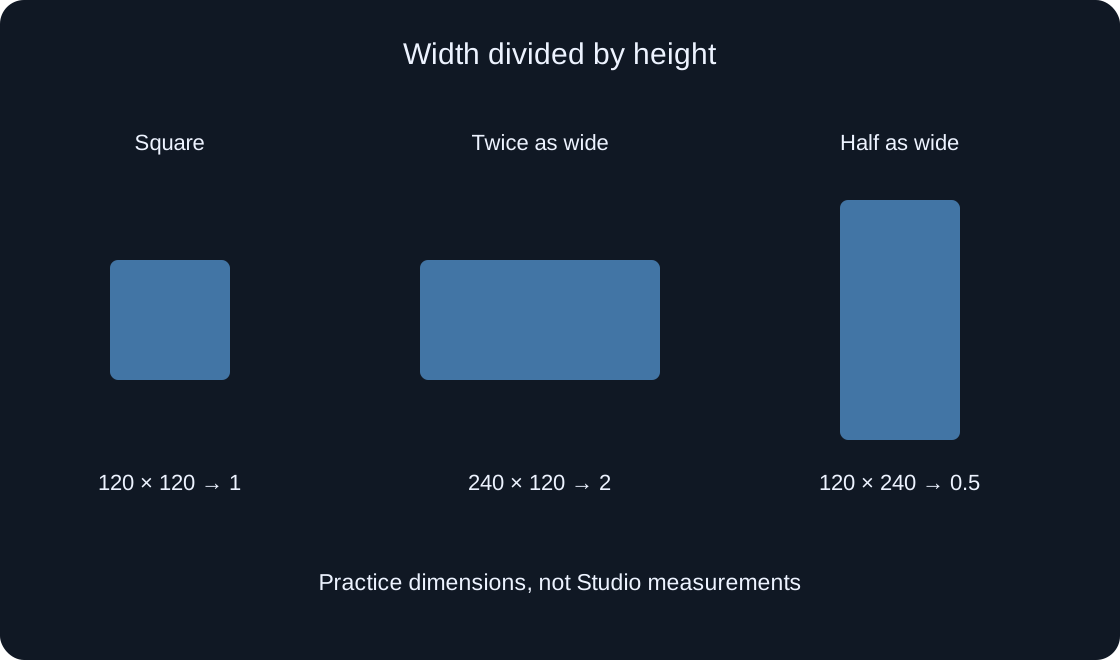
Record the parent's size, nearby elements, and the selected label's properties before editing. A square icon and a readable name are separate checks: an aspect-ratio constraint does not choose a font size. The button also needs an action check. A well-presented title alone cannot establish that selection and leaving the panel work correctly.
Put UITextSizeConstraint under the correct text object #
Find the chosen TextLabel, TextButton, or TextBox in Explorer. Insert UITextSizeConstraint as its child, then select the constraint in the tree. In Properties, locate MinTextSize and MaxTextSize. They describe lower and upper font-size limits, rather than the card's width or the number of characters in a string.
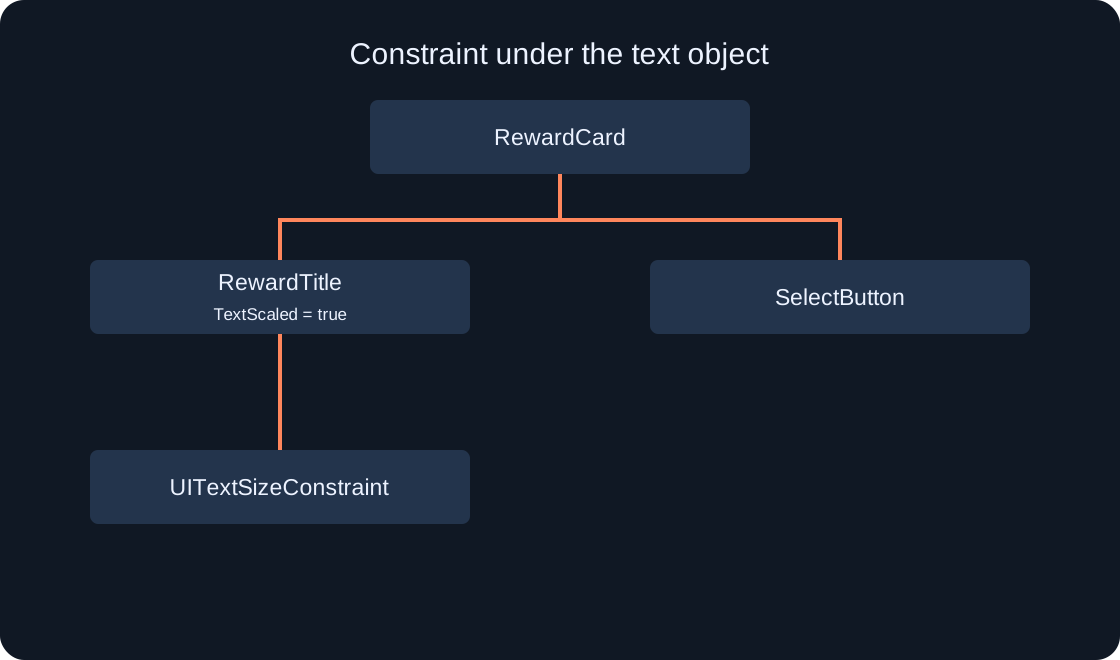
For the practice label, verify RewardCard → RewardTitle → UITextSizeConstraint. A constraint under another text object concerns that object instead. Similar names can appear in several cards, so check the parent before changing values. A saved view of the hierarchy provides a useful reference when you compare the edited version with the original.
 Open full-size image ↗
Choose an intentional range #
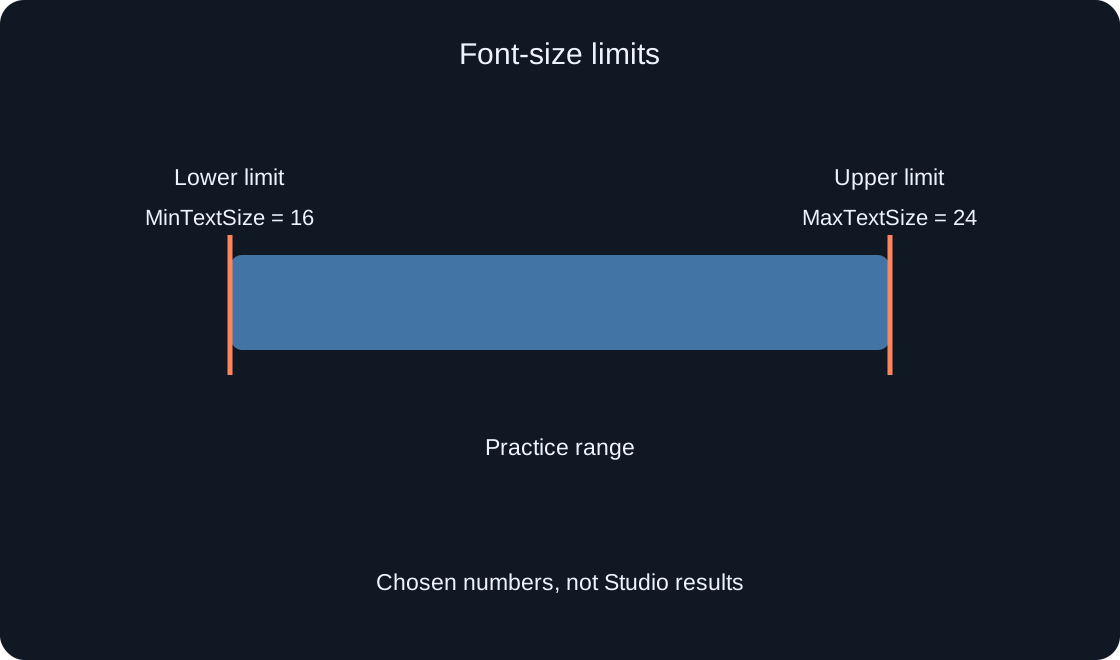
You could begin the exercise with MinTextSize = 16 and MaxTextSize = 24. These are our proposed starting values for comparison, not universal settings or measured results. The minimum must not exceed the maximum. Reviewing the actual font, string, and screen may lead you to choose a different range.
Roblox documentation advises against MinTextSize values below 9 because the text may be hard to read. A value of 9 is not a promise that every label is comfortable to read. Inspect your interface from an ordinary viewing distance and on a real phone when available. An enlarged desktop screenshot cannot demonstrate suitability for every player.
 Open full-size image ↗
Check TextScaled and available space #
UITextSizeConstraint is intended to work alongside TextScaled. Check that property on the selected text object and enable it when practising a scaled label. Text scaling then respects the chosen limits. Record the property's state: comparing two cards with different scaling modes will not isolate the effect of one constraint.
Keep the same string and compare narrow and wide areas. The upper limit bounds font growth, while the lower limit bounds shrinking. Our diagram explains that range without predicting the rendered size in a particular project. Observe line wrapping, height, and room for neighbouring objects separately; font limits do not establish that every part of the string remains visible.
Handle a label that reaches the minimum #
Imagine a long reward name inside a narrow card. Its font has reached the selected minimum but the full string still needs more room. Do not expect the constraint to enlarge the container or shorten the label automatically. Record the conflict: available space, complete text, chosen minimum, and what actually appears on screen.
Choose a response based on the player's task: allow more space, provide multiple lines, shorten the visible label without losing meaning, or place details in another panel. Wrapping and AutomaticSize are separate considerations that need their own checks. Avoid promising that one switch fixes every card; repeat the same string at the same size after any change.
Test different kinds of text #
Prepare a short name, a long name, and a long word without a convenient space. Include a label containing a number if your experience displays quantities or levels. These cases address different risks: a short label may grow too much, a long label may require extra room, and changing numbers may alter width. Use examples relevant to your interface rather than random characters.
Review the item name and the button's verb independently. An action often benefits from a clear short label, with its explanation nearby. In our fictional example, changing “Choose a reward for the next run” to “Choose” is worth considering only when the surrounding context already explains the choice. Preserve important conditions instead of removing them to improve the picture.
| Test string | Separate question |
|---|---|
| Short name | Does it grow excessively |
| Long name | Does the full meaning remain |
| Long word | What happens without a convenient space |
| Quantity or level | Does width change after an update |
Compare languages and reading direction #
Insert actual Russian, English, German, Spanish, Chinese, and Arabic translations. Character counts alone cannot establish how they fit: word length, font, and reading direction affect the result. Keep the card and available area identical for each language so that the comparison answers a clear question.
For Arabic, also inspect text alongside numbers and item names. UITextSizeConstraint concerns font size, rather than element order or translation meaning. A disappearing phrase or a misleading button is a separate problem to record. A successful English version does not verify the other five languages or demonstrate that players understand the translated action.
Repeat the route on a phone layout #
Device Simulator can support a preliminary Studio review using the same item, device profile, and orientation. Open the card, read its title, choose the item, and close the panel. Repeat after rotation. If the route uses a TextBox, separately check whether the on-screen keyboard hides an action the player still needs.
The simulator supports interface comparison but does not prove readability on a physical screen or correct behaviour through every input method. Save the profile and observations, and mark a real-phone check separately. No Studio session or gameplay test was performed for this article; these instructions describe a route you can repeat in your own prototype.
Save evidence and a reason to retest #
Record the text object's path, TextScaled, MinTextSize, MaxTextSize, full string, language, dimensions or profile, and observed outcome. Separate “limits are applied” from “the complete label is readable.” The first can be true while the second fails. Add an action result when the text belongs to a button.
Retest after changing fonts, translations, card structure, or dynamic text. Preserve the examples that exposed the original problem so a later revision does not lose them. A clear record and a completed route provide better evidence than one attractive screenshot. The diagrams and tables are original teaching materials, not a log of actual device trials.
| Record | What to save |
|---|---|
| Settings | Object, TextScaled and both limits |
| Content | Complete string and language |
| Screen | Dimensions, profile and orientation |
| Outcome | Full text, readability and action |
Original sources
Roblox Creator Hub — UITextSizeConstraintRoblox Creator Hub — Size modifiers and constraints