For players / ROBLOX
Roblox screen time: daily limits and experience reports
Find the daily Roblox limit, choose the correct linked child account, and understand why platform time differs from time in individual experiences. Follow separate checks for your own account and a linked parent's view.
Identify whose limit you are checking #
Start by deciding whether you are viewing your own settings or managing a linked child's account. These use different sections. Official Roblox support describes a personal screen-time path through privacy and content restrictions for users aged 13 and older. Managing a child's limit requires a separate parent account linked to that child.
Do not change unrelated settings when the expected section is absent. Check the signed-in account, age-related availability and actual interface options. Labels may appear in another language. This guide follows the official help available when researched; confirm the options in your account. It does not change settings or remove restrictions on anyone's behalf.
Open account settings on your device #
The desktop instructions open Settings through the gear at the upper right. On mobile, the support article points to More followed by Settings. Find Roblox account settings rather than the menu of a particular running experience. When placement changes, follow the section name and official help instead of guessing from a similar-looking icon.
Before continuing, check the signed-in username. Several family members may share a device while using separate profiles. Record the account you are viewing and the question you want to answer. Notes for troubleshooting need the section name and message text; passwords, login codes and identity documents are unnecessary.
Find your own Screen time section #
For users aged 13 and older, the documented personal path is Privacy & content restrictions, then Screen time. Daily limit controls the selected daily limit, while Top experiences shows recent experience activity. Do not assume this path applies unchanged to every child account; available functions depend on the account and current platform rules.
Read the present setting before deciding whether a change is needed. A teaching check can record its value without choosing a replacement. Discuss parent-managed restrictions with the responsible parent. This guide does not suggest another profile or an altered age as a workaround. The purpose is to understand the active setting and use the available controls correctly.
A parent first needs an account link #
Parental tools use an adult's own Roblox account linked to the child's. Official linking help describes an invitation and an Add parent option in the child's Parental Controls. The adult completes age verification and linking agreement in Roblox's official interface. This is a separate process from entering a parent's password into a game.
If a link already exists, do not create another just because a chart is hard to find. Check that the correct parent profile is signed in. If no link exists, consult the official linking article and follow its actual steps. This guide performs no identity verification and collects no documents. Remove private details from screenshots used to discuss a problem.
Select the child before adjusting a limit #
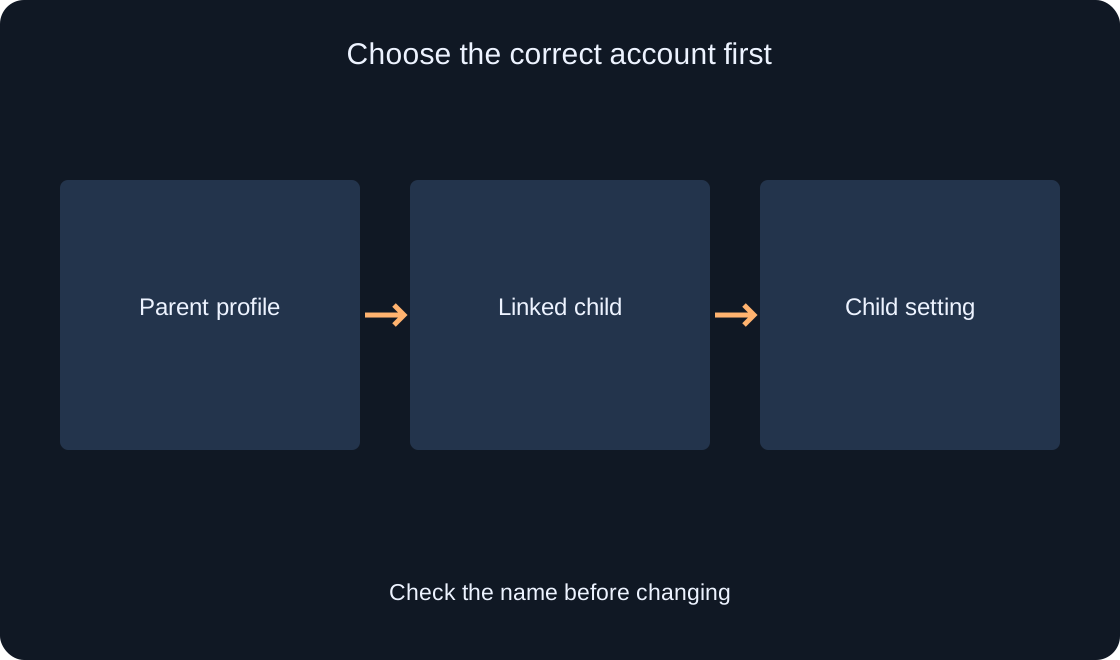
Open Parental Controls in the parent's account. When multiple child accounts are linked, select the one whose restriction you intend to review. Find Screen time and Manage beside the chart. The support article describes a seven-day average on this chart. Observed usage and a selected daily rule are different pieces of information.
Imagine two fictional family profiles named North and South. The family discussed a rule for North, so the adult checks that name before changing anything. A small worksheet can keep three fields: selected profile, existing setting and agreed action. This original example helps avoid applying a correct value to the wrong account.
 Open full-size image ↗
Check Daily limit separately from the chart #
Within screen-time management, find Screen time limit and the Daily limit dropdown. Read the available choices and current value. Do not interpret a chart number as the configured restriction: the chart describes use, while the dropdown describes a rule. Choose any actual limit through the family's agreement rather than a random number in an article.
After an authorized change, check the displayed setting and selected profile again. Follow any save or confirmation prompt actually shown. Opening a menu alone does not prove a new rule is active. In your notes, distinguish reading a value, choosing another value and checking the saved setting.
Understand a reached-limit message #
Official help says that a child who reaches the daily limit sees an explanation and cannot use Roblox for the rest of the day. The restriction concerns platform screen time, so switching between Roblox experiences is not a solution. Read the exact message first to distinguish it from a connection error or an unavailable game.
If the message is unexpected, record the observation time, account and visible setting, then discuss it with the managing parent. The source does not specify a universal reset timezone, so this guide cannot promise access at midnight in your local time. Use official support and observed facts for unexplained behavior rather than attempts to bypass the rule.
Compare platform time and experience time #
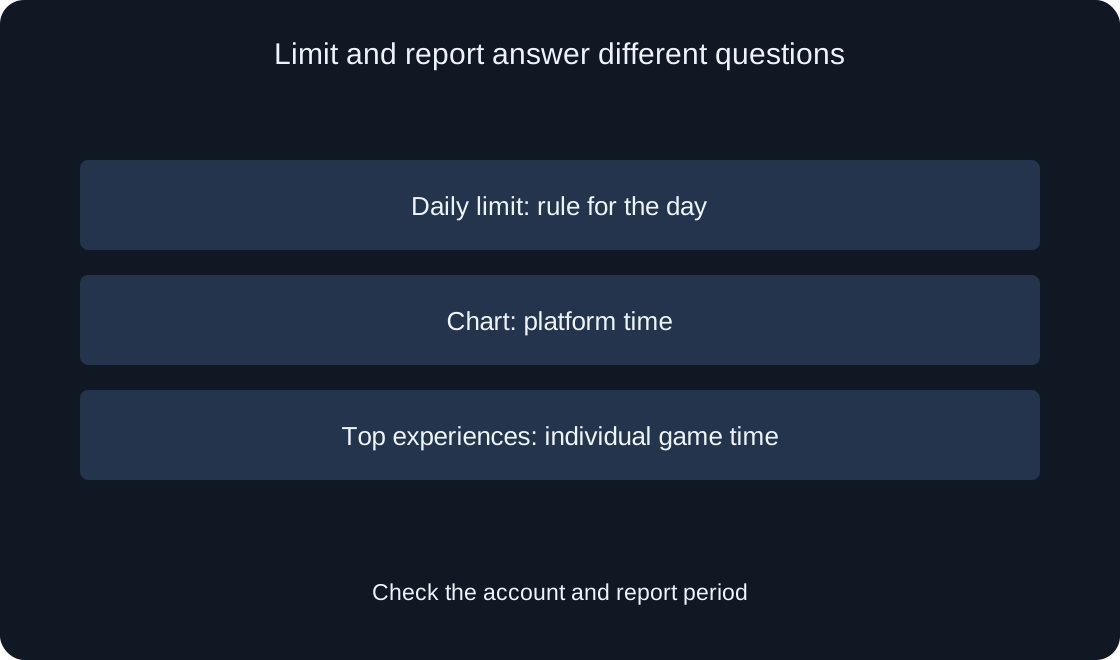
Top experiences is described as the twenty most-used experiences from the previous week. The list includes experience information, content maturity and playing time. The overall screen-time chart covers the Roblox platform; the experience list concerns individual games. They answer different questions and need not display identical totals.
On a teaching worksheet, separate platform time from time in individual experiences, and label the period and account. Different figures alone do not establish missing data. Official help also notes that removed experiences do not appear in this list. An absent row therefore does not prove that the experience was never played.
 Open full-size image ↗
Describe a missing option precisely #
Check the signed-in profile, existing parent link, selected child and intended section in that order. Compare the current official help. Phone or computer restrictions belong to a separate layer of management; a similar message does not turn a device-level rule into a Roblox setting.
For support, prepare the device, section path, exact message and expected action. Avoid diagnosing from a single screenshot. If the message is from the device system, identify that system first. Do not unlink accounts as a random repair attempt: official linking help states that unlinking removes the parent's ability to manage the relevant controls.
| Visible item | Meaning |
|---|---|
| Daily limit | Chosen daily boundary |
| Screen time chart | Platform usage |
| Top experiences | Time in specific games |
| Limit message | Restriction reached |
Keep a useful check record #
A completed record should state which profile was checked, what setting was visible, which period the report covered and what was actually done. Viewing a report and reading a rule differs from a parent changing a rule and checking the new value. This is more useful than saying everything is configured.
Use the report to discuss habits and an appropriate schedule. When another question arises, begin with the confirmed profile and specific message. This article explains Roblox screen-time tools; it does not confirm personal settings or measure time on this website. A platform usage limit and a website analytics goal are different measures.
| Record field | Include |
|---|---|
| Account | Confirmed profile |
| Setting | Current visible value |
| Period | Report period |
| Action | Viewed or saved change |
Original sources
Roblox Support — Managing Screen TimeRoblox Support — Parents: How to Link Your Child’s Account